
Configure Program Goals
This article explains how admins can configure a goal for a program in Journey Orchestrator to measure engagement or business outcomes.
Overview
A goal links a program to a measurable result. Each program supports one goal and tracks a single achievement per account within a defined attribution window. After an account meets the goal criteria, the achievement is permanent and is retained even if the underlying value changes later.
- Only one goal can be configured per program. To measure a different period or metric, create a separate program.
- A goal can only be added to a newly created program. It cannot be added to a published program.
Add a Goal
Add and configure the Goal in the program to a specific outcome you want to track and
To add a program goal:
- Create a new program in the Program Editor Page.
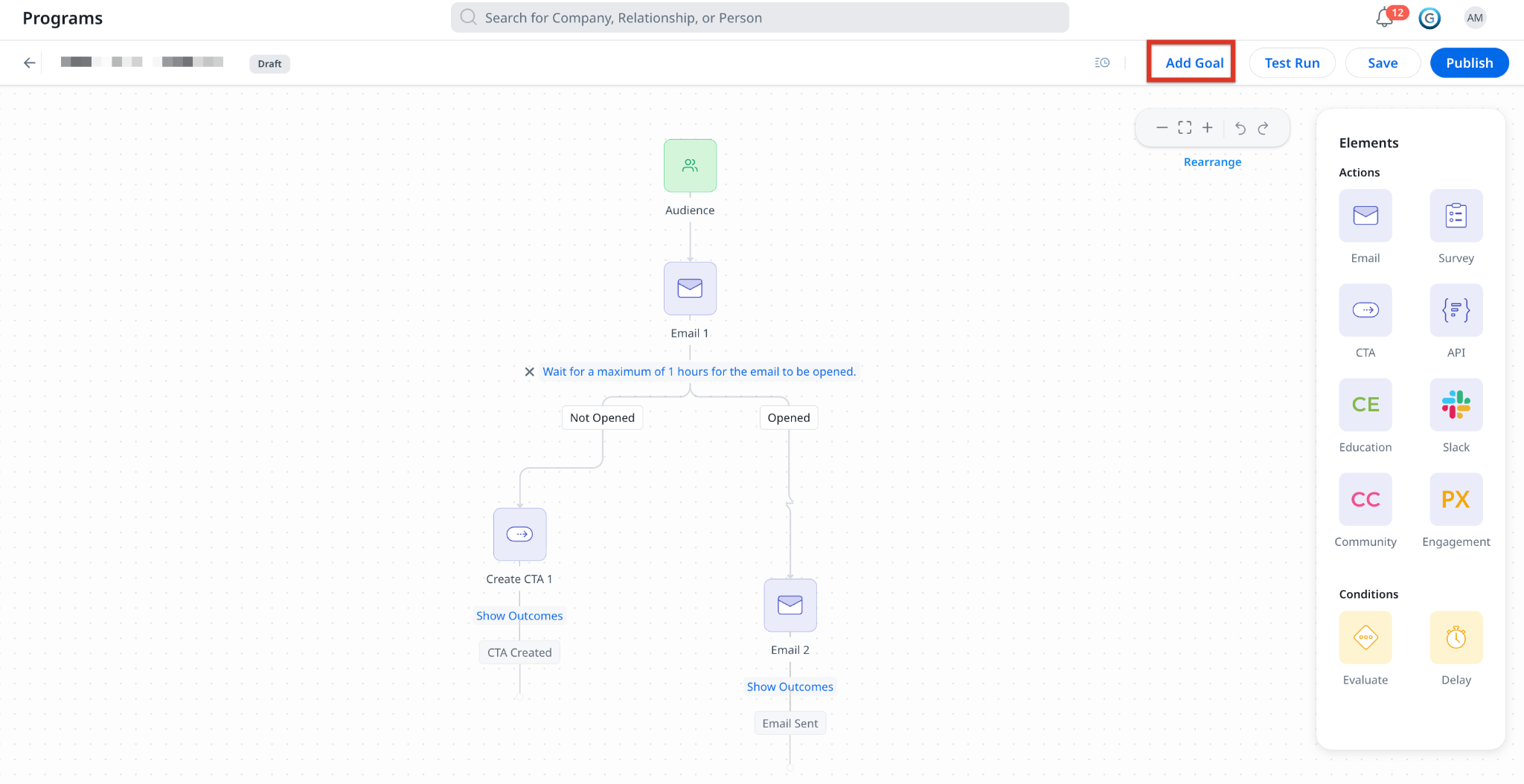
- Click Add Goal. The Goal Definition dialog appears.
- In Define Type, select Buiness Outcome or Engagement. Two goal types are available:
- Business Outcome: Tracks a value in a source data field.
- Engagement: Tracks participant interaction with program communications, such as open rates, click rates, and survey responses.

Configure a Business Outcome Goal
A Business outcome-based goal tracks a change in a Gainsight data field on the program's source entity. The entity (Company or Relationship) is inherited from the program source and cannot be changed.
To configure a Business outcome goal:
- From the Select a field dropdown, select the field that defines the goal. The eligible fields in the source are displayed.

- (Optional) Select the Map financial value checkbox and select a currency field. To track the Financial Goals

- In the Define criteria for goal section, select an Operator and a Value Type. The Field displays the selected goal field and is read-only. Available operators depend on the field type:
- Numeric, Date, and Currency: Greater than, less than, greater than or equal, less than or equal, equals, increased by at least (delta), and decreased by at least (delta).
- Multi-Select Picklist: in and not in.
The fields are classified into the following data types:
| Data Type | Example Fields |
|---|---|
| Numeric | Health Score, NPS, Support Tickets |
| Currency | ARR, MRR, Contract Value |
| Date | Renewal Date, Onboarding Completion Date |
| Multi-Select Picklist | Lifecycle Stage, Risk Flags |
- Select Value Type from the drop-down from the following:
- Baseline: This system considers the base value or starting value of the program.
- Custom: Provide a custom value.
- In the Define a duration to accomplish the goal, enter the attribution window in days.
Note: The window begins on the date the account's first participant enters the program.
- (Optional) Set a Tracking Cutoff date after which new participants are no longer tracked for goals.
- Click Save.

After the goal is saved, it becomes active and begins evaluating.
Configure an Engagement Goal
An engagement-based goal tracks participant interaction with the program's communications.
To configure an engagement goal:
- From the Select a metric dropdown, select one of the following:
- Email Open Rate: Tracks the percentage of participants who opened the selected email in the program.
- Overall Open Rate: Tracks the percentage of participants who opened any email in the program.
- Click Rate: Tracks the percentage of participants who clicked the selected static link in the program.
- Click Rate (Step & Link): Tracks the percentage of participants who clicked the selected link in a specific email step.
- Survey Response Rate: Tracks the percentage of participants who responded to the selected survey.

- Select the tracking target for the metric. For step-level metrics, select the required email step from the Choose a Step dropdown.

- In the Define Criteria for goal field, enter the target percentage the goal should achieve in the Value (%) field.

- From the Define a duration to accomplish the goal drop-down, select one of the following:
- 7 days
- 14 days
- 30 days
- 60 days
- 90 days
- 365 days
- (Optional) Set a Tracking Cutoff date.
Note: New participants who enter the program after this date are enrolled but are not tracked for goals, and existing windows continue to completion. If no cutoff date is set, the goal is till the end of the goal duration
- Click Save.

After the goal is saved, it becomes active and begins evaluating current and future participants immediately.
Goal Analytics
You can use the Goal Stats widget in the Program Analytics dashboard to monitor goal completion, financial attribution, and the status of tracked participants or accounts. The following details can be
- Goal Completion: Displays the success rate as a percentage with an achieved-of-total subtext (for example, 48 of 75 achieved). A linear progress bar represents the achievement rate. If a success-rate target is set, a vertical marker appears at the target percentage.

- Financial Attribution: Visible only when financial attribution is enabled. Displays the total attributed value, formatted as currency, with a count of accounts that have attribution. The View details link opens a list of accounts with each account's attributed financial value.

- Widget Drill-Down: The drill-down Goal stats and Financial widget shows lists participants with goal status, entry date, and days to goal. The drill-down for buisness outcome goals lists accounts with goal status, baseline value, current value, and attributed financial value.
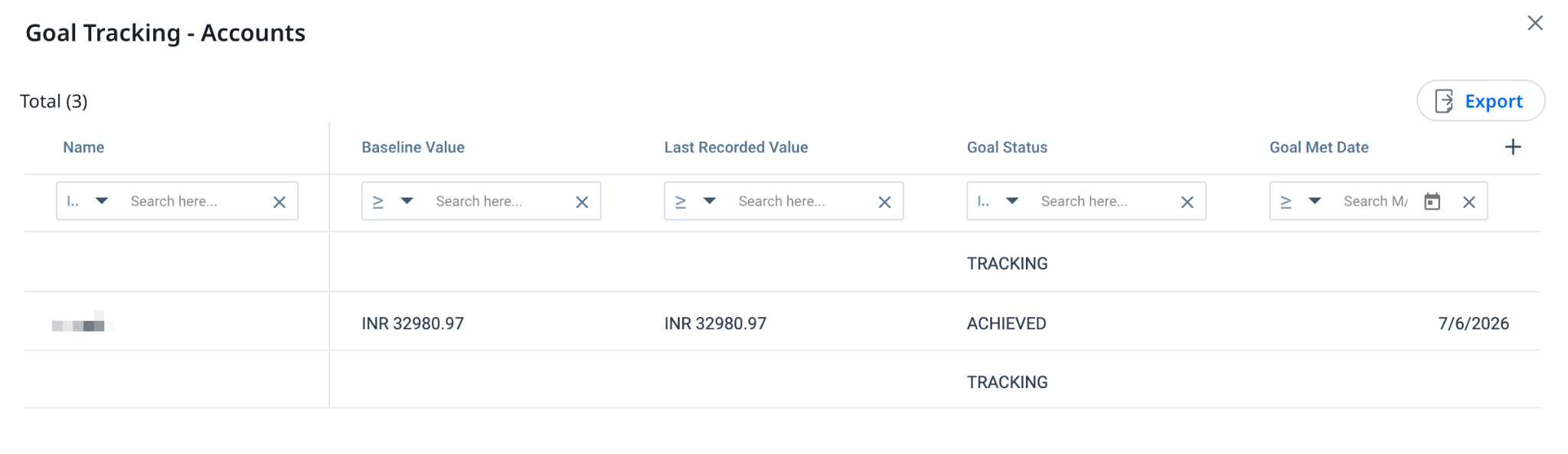
In the widget drill-down, each Goal for a participant moves through the following states:
| Status | Definition |
|---|---|
| Tracking | The account is within the attribution window, and the goal is not yet met. |
| Achieved | The goal criteria were met within the window. This status is permanent and is retained even if the field value later regresses. |
| Expired | The attribution window ended without the goal being met. |
| Ineligible | The participant was removed or exited, or the baseline was null for a delta or date goal. |