
Gainsight NXT
This article explains to admins about how to create a connection from Gainsight to Zendesk, create a data job, merge datasets, configure job or Job chains in Gainsight, and also about Out of the Box (OOB) Jobs provided by Gainsight in the Zendesk Integration.
Note: This document provides general guidance on creating a Connection and setting up Jobs because the use case of each job is different and needs unique configuration. For detailed information on creating any Job, refer to the Configuration of Connectors in the Additional Resources section at the end of this article.
Overview
Zendesk's support ticketing system is designed to help track, prioritize, and solve customer support interactions. It helps you nurture your customer relationships with personalized, responsive support across any channel.
Gainsight integration with Zendesk allows you to pull Zendesk Tickets, Organizations, Users, and Brands to Gainsight. Once Zendesk data is pulled, admins can generate strategic reports on these objects, trigger health scores based on support data, and more.
Additionally, this integration allows Zendesk users to access Gainsight data through the Gainsight widget in Zendesk. After creating a Zendesk connection in Gainsight, you can install the Gainsight widget in Zendesk to view the Gainsight data. For more information, refer to the Gainsight widget in Zendesk in the Additional Resources section at the end of this article.
The following are the list of supported source and target objects:
Source Objects (in Zendesk) | Target Objects (in Gainsight) |
|---|---|
Tickets | Case |
Organizations | Customer Defined in Data Management (Custom) |
Users | User |
Brands | Customer Defined in Data Management (Custom) |
Benefits of the integration
Seeing the full picture of Customer Success with Zendesk data in Gainsight.
After enabling Gainsight widget, you can coordinate across Customer Success and Support Teams by creating and linking Call to Actions (CTA) to Zendesk tickets from the Gainsight widget.
Syncing data like tickets created along with their status and priority, is crucial for understanding the health of your customers in Gainsight.
Limitations
Gainsight does not pull data from any Custom objects in Zendesk.
Gainsight does not pull Zendesk ticket’s comment from Zendesk.
Gainsight can only ‘Upsert’ records from Zendesk to Gainsight.
Gainsight widget inside Zendesk can be connected to only one instance of Gainsight.
Create Connection
Admins can create a Zendesk connection in the Connectors 2.0 page to integrate Gainsight with the Zendesk instance.
Note: You can test the Zendesk connector in Gainsight sandbox, before authorizing the Zendesk connector in Gainsight production.
To create a connection with Zendesk and pull data with Gainsight:
Navigate to Administration > Connectors 2.0.
Click Create Connection. Create Connection dialog appears.
From the Connector dropdown list, select Zendesk.
Enter Name of the Connection.
In Site Address, enter the subdomain of the Zendesk. For example, If your Zendesk URL is https://gainsight123.zendesk.com then Site Address will be gainsight123.
Click Authorize to validate the connection.
Note: OAuth is supported to validate the Zendesk connection.After you click Authorize, the Zendesk Oauth pop-up window appears, and complete the authorization by entering the Zendesk instance credentials.
To complete the authorization, ensure that you are an Admin and not an Agent or an End-User. Otherwise, Zendesk ticket sync will not work as expected. Admin role has access to use incremental API to fetch data from Zendesk.
After Sign in, click Allow to grant permission to the Gainsight widget to access your Zendesk account. Once the authorization is successful, a confirmation message appears. The Gainsight widget now gets integrated with Zendesk.
Note: Gainsight will have read access to fields for which access is granted to the user used in OAuth, but will pull only the fields mapped in the jobs.
For more information, refer to the Connections List Page in the Additional Resources section at the end of this article.
Re-authorize Zendesk Connector
You can use this option to re-authorize a Zendesk connection with the same or different Zendesk admin. For example, if the administrator who had initially authorized the Gainsight connection leaves the company, you can use this option to authorise the connection with the new administrator.
To re-authorize the Zendesk Connection:
Navigate to Administration > Integrations > Connectors 2.0.
Click the three dots menu of the Zendesk Connection and select Re-Authorize Connection. Zendesk OAuth pop-up window is displayed.
Enter the Zendesk Email and Password.
Click Sign in to authorize the connection.
Context Menu Options
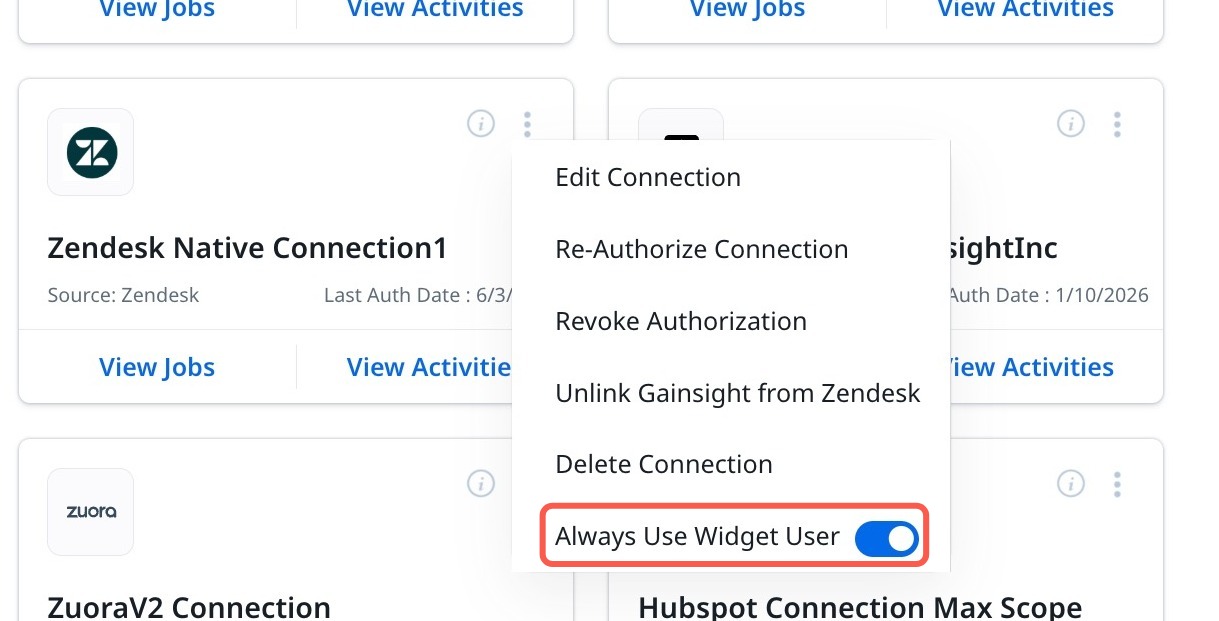
Once you authorize the connection, configure your connection with one of the following context menu options, as required:
Edit Connection: This option modifies the Zendesk connection details.
Re-Authorize Connection: If the existing connection is revoked or Zendesk user credentials are changed, use this option to re-authorize the Zendesk connection and provide the new set of credentials.
Note: If you change the password of the Zendesk instance then the connection from Gainsight with Zendesk is disconnected, after which all the jobs are paused.
Revoke Authorization: This option revokes the connection from Gainsight with Zendesk.
Link Gainsight to Zendesk: Once you establish a connection to a Zendesk instance, you must select this option to display the current Gainsight instance in the connected Zendesk instance. Once a link is established, you can also unlink your Gainsight instance with Zendesk instance. If you have multiple Zendesk connections, only one connection can be linked with Gainsight.
Delete Connection: Delete the Zendesk connection, if the associated Job Chains and data jobs are deleted.
Always Use Widget User: Routes all widget interactions through the dedicated Zendesk widget user, bypassing individual user matching.
Out of the Box Jobs
After the Zendesk connection and authorization successfully completed, Gainsight provides OOB jobs in the Jobs page to sync important data such as Zendesk Tickets and Users, which are required for the assessment of data in Gainsight. Following are the two OOB jobs and their mapping details:
Cases Sync: This job syncs Zendesk tickets/cases into Cases object in Gainsight.
Users Sync: This job syncs Zendesk users into User object in Gainsight.
Sync Zendesk Tickets with Gainsight (OOB)
Gainsight provides an OOB job in the Jobs page to sync Zendesk tickets into Case object in Gainsight. In the Tickets OOB job, to get the data on Zendesk Tickets created by each User or Agent in an Organization, the following configurations are provided out of the box:
Four Zendesk objects (Organizations, Tickets, Users, and Agents) are used in this job.
These objects are merged as explained below and then mapped to the target Gainsight object.
In Add to Destination,
Direct Mapping is used to map from the final merged output to the target Gainsight fields.
Derived Mapping is used to populate the Gainsight GSID of the Users and Agents who created the tickets in the target object.
Note:
Gainsight strongly recommends you not to uncheck the mapping between Organization ID (from the Tickets Object) and Target Org ID (from the Case Object) in the Add to Destination as it may fail to load data into Company fields for the respective tickets.
If you are doing historical sync for Cases Standard job and the data is very huge i.e. more than 100K records, then kindly reach out to Gainsight support to increase the default job run time to eight hours.
Source Objects
The following fields are selected in each Zendesk object:
Zendesk Organization fields | Zendesk Ticket fields | Zendesk User fields | Zendesk Agent fields |
|---|---|---|---|
Name | Assignee ID | ||
External ID | Created At | External ID | ID |
ID | ID | ID | |
Priority | |||
Organization ID | |||
Problem ID | |||
Requester ID | |||
Updated At | |||
ID | |||
Subject | |||
Status | |||
Type | |||
Description |
Fields in Merge and the Criteria
The following are the fields and merge criteria selected in the each objects merge:
Organizations+Tickets:
Join Type: Right
Id, name, external id, Updated At
Organizations
Tickets
Assignee ID, Created At, ID, Priority, Organization ID, Problem ID, Requester ID, Updated At, ID, Subject, Status, Type, Description, Metric_set.solved_at
Merge Criteria: Zendesk organizations - id = Zendesk tickets - Organization ID
Organizations+Tickets+Users:
Join Type: Left
Organizations
Users
Assignee ID, Created At, ID, Priority, Organization ID, Problem ID, Requester ID, Updated At, ID, Subject, Status, Type, Description, Name, metric_set.solved_at
Email, External ID, User ID, Updated At
Merge Criteria: Organization+Tickets - Requester ID = Zendesk Users - Users ID
Organizations+Users+Tickets+Agents:
Join Type: Left
Organization+Tickets+Users - Assignee ID = Zendesk agents - Agent ID
Organizations+Users+Tickets
Agents
Assignee ID, Created At, Priority, Organization ID, Problem ID, Requester ID, Updated At, ID, Subject, Status, Type, Description, ID, Email, name, metric_set.solved_at
Email, Agent ID, Updated At
Merge Criteria:
Organization+Tickets+Users - Assignee ID = Zendesk agents - Agent ID
Add to Destination
In the configuration of the Add to Destination, Gainsight offers out of the box direct mappings and derived mappings as explained below:
Direct Mappings
The following table shows direct field mappings between the Output dataset (Organizations+Tickets+Users+Agents) and the target Gainsight object, when you sync Merged Data (Organizations+Tickets+Users+Agents) with Gainsight.
Zendesk Source Fields from Merged Data | Add to Destination (Case) |
|---|---|
Subject | Case Subject |
Description | Case Description |
Priority | Case Priority |
Status | Case Status |
ID | External ID |
Created At | Created Date at source |
Updated At | Modified Date at source |
Type | Case Type |
Derived Mappings
In the OOB Derived Mapping tab, the following table shows the values that are selected for the derived mapping configurations:
Fields | Values |
|---|---|
Target Field: Assignee ID (GSID) | |
Select Source | |
Select Lookup | Compound Field Mapping |
Source Object | User |
MATCH BY SOURCE | |
MATCH BY OBJECT | |
When Multiple Matches Occur | Mark record with an error |
When No Matches Are found | Insert Null Value(s) |
Select Target Field | Assignee ID |
Target Field: Company ID (GSID) | |
Select Source | name |
Select Lookup | Compound Field Mapping |
Source Object | Company |
MATCH BY SOURCE | name |
MATCH BY OBJECT | Name |
When Multiple Matches Occur | Mark record with an error |
When No Matches Are found | Reject Record |
Select Target Field | Company ID |
Target Field: Requester ID (GSID) | |
Select Source | |
Select Lookup | Compound Field Mapping |
Source Object | Person |
MATCH BY SOURCE | |
MATCH BY OBJECT | |
When Multiple Matches Occur | Mark record with an error |
When No Matches Are found | Insert Null Value(s) |
Select Target Field | Requester ID |
For more information on how to configure the data jobs, refer to the Jobs List Page in the Additional Resources section at the end of this article.
Sync Zendesk Users with Gainsight (OOB)
Gainsight provides an OOB job in the Jobs page to sync Zendesk Users with Gainsight. In the User OOB Job:
Zendesk User object is selected as the source object in the dataset preparation and the following source fields are selected.
A filter is added to filter the tickets created by Agents.
The Zendesk source fields are mapped with the Gainsight target fields through the Add Destination configuration.
Note: In User Sync jobs, only the fields from User Object can be selected as Identifiers. Fields from Avatar objects cannot be selected as Identifiers
Following are the fields and their mapping in the Add to Destination:
Zendesk User Fields | Target Fields in Gainsight (User) |
|---|---|
Username | |
Active | Active |
Name | Name |
ID | ID |
For more information on how to configure the data jobs, refer to the Jobs List Page in the Additional Resources section at the end of this article.
Create a Custom Job
From the Jobs page, create jobs to sync data from available Zendesk source objects into standard or custom objects in Gainsight. Any new field added in Zendesk source object gets reflected automatically for fields mapping in existing/new jobs. For more information, refer to the Jobs List Page in the Additional Resources section at the end of this article.
Note: In the Add to Destination, admins must map the Organization ID (from the Tickets Object) and Target Org ID (from the Case Object) to load data into Company fields for the respective tickets.
(Optional) You can Create multiple data jobs as required. If the data jobs in a connection are dependent on each other, create a Job chain in a sequence and configure the schedule for the Job Chain. For more information, refer to Job Chain Page in the Additional Resources section at the end of this article.
Merge Datasets
You can Merge two source objects or datasets together and create an output dataset. For example, merge Tickets and User datasets to sync the details of users created the tickets and number of tickets created by each user. For more information on Merge, refer to the Jobs List Page in the Additional Resources section at the end of this article.
Transform Data
In the Preparation step of a connector job, admins can transform data and Add Case Fields to get more meaningful insights from the customer data.
Example Business use case: The Transform function provides the capability to create or modify new case fields. The new case fields can be used to modify the external field as per the consumption requirement in Gainsight’s data model. Case fields can be defined to populate different values for different case conditions. For example, External picklist values such as New, Open, and Closed can be modified to Active and Inactive to match Gainsight’s picklist values.
For more information on Transform Data, refer to the Jobs List Page in the Additional Resources section at the end of this article.
Add to Destination
Once the final output dataset is prepared, add a destination to the output dataset to sync data from the source to the target Gainsight object. For more information on Add Destination, refer to the Jobs List Page in the Additional Resources section at the end of this article.
Direct Mappings
To sync data from an external system to Gainsight using Direct Mappings, you must map fields from the external system's source objects to Gainsight's target objects. The data sync happens based on the configured field mappings. For more information on Direct Mappings, refer to the Jobs List Page in the Additional Resources section at the end of this article.
Note: Gainsight doesn’t support fetching all records from a multi-picklist data type field. Only the first value from an array or multi-picklist data type will be imported into Gainsight if you map the field using direct mapping
Derived Mappings
(Optional) You can use Derived Mappings to populate values in an object's field (of the GSID data type) with values from the same or another standard Gainsight object. Lookup is used to accomplish this, and you can match up to six columns in the lookup.
Note:
To use Derived Mappings, your Target Object must have at least one field of data type GSID.
Cases Sync Job will ingest all records even if the organization is not present against an case. To exclude these records, kindly apply a filter where organization are not null.
For more information on the Derived Mappings, refer to the Jobs List Page in the Additional Resources section at the end of this article.
Job Chain
The Job Chain feature helps simplify the process of scheduling a group of related Jobs that you need to run in a particular sequence. This sequence is based on the scheduled time of the Job Chain. For example, if Job A and B are in a sequence, ‘Job B‘ automatically starts as soon as ‘Job A’ completes, and there is no need to schedule a job separately.
Note: If a Job is added in a Job Chain, then the individual job schedule is ignored and the Job Chain’s schedule is considered and the jobs are run as per the sequence of the jobs in the Job Chain.
Business Use Case: If Admins want to sync tickets data into cases object in Gainsight, they need to sync the users data before syncing tickets data. This is required so that important ticket information like assigned and requester are populated in the respective fields without any error.
For more information on the Derived Mappings, refer to the Job Chain page in the Additional Resources section at the end of this article.
Configure Job or Job Chain
Configure the schedule of a data job or Job chain as required. For more information, refer to the Configure Job or Job Chain Schedule in the Additional Resources section at the end of this article.
If you create a Job Chain by adding multiple Jobs in a sequence and add a schedule to the Job Chain, the schedule of the individual jobs is not honored.
Job Activities
You can view the Execution and Update Activities of all the data jobs in the Activity page. Download the logs of the job execution from this page to help troubleshoot the configuration issues. For more information, refer to the Activity Page in the Additional Resources section at the end of this article.
Gainsight Widget in Zendesk
The Gainsight widget in Zendesk helps you visualize a Company’s summary, attributes, usage data, call to action, and organizational mapping. On the right hand side pane of your Zendesk instance, click the menu icon to populate the Gainsight widget.
For more information, refer to the Gainsight widget in Zendesk in the Additional Resources section at the end of this article.
Bulk Mapping of Zendesk organizations
The Org Mapping Setup feature enables you to accelerate and automate the process of mapping Zendesk organizations to Gainsight Companies. You can upload a CSV file containing a bridge table for Zendesk organizations and Companies.
Note:
Gainsight automatically maps Zendesk Organizations to Gainsight Companies as part of the Cases Out of the Box (OOB) feature. However, you can use this feature to update the mappings if you want to change them.
If you already have the Zendesk organization and Company stored in the Company object, you can use that object directly in Derived Mapping Options.
Data Upsert is performed when you choose Derived Mapping, Manual Mapping or Upload via CSV.
Validation is performed on Company Id when a CSV is uploaded.
For more information, refer to the Bulk Mapping of Zendesk organizations to Gainsight Companies in the Additional Resources section at the end of this article.
Additional Resources
For more information about Connectors, refer to the following articles: