This article explains how to sync Gainsight PX data to Segment, by using the Segment integration.
Overview
Gainsight PX allows you to sync data to Segment. Currently, you can only sync engagement data to Segment from PX. You can use the Segment integration to perform this data sync operation. The data is sent as custom events to Segment, by using the Segment Track call. For more information, refer to the Segment Track Call article from the Additional Resources section. This feature allows you to send PX data to any third party application via Segment.
Prerequisite
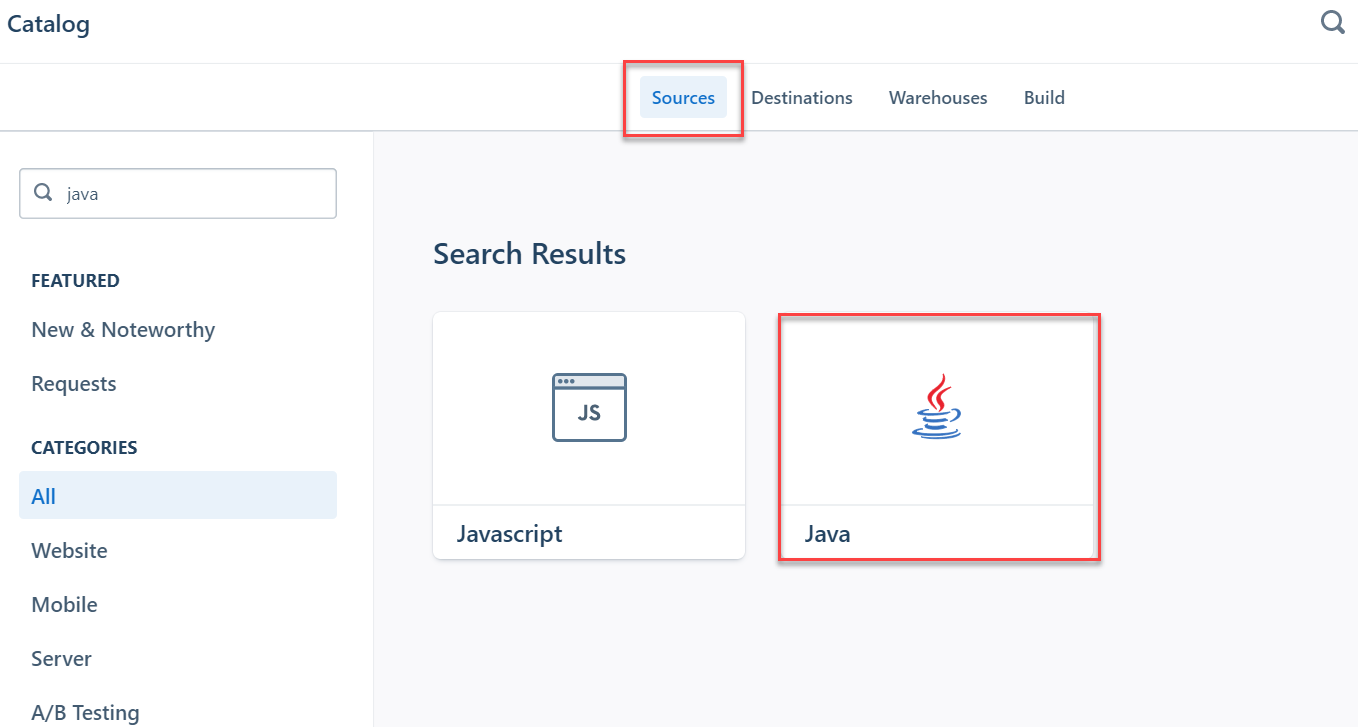
Before configuring the widget, you must create a Java-based Source in Segment. Once you create the source, you must note down the Write Key of your source. This key is required to configure the Segment widget. For more information on how to create sources in Segment, refer to the Connections article from the Additional Resources section.
Configure Segment Integration
To configure the Segment Integration:
Navigate to Administration > Integrations. Segment appears in the list of Data Integrations.
Click the Settings icon. Segment Settings window displays.
Click the Push to Segment tab.
Turn the toggle switch on for Select engagement events data.
Select a Product from the drop-down menu.
Select an Environment from the drop-down menu.
Paste your segment source key in the Segment Key field.
Click Add.
Click Apply.
The engagement data from the selected Product and Environment is synced to Segment. You can create multiple sources in Segment based on the number of products and environments you have. However, a source in Segment can send data to only one destination and not multiple destinations.
The engagement data from PX to Segment is sent as Custom Events. Currently, there are two custom events that are sent; GPX In-App Guide and GPX in-App Survey. The GPX In-App Guide event sends data for a Dialog, Slider and Guide engagements. The GPX in-app survey event sends data for all the surveys (currently data is not sent for a Multi-question survey and Email engagement).
The list of parameters sent by the events are:
GPX In-App Guide Event Parameters
Field Name | Field Value | Description |
|---|---|---|
Type | Guide, Slider, Dialog | |
ID | String | GPX engagement ID |
Name | String | |
Interaction | Viewed, Viewed step, Completed, Clicked | |
Step number | Integer | In case of an in-app guide, slider the field will be populated with the step number. |
Activation | Auto, Bot, Badge, JourneyOrchestrator | |
Execution ID | Runtime id for the current engagement to allow for event grouping. | |
Execution date | Date | In addition to the event timestamp, this field is a unified runtime date for the current engagement to allow for event grouping by instantiation timestamp. |
GPX In-App Survey Parameters
Field Name | Field Value | Description |
|---|---|---|
Type | NPS®, CES, Boolean, Rating | |
ID | String | GPX engagement ID |
Name | String | |
Interaction | Viewed, Viewed step, Completed, Clicked | |
Score | Integer | In case of score based survey, the value will be passed via the score field. |
Score type | Promoter, Detractor, Passive | Relevant to NPS® only |
User input | String | Represents user input/comment/open text questions |
Activation | Auto, Bot, Badge, Journey Orchestrator | |
Execution ID | Runtime id for the current engagement to allow for event grouping. | |
Execution date | Date | In addition to the event timestamp, this field is a unified runtime date for the current engagement to allow for event grouping by instantiation timestamp. |
Additional Resources
Net Promoter®, NPS®, NPS Prism®, and the NPS-related emoticons are registered trademarks of Bain & Company, Inc., NICE Systems, Inc., and Fred Reichheld. Net Promoter ScoreSM and Net Promoter SystemSM are service marks of Bain & Company, Inc., NICE Systems, Inc., and Fred Reichheld.