
IMPORTANT
The functionality described in this article is not applicable to the Skilljar Starter package.
This setting allows you to set a Correct/Incorrect answer feedback message on any automatically graded questions (Multiple Choice, Multiple Answer, or Fill in the Blank).
To enable automatic feedback on a quiz question
Within a quiz, click the Settings tab.
Check the "Enable Question Level Feedback" box

Save the quiz when complete.
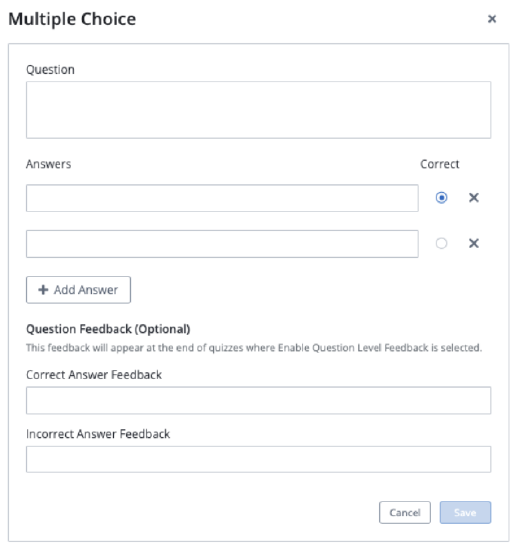
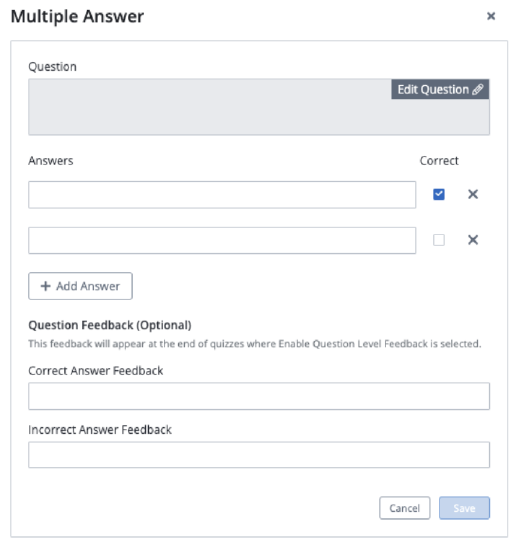
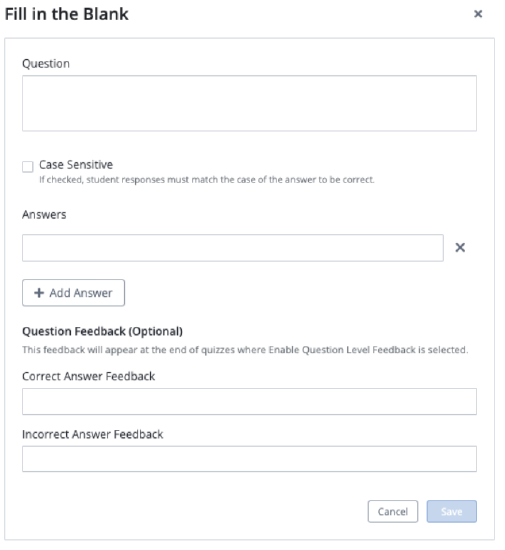
Question level feedback can be configured during the creation of the question in a quiz or question bank and can be edited at any time. By default the Correct Answer Feedback and Incorrect Answer Feedback will not be displayed in the Show Answers view after the student completed the quiz.
Multiple Choice
Multiple Answer
Fill in the Blank
When the Enable Question Level Feedback setting is selected, students will see the feedback on the Show Answer view after they completed the quiz:
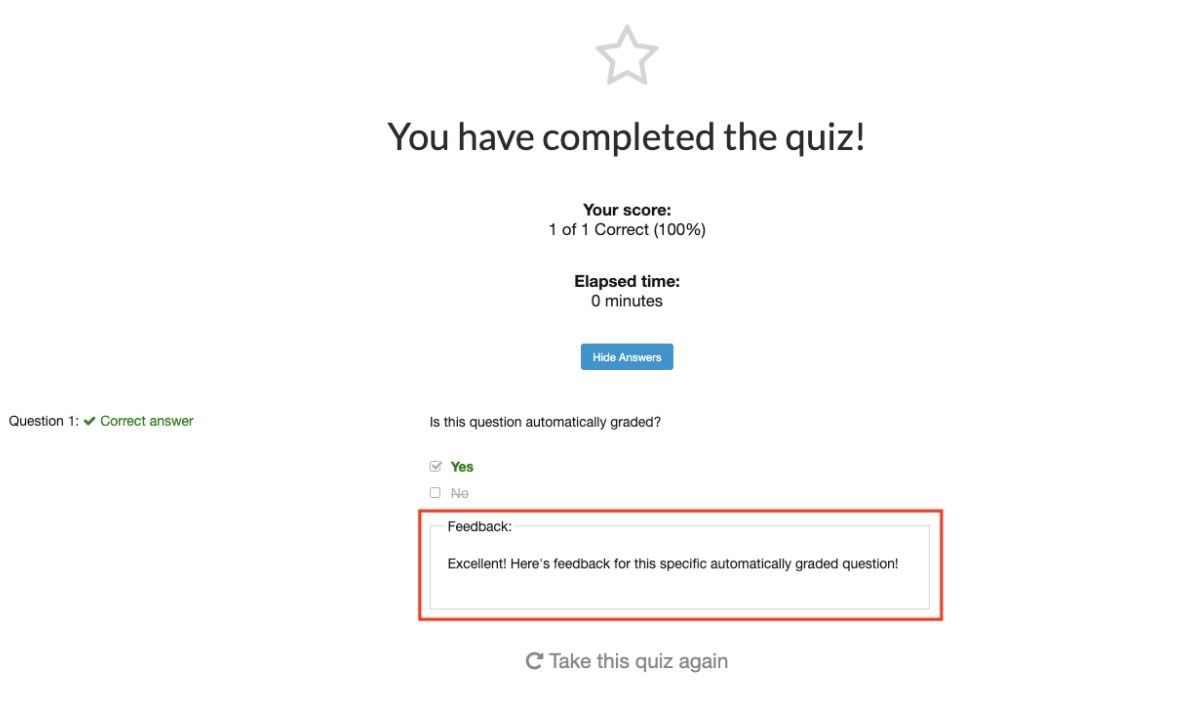
The feedback box will be hidden on the Show Answers view if no feedback was entered by the admin.
For more information, refer to Create and Manage Quizzes.