This article explains how to connect and manage Digital Customer Hub (DCH) Integration to bring Gainsight Customer Communities content into PX In-App Hub.
Overview
The Digital Customer Hub (DCH) Integration connects Gainsight PX with Gainsight Customer Communities to deliver a unified content experience within In-App Hub. The integration enables users to discover community discussions, and knowledge articles directly within your application.
DCH Integration serves as the foundation for capabilities such as Federated Search, AI-powered answers, and Community content widget experiences.
The integration provides the following capabilities:
Centralized connection management: Connect PX subscription through Customer Communities and view the connection status in PX.
Unified content discovery: Search across Customer Communities and PX content through Federated Search in In-App Hub.
AI Overview: Display AI-generated answers to search queries, along with relevant sources, to help users find information faster.
Unified user authentication: Allow users to access authorized Community content within In-App Hub without signing in to Community separately.
Flexible content configuration: Configure Community Categories and Product Areas directly within In-App Hub.
Prerequisites
Before using DCH Integration in Gainsight PX, ensure that:
You have administrator access to your Gainsight PX subscription.
Your organization uses Gainsight Customer Communities.
Your PX subscription is connected to DCH through Gainsight Customer Communities.
Note
The DCH connection must be established by your Community administrator. For more information, refer to the Connect Gainsight PX to DCH section.
Connect Gainsight PX to DCH
The DCH connection is established through Gainsight Customer Communities. Once connected, DCH-powered capabilities become available in PX In-App Hub.
To connect PX to DCH, log in to Gainsight Customer Communities and navigate to Settings > Hub Connections.
In the Hub Connections page, select the PX subscription you want to connect and complete the configuration. For more information, refer to the Connect Gainsight PX to Your Community Hub article.
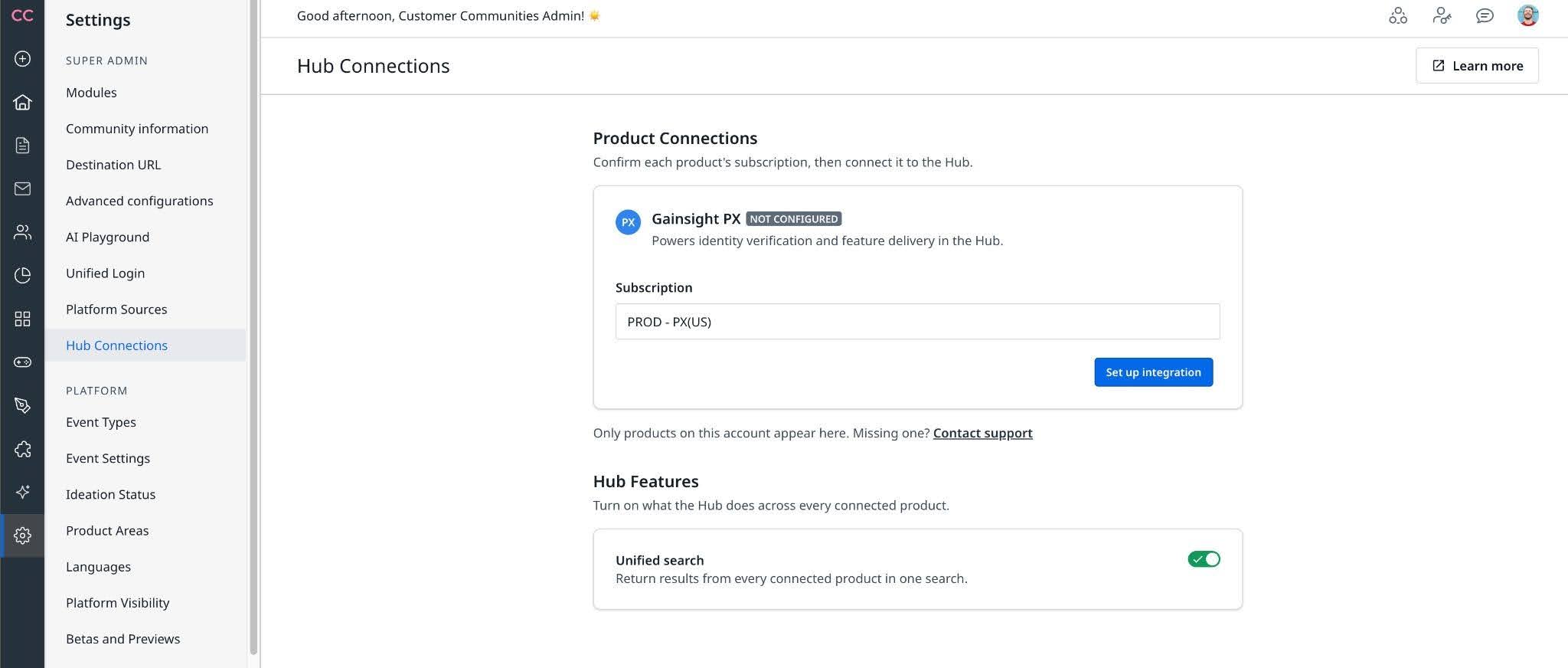
Once connected, you can configure DCH-powered search and content capabilities within In-App Hub.
Note
A Community instance supports a connection to only one PX subscription at a time.
If your PX subscription does not appear in the list of available subscriptions in Customer Communities, contact Gainsight Support.
DCH Integration cannot be disconnected while active In-App Hubs use DCH-powered capabilities, such as Federated Search, Community Search, or Community widgets. Remove or turn off these capabilities before disconnecting DCH through Customer Communities. Existing In-App Hub configurations are preserved after disconnection.
Validate Integration
After connecting Gainsight PX to DCH, verify that the integration is working correctly by configuring DCH-powered capabilities in In-App Hub.
You can enable Federated Search, configure Community content widgets, and select Categories and Product Areas to display relevant content within your application. For more information, refer to the Configure In-App Hub article.
Upgrade from Customer Communities Integration to DCH
If you have an existing Gainsight Customer Communities (CC) integration, you can upgrade to DCH Integration to access Federated Search and other DCH-powered capabilities in In-App Hub.
Upgrade is not automatic. Your PX subscription must first be connected to DCH through Customer Communities before you can initiate the migration in PX. For more information, refer to the Connect Gainsight PX to DCH section.
Important
Upgrading to DCH Integration is irreversible. After a successful connection, the existing CC integration is replaced by DCH Integration, and you cannot switch back.
To upgrade to DCH Integration:
Log in to Gainsight PX.
Navigate to Administration > Integrations.
In the Digital Customer Hub section, proceed based on the status of the connection:
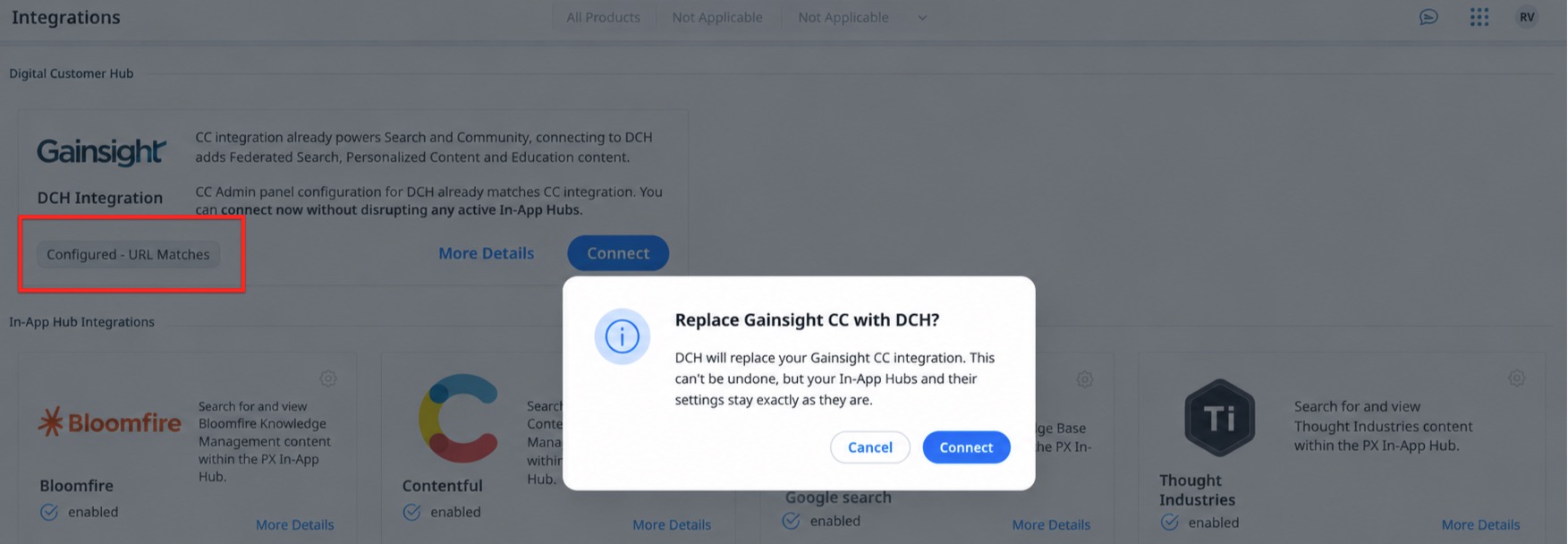
Configured - URL Matches: The Community URL configured in your existing Gainsight CC integration matches the Community URL associated with the DCH connection. Click Connect to complete the migration. Existing Community Search, widgets, Categories, and Product Areas continue to work without requiring reconfiguration.
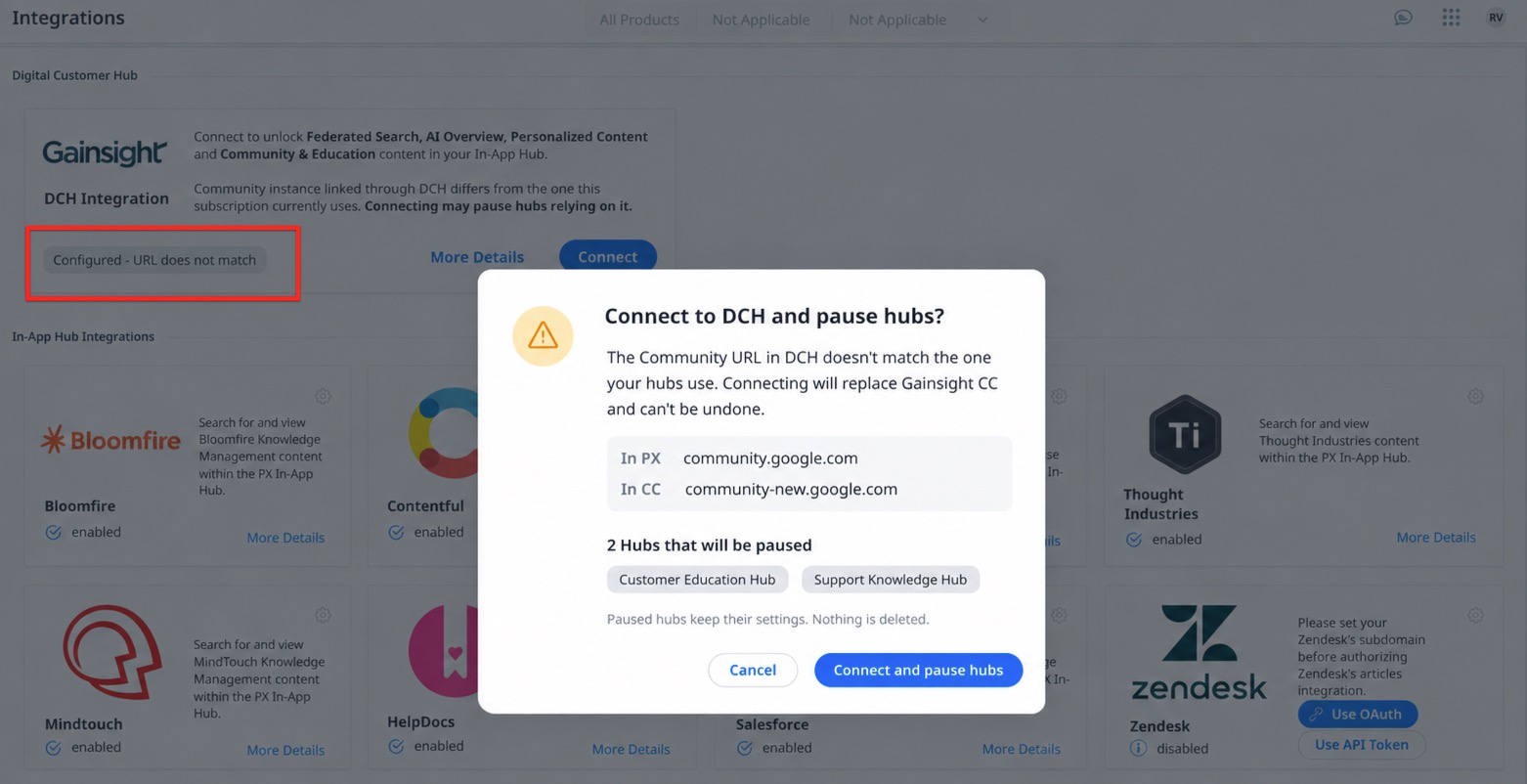
Configured - URL does not match: The Community URL configured in your existing Gainsight CC integration does not match the Community URL associated with the DCH connection. Click Connect and pause hubs to proceed with the migration.
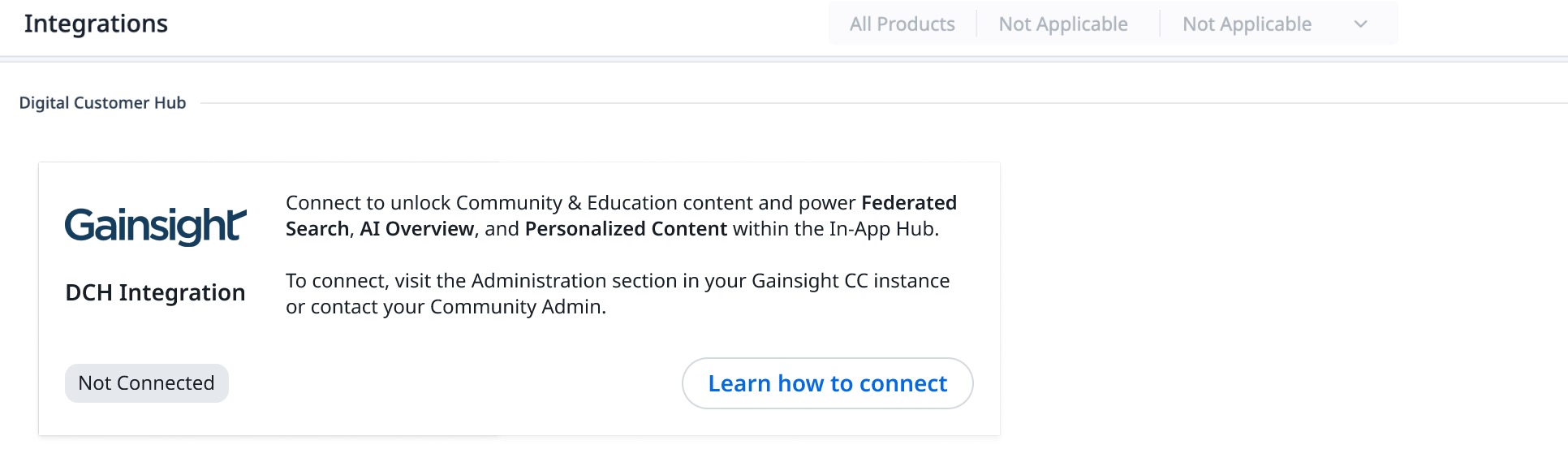
Not Connected: The PX subscription is not yet connected to DCH through Customer Communities. Contact your Community administrator to establish the connection before upgrading to DCH Integration. Your existing CC integration continues to work until the migration is completed.
Configure Unified User Identification
Unified user identification enables users to securely access authorized Gainsight Customer Communities content within PX In-App Hub using their existing application login. This eliminates the need for users to sign in to Community separately, providing a seamless experience when accessing content directly within your application.
By securely connecting a user's identity in your application with their corresponding Community account, DCH Integration enables In-App Hub to display content based on the user's existing Community permissions. For example, users can access restricted knowledge articles and other authorized Community resources within the hub, without the need for a separate Community login.
This capability uses the PX SDK, a Signing Secret, and a Key ID to establish the connection. Your development team configures the identification process so that users can access permitted Community content automatically when they sign in to your application.
To configure unified user identification, complete the following steps:
Obtain the Signing Secret and Key ID: Retrieve the credentials from Gainsight PX to enable secure user identification.
Configure User Authentication in the PX SDK: Update the SDK configuration to authenticate users and provide access to authorized Community content.
Obtain the Signing Secret and Key ID
After DCH Integration is connected, you can retrieve the Signing Secret and Key ID from Gainsight PX. These credentials are required to configure unified user authentication in your application.
To obtain the credentials:
Log in to Gainsight PX.
Navigate to Administration > Integrations.
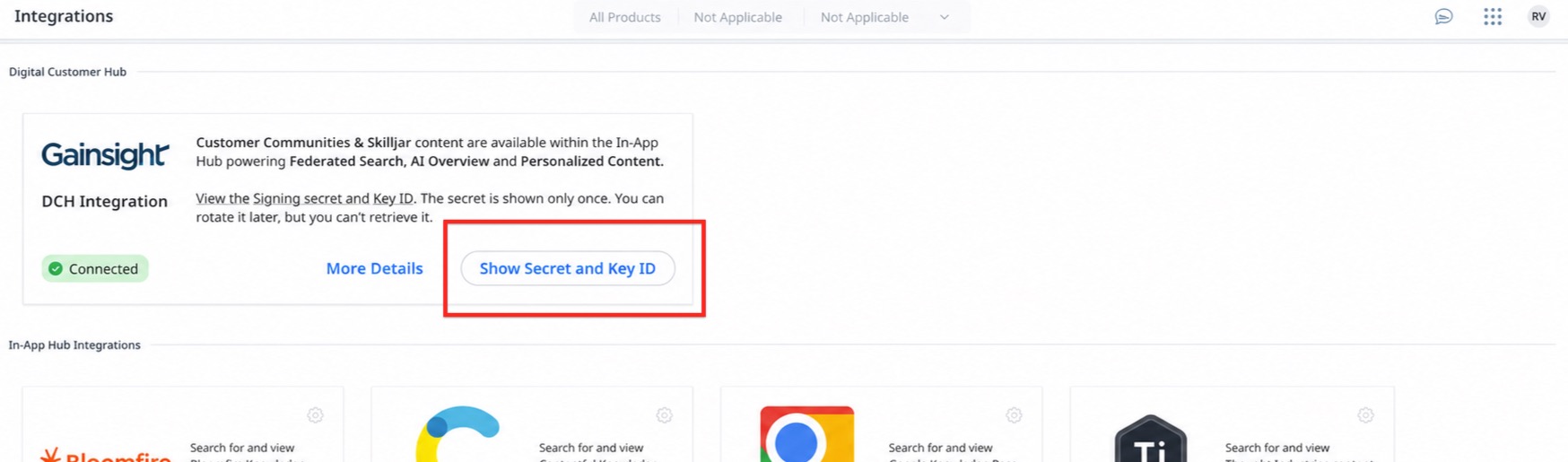
In the Digital Customer Hub section, locate the DCH Integration card.
Click Show Secret and Key ID.
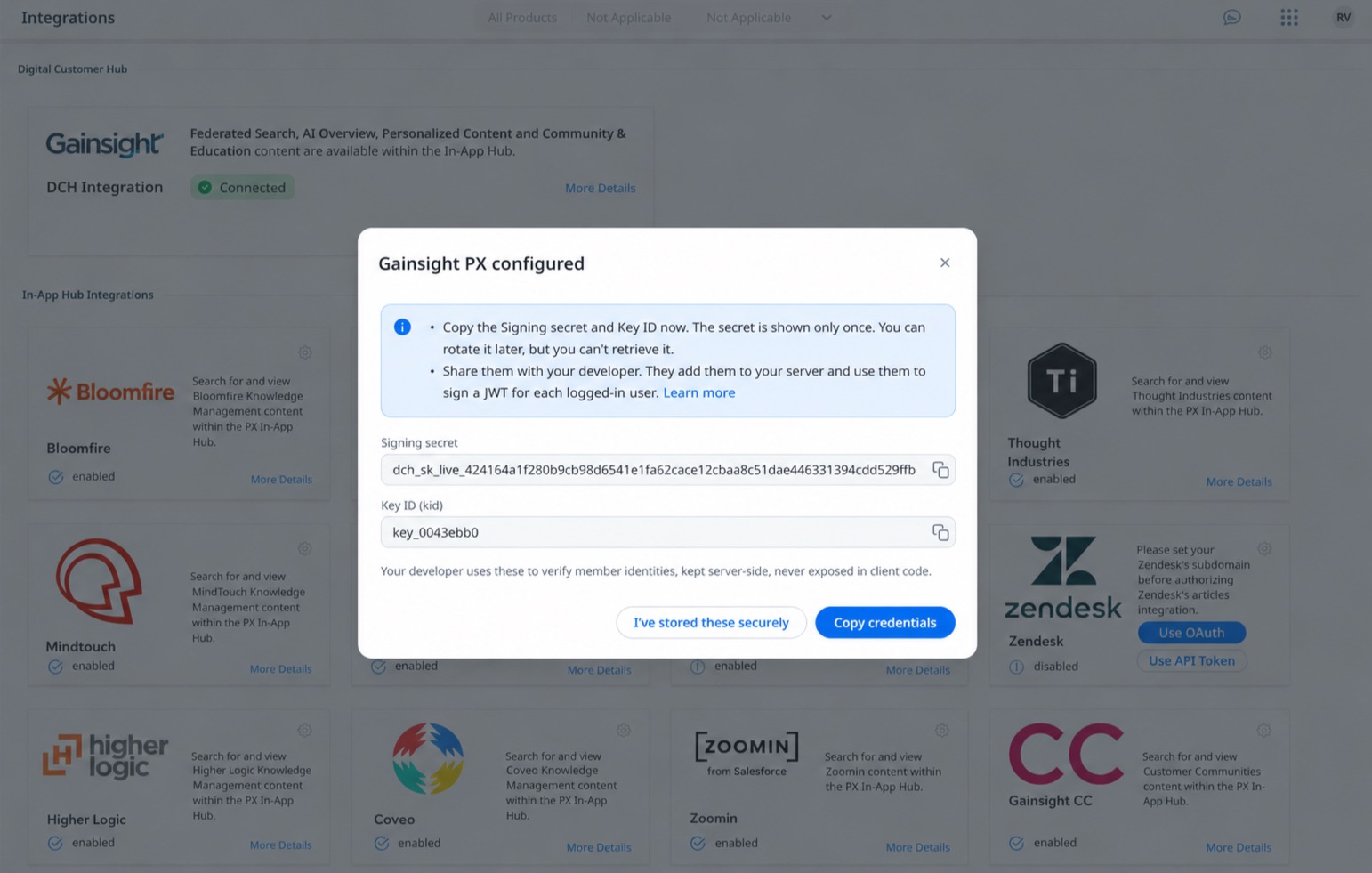
In the configuration pop up, click Copy credentials to copy the Signing Secret and Key ID.
Share the credentials with your development team.
Click I've stored these securely to close the dialog.
Important
The Signing Secret and Key ID values are displayed only once and cannot be retrieved later. Ensure that you store it securely before closing the dialog. If the secret is lost, your Community administrator must rotate the signing key to generate a new one. Never expose the Signing Secret in client-side code.
Configure User Authentication in the PX SDK
To enable unified user authentication, your development team must configure the PX SDK to securely identify users when they sign in to your application.
Example Business Use Case: A user signs in to your application and opens In-App Hub to search for a knowledge article. If the article is restricted to authenticated Community users and the user has the required permissions, they can access it without signing in to Community separately.
Your development team must complete the following steps to configure user authentication:
Obtain the Signing Secret and Key ID from the PX administrator.
Configure your application server to generate a signed JSON Web Token (JWT) using the Signing Secret and Key ID.
Configure identityTokenProvider in the PX SDK using the tag snippet's configuration object or the aptrinsic('config', 'identityTokenProvider', fn) method. This provider supplies the authentication token to DCH. No changes to the existing identify call are required.
Test the integration to verify that authenticated users can access authorized Community content within In-App Hub.
Important
Generate and sign JWTs on your application server. Never expose the Signing Secret in client-side code.
The authentication process works as follows:
A user signs in to your application using their existing credentials.
Your application generates a signed JSON Web Token (JWT) using the Signing Secret and Key ID.
The PX SDK uses the configured identityTokenProvider to retrieve the authentication token when required, including during session initialization and token renewal.
DCH validates the token and identifies the corresponding user in Customer Communities.
If authentication succeeds, the user can access Community content within In-App Hub based on their existing permissions.
Note
If authentication fails or the user cannot be identified in Community, In-App Hub continues to provide access to publicly available content. Restricted Community content remains inaccessible.
Manage Signing Keys
Signing keys are used to securely authenticate users and provide access to authorized Customer Communities content within In-App Hub. Your Community administrator can rotate or deactivate signing keys as needed, with a maximum of two active keys at a time.
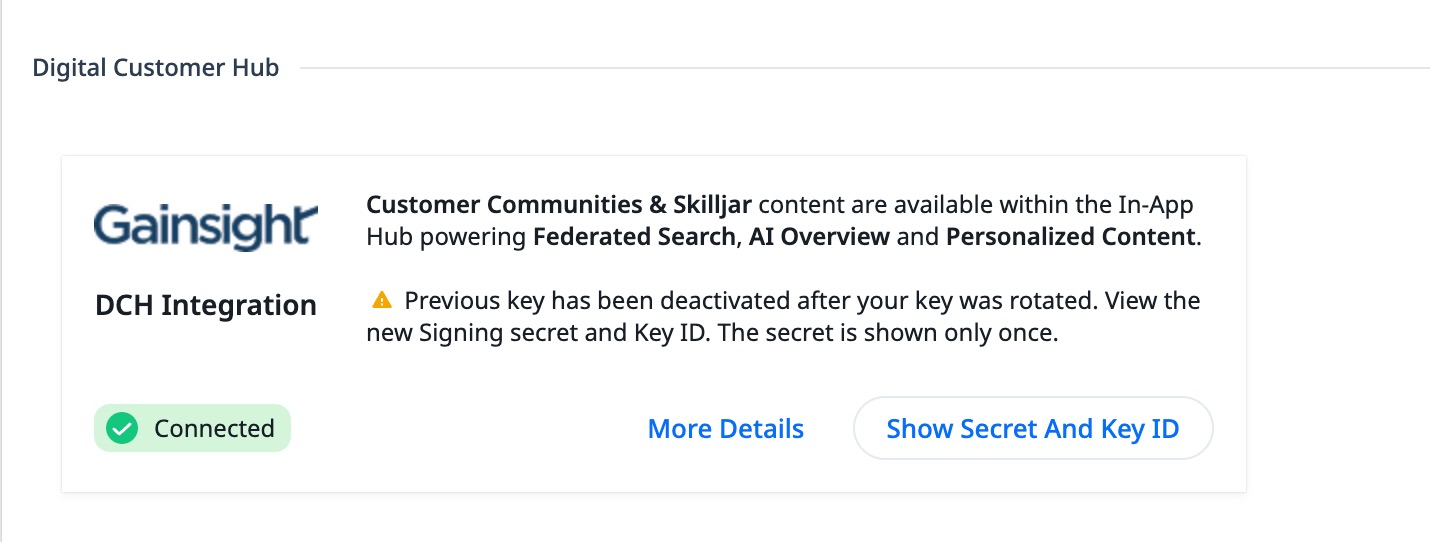
When a signing key is rotated or deactivated, PX displays a notification on the DCH Integration card under Administration > Integrations.
The notification and required action depend on the status of your existing signing key:
Key rotated: A new signing key is available, but the existing key remains active. Authentication continues to work with the existing credentials. You can coordinate with your development team to update the credentials before the previous key is deactivated.
Key deactivated: The existing signing key is no longer active. You must update the credentials immediately to restore authenticated access to Community content.
Update Signing Keys
When a new signing key is available, retrieve the updated credentials and share them with your development team to update the authentication configuration.
To update your signing credentials:
Navigate to Administration > Integrations.
In the Digital Customer Hub section, locate the DCH Integration card.
Click Show Secret and Key ID.
Copy and securely store the new Signing Secret and Key ID.
Share the credentials with your development team to update the authentication configuration in your application.
Important
The Signing Secret can be viewed only once. Ensure that you securely store the new credentials before closing the dialog. Never expose the Signing Secret in client-side code.