
Users and Permissions
This article explains how to configure user access in Staircase AI by assigning roles—User, Manager, or Admin—in the Staircase AI users.
Overview
The Staircase AI users page in Staircase allows admins to assign user roles and identify team managers. Proper configuration ensures that team members have appropriate access to communications, reports, and administrative settings based on their responsibilities. Assigning managers helps define reporting structures and enables team-level filtering within Staircase AI.
Note: If your organization connects Gainsight CS as the CRM, all user management must be handled within Staircase Integrations. This guide does not apply in that case. For more information, refer to the Gainsight article.
Set User Permissions
To assign user permissions:
- Log in to Staircase.ai.
- Navigate to Settings > Staircase AI users.
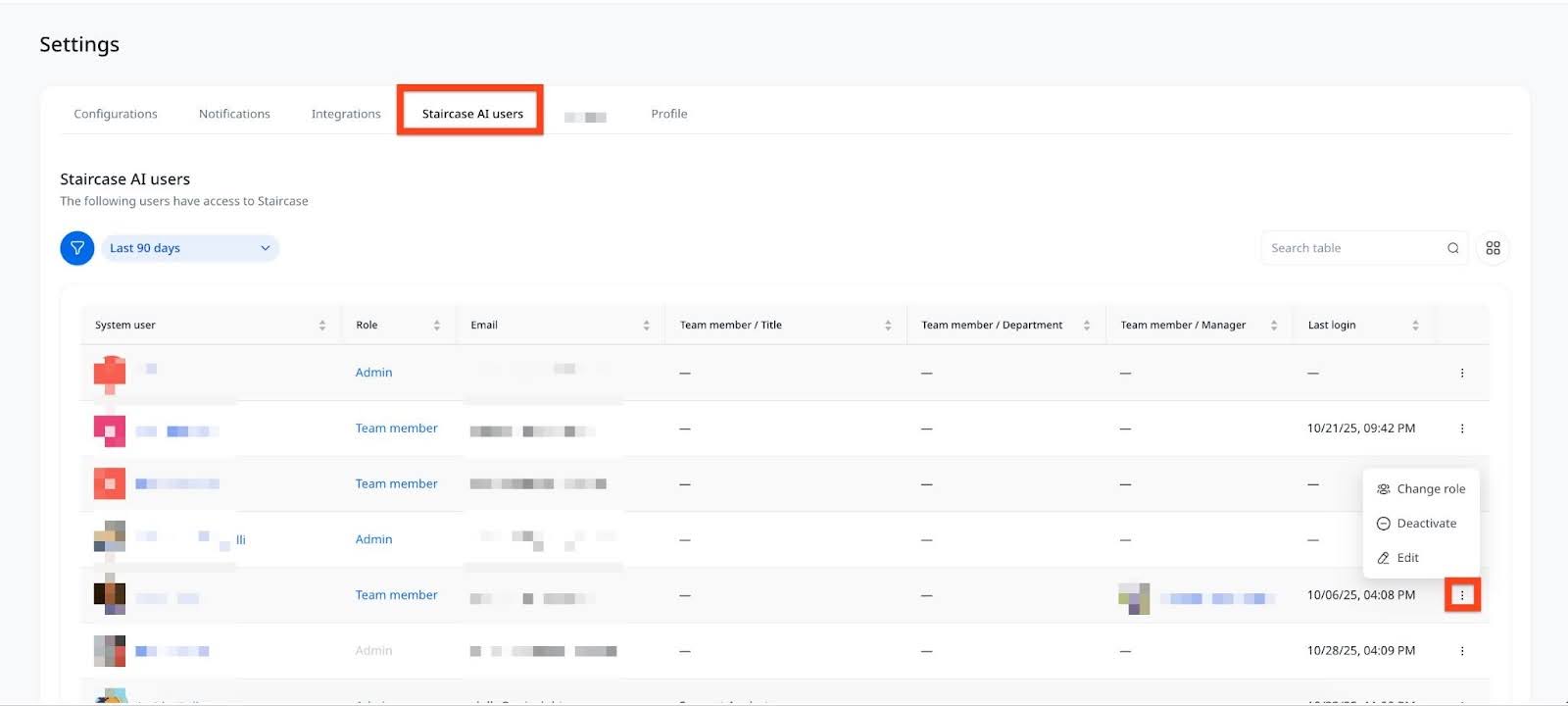
- Locate the team member in the user list and click the three-dots-vertical menu next to their name.
The menu has three options:- Change role: Click Change role to modify the role of a user. Select the required role and click Update. Assigning roles ensures that each user has the correct level of visibility and control within the system. For more information on each role, refer to the Role Definitions section.

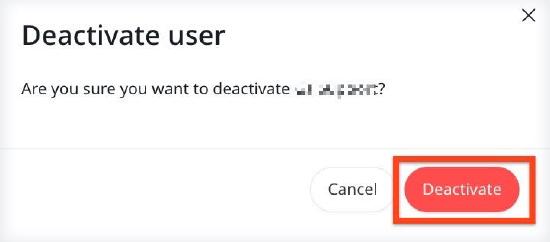
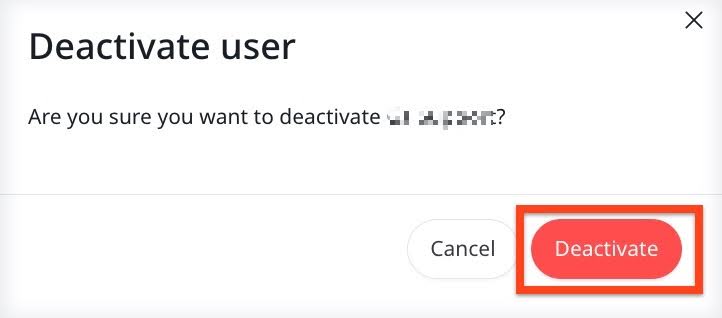
- Deactivate: Click Deactivate to deactivate a user’s access in Staircase AI. Click Deactivate to confirm. A deactivated user continues to appear in the team list but no longer has access to log in to Staircase AI.
- Edit: Click Edit to modify the profile details of the user. Select the appropriate Manager from the dropdown list for that user. You can also add Title and Department assigned for the user. When multiple email addresses exist, admins can designate which email should be treated as the primary one. This is useful when users change companies or email addresses.
All associated email addresses for a user are displayed in the UI, improving visibility and helping support teams track user activity more effectively.

- Change role: Click Change role to modify the role of a user. Select the required role and click Update. Assigning roles ensures that each user has the correct level of visibility and control within the system. For more information on each role, refer to the Role Definitions section.
Assign managers for all users. This allows filtering data and reports by teams in Staircase AI. The recommended best practice is to map managers for large groups using the CRM integration card to avoid manual updates.
Select the Automated checkbox if you want emails sent from this mailbox to be marked as automated system emails and remain hidden by default. Select the Exclude from processing checkbox if you want the email or meeting that includes this user as a participant is automatically excluded from Staircase AI analysis. This ensures that sensitive or confidential communications are not processed by Staircase AI.
Role Definitions
Staircase AI has the following three roles. Each role determines the level of access to system features:
- Team Member
- Can view only communications for emails where they are listed in the To or CC fields. Unless the transparency settings mode has been enabled by your Staircase AI admin - providing full visibility to all comms across all users, regardless of role.
- All other communications appear as Private – contact admin to access.
- Cannot access:
- Team Stats or Team Efficiency reports.
- Users and Permissions, Configuration, or Integration settings.
- Manager
- Can view all communications.
- Has access to Team Stats and Team Efficiency reports.
- Cannot access Users and Permissions, Configuration, or Integration settings.
- Admin
- Has full access to all communications and settings.
- Can manage:
- User permissions
- Configurations
- Integrations
- Reports
Best Practices
- Review user roles quarterly to ensure permissions align with current responsibilities.
- Limit Admin access to designated system owners to support data security and compliance.
- Reassign managers promptly when team structures change.