
Google Domain Install
The article describes the admin steps to install the Staircase AI app for Google Gmail Calendar and configure google domain install.
Overview
Simplify onboarding of your customer-facing team’s inboxes and calendars into Staircase AI by using a Google domain install. This eliminates the need for team members to grant permissions manually or reauthorize access when passwords change. Any team member included in the domain install list have their email and calendar communications automatically onboarded into Staircase AI. If a team member also requires platform access, invite them separately from within Staircase AI. This process is independent of the domain install.
Staircase AI syncs individual user mailboxes, not distribution list (DL) email addresses. A distribution list is a forwarding address that routes incoming email to a group of recipients — the DL address itself is not a mailbox and cannot be connected to Staircase AI. To ensure full coverage, verify that each individual user who sends or receives customer emails is connected, regardless of whether they use a shared distribution list for outreach.
Prerequisites
Before proceeding, ensure the following:
- The Google admin must install the Staircase AI app for Google Gmail Calendar.
- Google Admin and any Staircase AI admin needs to be part of the domain install list to establish this integration else an error message is displayed.

- The user performing the integration must belong to the correct user group and have the following Google API scope : https://www.googleapis.com/auth/admi....user.readonly
Configure Google Integration
Follow these steps to configure the Google integration:
- If you are a Google Workspace admin, download and install the Staircase AI app from Google Workspace Marketplace. If you are not a Google Workspace admin, click ask your admin link to share the instructions with them.
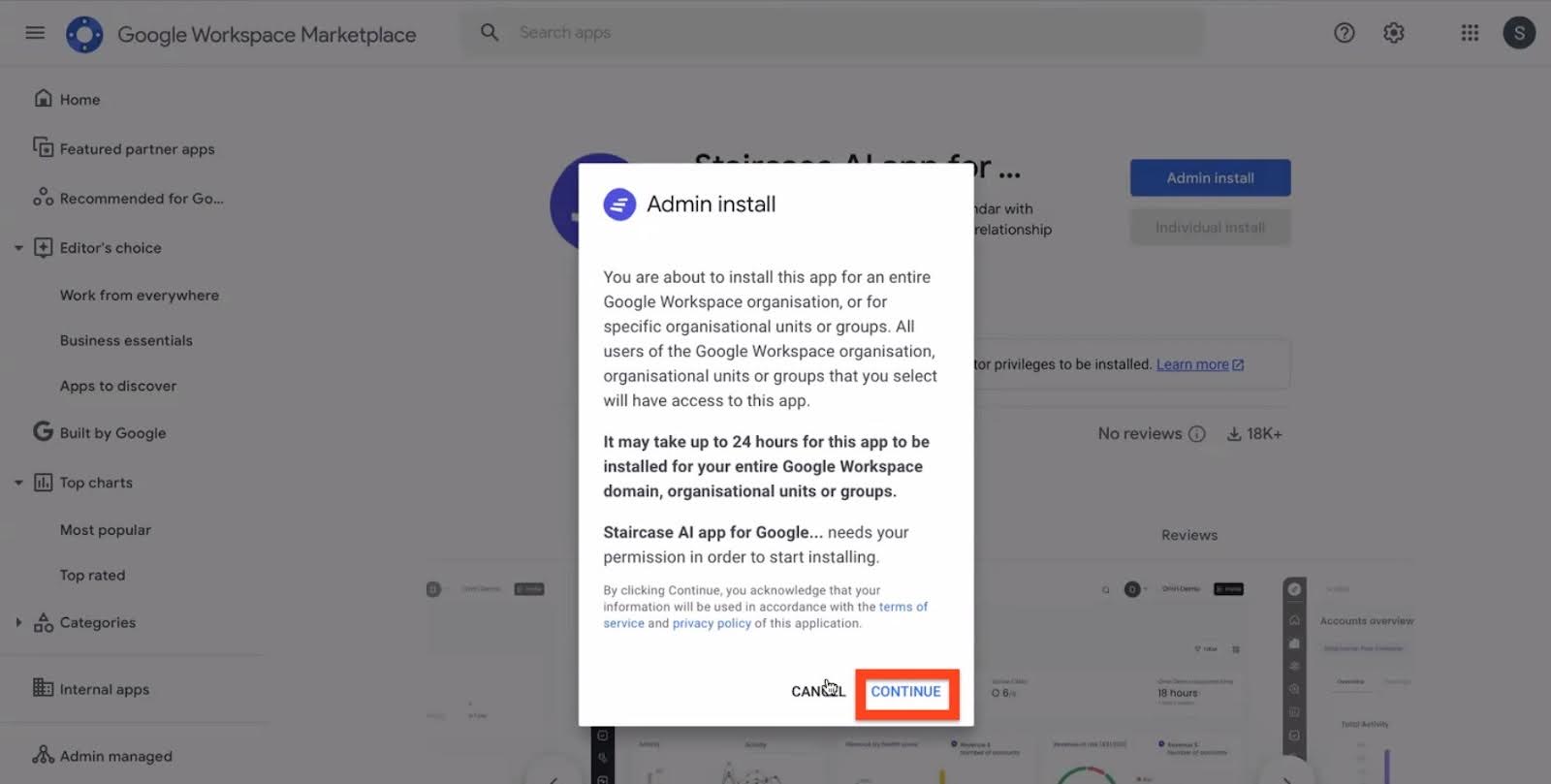
- Click Admin Install to initiate the installation. The Admin install pop-up window appears.

- In the Admin install window, read the information and click Continue.
- Select the I agree checkbox and click Next.
Staircase AI app for Google Gmail Calendar requests for the following voluntary declaration:- View your email messages and settings
- See information about users within your domain
- See your primary google account email address
- View publicly available personal information

- In the Search for groups field, select the specific security group that includes your customer-facing teams, and click Finish. For more information on how to create a group, refer to Create a Security Group in Google section.
Note- The system provides an option to automatically install the integration for your entire organization; however, this is not recommended. Selecting this option syncs inboxes for all users in your domain, including C-suite, legal, procurement, and other internal teams, into Staircase AI.
- Gainsight strongly recommends selecting specific group(s) that include only your customer-facing teams. Alternatively, you can use an organizational unit (OU) to limit the integration to relevant users.
Only security groups are shown for selection in the group option. Ensure to select the appropriate option when installing the application in Google Workspace.
The Staircase AI app for Google Gmail Calendar is installed.

- In the Admin install window, read the information and click Continue.
- Log in to Staircase.ai.
- Navigate to Settings > Integrations and select the Google card.

- Click Connect. If the configuration is successful, a success notification appears.

Verify Team Mailbox Connections
You can confirm successful connections from the Team view:
- Open Team View.
- Click Select & reorder Columns.
- Add the Mailbox connected column.
- Click Save.
A green check mark next to a team member’s name confirms their inbox is connected to Staircase AI.

Note: Ensure Directory sharing is turned on for the sync to work.

Create a Security Group in Google
To create a security group in Google:
- Sign in to the Google Admin Console at admin.google.com
- Navigate to Directory > Groups. The Groups screen appears.
- Click Create group. The Create group page appears.

- Google requires you to complete three configuration sections to create a group:
- Group information
- Enter Group name and Group email.
- (Optional) Enter Group description and Group owners name.
- In the Group labels section, select the Security checkbox.

- Click NEXT.
- Access settings
- Select an access type to define the permissions available to group members.
- (Optional) To customize the access settings, click the table cells to select or deselect an option. Customizing any option changes the group access type to Custom.
- In the Who can join the group section, choose how users can join the group:
- Anyone in the organization can ask: Users must request access and receive approval before joining.
- Anyone in the organization can join: Users can add themselves to the group without approval.
- Only invited users: Only users who receive an invitation can join the group.
- To prevent external people from being added to the group, turn off the Allow members outside your organization toggle. Or, turn it on to allow external people in the group.

- Click NEXT.
- Security settings
- In the Member restriction section, select whether you want to restrict who can be members of this group.
- Click CREATE GROUP. The group is created.

- Group information
- (Optional) To add members to the group, click Add members to <GroupName>. The Add members to <GroupName> dialog box appears.

- Find a user or a group.

- Click ADD TO GROUP.
- Find a user or a group.
- Click Done.
For more information on creating a group in Google, refer to the Create a group in your organization article.
FAQs
How long does it take to sync new users to Staircase AI?
New user data typically takes a few hours to fully sync after being added to the domain install list.
What happens if a user is removed from a synced group?
The user will no longer sync to Staircase AI, but their historical communications remain available.
What happens if the Google-authorized user leaves the organization?
Their historical communications are retained. If needed, they can also be removed from the domain install list.
If I add a new user or group, will past communications and meetings be retrieved?
Yes. Staircase AI automatically pulls historical communications and meetings for all newly added users or accounts. For emails and calendar entries, 12–18 months of history is retrieved, while call transcripts are limited to the past 3 months.