Team Effort Hours
This article explains how admins can configure Team Effort Hours settings, and where to view the related reports in Staircase AI.
This article explains how admins can configure Team Effort Hours settings, and where to view the related reports in Staircase AI.
Overview
Team Effort Hours help you understand how much time your customer-facing teams spend supporting each account. Staircase AI converts estimated activity effort into hours or days, giving you visibility at both the team and individual customer levels.
With this data, you can:
- Evaluate team efficiency
- Align resources more effectively
- Ensure servicing costs stay proportional to customer revenue
Configure Team Effort Hours
To configure Team effort hours:
- Login to Staircase.ai.
- From the left navigation pane, click the Settings icon.
- In the Configurations tab, click Team effort. The Team effort view appears.
- Enter the following details in the corresponding fields:
- Average Response Time (minutes): Enter the estimated average time your team spends receiving, reading, and responding to customer emails, chat messages, and support tickets.
Note: These timings are not the average time to resolve a ticket. They represent the effort for a single interaction or response within an email thread or ticket.. As a best practice, average response times are typically three to five minutes for chat and 10–25 minutes for email or ticket-based communication. - Average Salary: Enter the estimated average salary for a customer-facing team member or account manager.
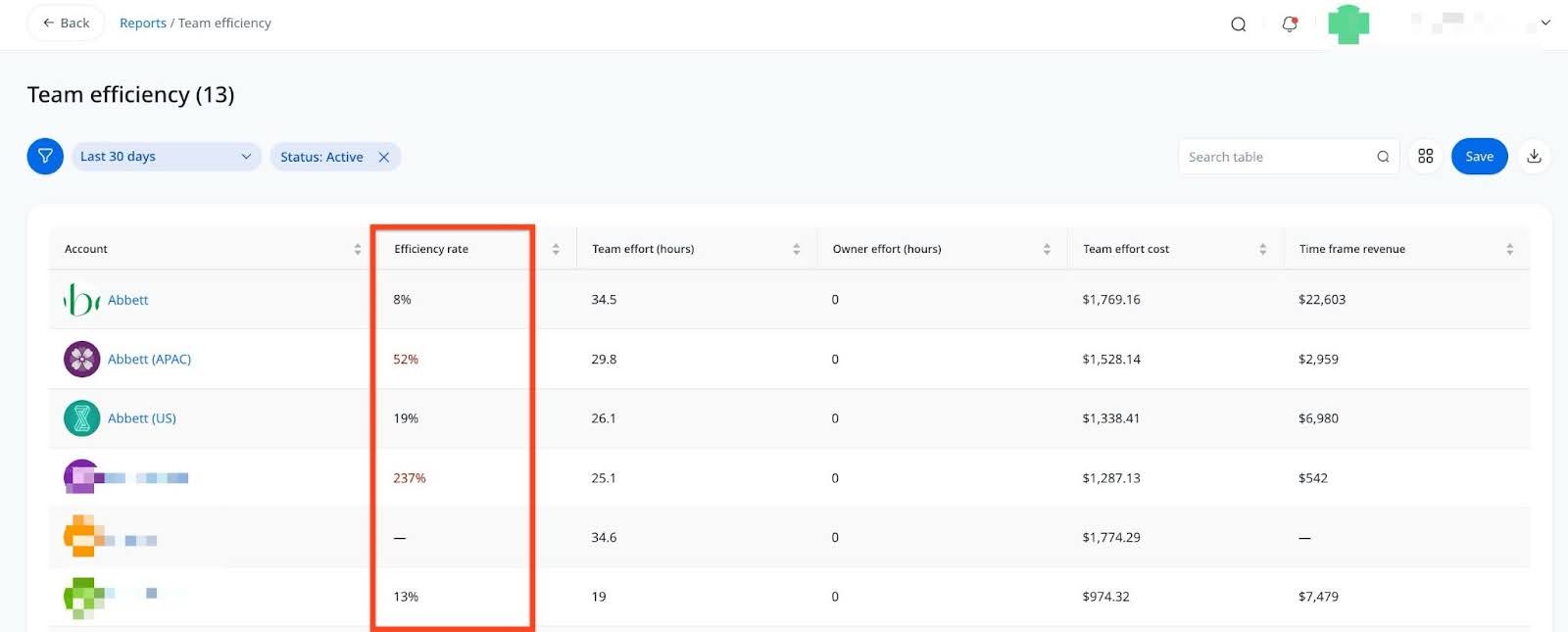
Note: These values are intended to represent an average. For teams operating across multiple regions, use a blended average across locations or use the average from the primary team location. - Efficiency Threshold (%): Enter the percentage of customer revenue you are comfortable allocating toward servicing the account. This controls which Efficiency rate metrics show in red in the corresponding Team efficiency report.

- Average Response Time (minutes): Enter the estimated average time your team spends receiving, reading, and responding to customer emails, chat messages, and support tickets.
- Click Update to save your selections.
Use realistic time and salary estimates to ensure accurate reporting and efficiency analysis. If needed, you can add a few extra minutes to each communication type to account for internal preparation time.
View Team Effort Data
Once Team Effort Hours are configured, Staircase AI automatically reflects the data in the following reports:
- Team Stats Report: Shows the total hours spent servicing each customer by team members.

- Customer Overview Table: Displays effort data alongside other account-level metrics for a complete view of customer engagement.
- Team Efficiency Report: Provides a quick view of where the team is meeting efficiency thresholds and where improvements are needed.