
Staircase AI Health Score
This article describes how Staircase AI generates a real-time health score for customer accounts, using sentiment, engagement, open items, and response time metrics on a 0–100 scale, and how admins can customize the scoring logic, look-back window, and thresholds for proactive monitoring.
Overview
The Staircase AI Health Score provides a real-time view of customer health across your entire customer base. It enables teams to take proactive action at the first sign of risk or opportunity. The system includes a ready-to-use, AI-generated health score that can be customized and refined to meet your organization’s specific needs. However, we generally recommend you stick with the out-of-the-box weighting as it’s defined by a proven statistical model.
Staircase AI uses a combination of absolute and relative scoring frameworks to calculate different components of the Health Score. Understanding how these work helps teams interpret customer health signals more effectively.
- Absolute Score: An absolute score measures a customer’s behavior in isolation, compared only to their own historical activity. It helps track changes in a customer’s behavior over time, providing insight into whether they are becoming more or less relative to their personal baseline.
- Relative Score: A Relative Score compares a customer's behavior to the average behavior of their peers within the same segment. This score helps identify how a customer is performing in the context of a broader group by account tier.
By default, the health score includes four key components:
- Sentiment Score
- Engagement Score
- Open Items Score
- Response Time Score

Each score is measured on a 0–100 scale, where 100 represents the highest possible score. The evaluation period is determined by the Rolling Window (Days), configured in Settings > Configurations > Health score > Health score config > Configure health score rules and settings section.

Health Score Components
The Staircase AI Health Score is built on four components: Sentiment, Engagement, Open Items, and Response Time. Together, they measure how customers feel, how actively they interact, what work remains unresolved, and how quickly both sides respond. The sections below briefly explain how each component works and how it contributes to the overall Health Score.
Sentiment Score
Staircase AI assigns sentiment labels to all inbound customer communications across support, email, chat, and topics discussed in meetings, to help teams monitor customer tone and detect potential risks or opportunities at scale.
Staircase AI uses three sentiment categories:
- Green: Indicates a positive tone, successful outcome, or goodwill. An overall green sentiment at the account level is a strong signal that the relationship is healthy and may suggest an opportunity for expansion, a case study, or a reference.
- Yellow: Reflects standard professional communication. Most business conversations fall into this category. A yellow sentiment score means that the account is stable and not a cause for concern.
- Red: Indicates negative sentiment, friction, frustration, dissatisfaction, or potential risk, even if the tone isn't explicitly negative. Staircase evaluates both emotional content and business context. For example, a message stating “we love the product, but we’re not renewing” is labeled as red due to its business impact, despite the positive language.
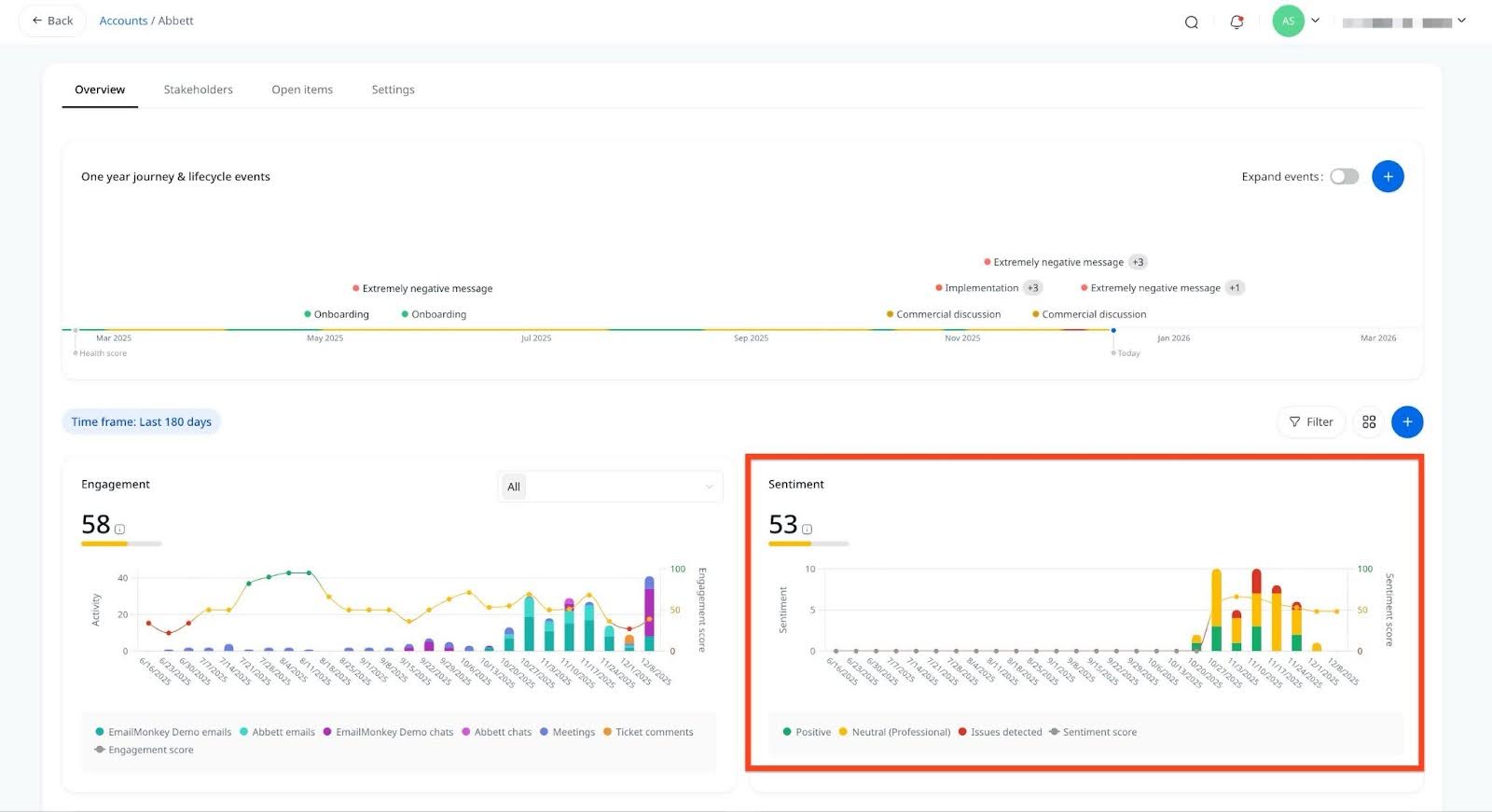
Staircase also detects extreme sentiment cases:
- Highly Positive Events: These count as two positive signals and are often shared to boost internal morale, such as through Slack.
- Extremely Negative Events: These count as two negative signals and include escalations, statements in all caps, or phrases indicating significant business impact.
Sentiment Accuracy and Feedback
While the AI is trained for accuracy, it may occasionally misinterpret industry-specific terms. You can update sentiment labels directly in the UI. However, one-off adjustments generally have minimal impact on the overall sentiment score.
Tip: If Staircase consistently misclassifies certain terms, such as interpreting “churn management” as customer churn, submit feedback through a support ticket so the model can improve over time.
Impact on Health Score
All sentiment signals contribute to the account's overall Sentiment Score, which then rolls up into the broader Health Score used in account evaluations. The Sentiment Score is an absolute score that combines a Net Promoter Score (NPS) style model with a time-decay algorithm to prioritize recent interactions. This approach ensures that newer communications, such as emails, chats, and support tickets, carry more weight providing a more accurate reflection of the customer’s current sentiment and relationship health.
Engagement Score
The Engagement Score is a relative metric that compares each customer’s engagement to the average engagement benchmark within their tier (defined by your organization).
Calculated Using:
- Number of emails sent by the account
- Number of chat messages
- Number of meetings
- Support tickets submitted
Staircase AI analyzes engagement activity over the rolling window days setting and classifies each account as:
- Green – Above Benchmark: Indicates strong engagement and potential for opportunities such as case studies, customer references, or expansion/upsell. Unless it's paired with a red sentiment score—indicating that the customer is highly engaged but also facing significant friction or frustration.
- Yellow – At Benchmark: Reflects average or neutral engagement. These accounts are generally on track and not a cause for concern.
- Red – Below Benchmark: Signals low engagement that may require human intervention. This could indicate potential risk or a negative customer experience.
Best Practice: Focus on red and green accounts to identify outliers. Yellow accounts typically reflect stable performance.
Key Benefit: Helps teams identify highly engaged accounts and those needing additional attention.
Open Items Score
The Open Items Score is a relative score calculated based on the number of support tickets opened in a given time period and unresolved items from email communications.
Calculation Logic:
- More open items = lower score (red).
- Fewer open items = higher score (yellow/green).
Key Benefit: Highlights accounts where outstanding issues may impact satisfaction or renewal.
Response Time Score
The Response Time Score is a relative score that measures responsiveness between your team and the customer across multiple channels such as emails, chats and support tickets.
This bidirectional score evaluates both your team’s response time and the customer’s response time, reflecting the overall efficiency of communication.
Key Benefit: Encourages prompt and balanced communication, improving customer satisfaction.
Health Score Penalties and Boosts
Staircase AI continuously monitors for events that may influence customer health, both positively and negatively.
Examples for Positive boosts include Renewal events or exceptionally positive messages.
Examples for Negative penalties include Churn notifications, Churn risks, or exceptionally negative messages.
Key Benefit: Ensures that the health score remains responsive and accurately reflects evolving customer dynamics.
Lifecycle Event Modifiers
The following events trigger an immediate adjustment to the health score:
| Lifecycle Event | Score Modifier | Description |
|---|---|---|
| Renewal | +40 points | Applied on the day of renewal confirmation. |
| Churn Risk Flag | −30 points | Applied when a churn risk is flagged for the account. |
| Churn notification | −100 points | Applied upon confirmed churn. Effectively zeroes the health score. |
Decay Logic
All lifecycle event modifiers follow a two-phase decay pattern over 90 days. The modifier does not decrease gradually day-by-day. It steps down to a floor value at day 45, then drops to zero at day 90.
| Days Since Event | Renewal Modifier | Churn Risk Modifier | Churn Notification Modifier |
|---|---|---|---|
| Day 0–44 | +40 points | −30 points | −100 points |
| Day 45–89 (floor) | +20 points | −15 points | −50 points |
| Day 90+ (expired) | 0 points | 0 points | 0 points |
The Churn Notification modifier floors at −50 points during the day 45–89 window. If the account is later reinstated or renewed, the renewal event replaces the churn modifier.
Health Score Config
The health score config page has the following two sections for health score configurations:
Configure Health Score Fields
You can optionally enrich the health score by adding additional data signals such as product usage metrics or financial data.
Prerequisite: Map the fields to custom fields from your CRM, S3 bucket, or a direct Mixpanel integration before using them in the health score calculation.
To configure health score fields:
- Navigate to Settings > Configurations > Health score and click Health score config.

- In the Health score configuration section, click Add field. The Add field dialog box appears.

- Select a value from the Field dropdown list. The list includes fields from integrated data sources. For example, Mixpanel, CRM, or other connected systems and only numeric fields are supported.
Note: Gainsight recommends limiting field inputs to a maximum of two to three for optimal performance and usability. - (Optional) Select the Higher value is good checkbox. Example: For logins, a higher value indicates better engagement.
- Click Add to include the field.
- Repeat for any additional fields.
Gainsight recommends discussing any new data integrations or custom signal configurations during onboarding to ensure accuracy and stability.
Configure Health Score Rules and Settings
Health score rules and settings define how Staircase AI calculates overall health scores by weighting different components and setting tier-based parameters. Gainsight recommends using the out-of-the-box (OOTB) weighting model. However, for the SMB tier, where engagement tends to be lower, we suggest reducing the engagement weight and redistributing it across sentiment, open items, and response time.
To configure health score rules and settings:
- Navigate to Settings > Configurations > Health score and click Health score config.
- To add new health score rules, click Add health score config rule in the Configure health score rules and settings section. Alternatively, click the down arrow next to the tier you want to edit an existing setting.

- Set a value for Rolling window (days) to define the lookback period. Example: Setting 14 days for Tier 1 means Staircase AI evaluates the past 14 days to determine health and compare against the previous period. Gainsight recommends the following Rolling window (days) settings:
- Enterprise/high touch = 14-30 day window
- Mid market/mid touch = 30-60 day window
- SMB/tech touch = 90 day window
- From the Score weights section, adjust component weights by dragging the circles on the bar left or right.

- From the Score modifiers section, you can tune the score change for Renewal, Churn notification and Churn risk events, so the health score reflects how your organization evaluates customer health. You can use these modifiers for boosting or decreasing the overall Staircase AI account health score by +40 for renewal, -30 for churn risk, and -100 for churn events with a 90-day time decay period applied uniformly across all event types. Due to this, the boost or decrease lessens overtime and finally drops off from the health score calculation 90 days from the event. Using Score weights, you can tune the overall account health score change for renewal, churn risk, and churn notification events so the health score reflects how your organization evaluates customer health. This provides additional health scoring customization.
Note: This setting is optional and our best practice recommendation is to keep these at the default settings. - Click Save to apply your changes.
- (Optional) To revert to the default weights, click Reset.
Manual adjustments are optional. Staircase AI automatically optimizes weights using AI and machine learning based on your organization’s historical data.
Configure Band Scores
The Band Scores Configuration defines the numerical thresholds for Red, Yellow, and Green health designations across all Staircase AI score types (for example, Health, Engagement, Open Items). This is optional and Gainsight recommends using the out-of-the-box (OOTB) band scores.
To configure band scores:
- Navigate to Settings > Configurations > Health score and click Bands scores config.
- Enter the Low and High numerical values for each band. Alternatively, you can scroll the slider to set the range.

- Click Update to save your changes.
- (Optional) To revert to the default range, click Reset to default.
| Net Promoter®, NPS®, NPS Prism®, and the NPS-related emoticons are registered trademarks of Bain & Company, Inc., NICE Systems, Inc., and Fred Reichheld. Net Promoter ScoreSM and Net Promoter SystemSM are service marks of Bain & Company, Inc., NICE Systems, Inc., and Fred Reichheld. |