
Insights
This article helps admins to configure insights tailored to your engagement strategy.
Overview
The Insights section in Staircase AI allows you to manage out-of-the-box insights and create custom insights tailored to your engagement strategy. Proper configuration ensures your teams receive relevant, timely, and actionable notifications based on customer behaviors and conditions.
The following table lists the out-of-the-box Staircase AI insights and what they mean. Insights, whether custom or OOTB, are real time indicators of certain situations. So in the current moment, if the status of the insight is true (you will see a flag) or if false (you will not see a flag). If the scenario changes the condition from true to false, the insight flag is automatically removed.
| Insights | Definition |
|---|---|
| Stakeholder's title has been changed | A key stakeholder within the account has had a change in their job title, potentially impacting their role and influence within the organization. This insight will only trigger for stakeholders that have been assigned a role. |
| No Reach-out to stakeholder | There has been no outbound communication or engagement with a specific stakeholder for a certain period (driven by global touch frequency setting or individual override), which could affect the relationship and account health. This insight will only trigger for stakeholders that have been assigned a role. |
| Stakeholders roles are not defined | The role for this stakeholder has not been defined. Not all stakeholders are required to have a role but key stakeholders you wish to track engagement for and multi-thread with should be assigned a role so the stakeholder specific insights can be triggered. |
| Account responds slower than usual | The Customer Unresponsive insight flags accounts where email response times have significantly increased compared to the customer's historical norm. It compares the last 14 days against a 90-day baseline, and triggers when response times are more than twice the typical variation above normal. |
| Stakeholder not engaged | A key stakeholder is not actively participating or engaging in communications and activities related to the account (inbound), which could impact the overall relationship. This insight will only trigger for stakeholders that have been assigned a role. |
| Positive sentiment trend | The Positive Sentiment Trend insight flags accounts where the tone of customer emails has meaningfully improved compared to their historical norm. It compares sentiment (positive minus negative emails) over the last 14 days against a 12-week baseline, and triggers when the recent sentiment score is significantly better than the baseline. |
| Negative sentiment trend | The overall sentiment of communications from the account is trending negatively, which could be a warning sign of dissatisfaction or potential issues. |
| Account personnel changes | Monitor changes in your own customer’s team (example, if someone from your team leaves). Tracks changes in account ownership or management on your side |
| Organization personnel changes | Detects changes in vendor’s organization (example, John is no longer with Acme). Tracks when customer stakeholders leave or change roles. |
| No renewal discussion | There have been no discussions or communications regarding the renewal of the account's contract or subscription within a set time from their Renewal Date, which could be a risk for churn. |
| No QBR | There has been no Quarterly Business Review (QBR) conducted with the account, which is an important touchpoint for assessing account health and planning future actions. |
| Account dark | There has been no inbound communication or engagement from the account (across all stakeholders) for a certain period, indicating a lack of activity and potential risk for churn. This is applicable for client to vendor direction only. |
| No Reach-out | Similar to No Reach-out to stakeholder but refers to the entire account, indicating a lack of communication or engagement with the account as a whole. This is for outbound communication only (vendor to client) |
| No next meeting scheduled | There is no upcoming meeting scheduled with the account, which could impact ongoing engagement and relationship management. |
| No communication between executives | There has been no communication or engagement between executives from your organization and the account, which could affect strategic alignment and relationship. This will only trigger if your executives have been identified in settings and customer stakeholders have been set to the role of ‘exec sponsor’. |
| No meetings with account | There have been no meetings conducted with the account for a certain period, which could impact engagement and account health. |
| Single threaded account | The relationship with the account is dependent on a single point of contact (in either direction), which is a risk if that contact leaves or becomes unavailable. |
| Churn Risk | A signal of potential Churn. Staircase is detecting language that a customer could churn if issues or problems are not solved. |
| Churn notification | Staircase has detected language that directly signals intent to cancel, not renew etc. |
Turn Insights On or Off
To enable or disable an insight:
- Login to Staircase.ai.
- From the left navigation pane, click the Settings icon.
- In the Configurations tab, click Insights. The Customize your insights view appears.
- From the Staircase AI insights section, locate the insight you want to update.
- Use the toggle next to each insight to turn it on or off.

Keep insights turned on only if they are fully configured and relevant to your account tiers or customer journey.
Best Practices
Review each OOTB Insight and adjust based on relevance to tiers:
- Enable or deactivate individual insights.
- Apply filters to restrict insights to specific tiers. For example, enable No QBR only for Enterprise and Mid-Market.
- Configure lookback windows to determine insight thresholds. For example, 365 days for Enterprise QBRs, 180 for SMB.
Edit and Tune Insights
To tune an existing insight:
- Click the insight row to open its configuration panel.

- Click Add filter to modify insight for a parameter. The Add filter option is added.
- Click the edit icon next to the Add filter. The Advanced filter dialog box appears.

- Select Field, Operator and Value. Define which accounts the insight should apply to (example, all active accounts or only Enterprise tier accounts). The first part of the setup is to identify which accounts the insight applies to and the second part to configure different thresholds for those accounts, such as by tier, journey, or other attributes.
Note: This filter condition uses AND, not OR.
- Click Done.
- Enter a value for Default look-back window (days). For example, for QBR, you can set for 365 days and for other insights, you can set 180.
- Click Add rule to apply different rules/thresholds to accounts by tier, journey phase, or both.
- Click the edit icon beside Add condition. The Advanced filter dialog box appears.
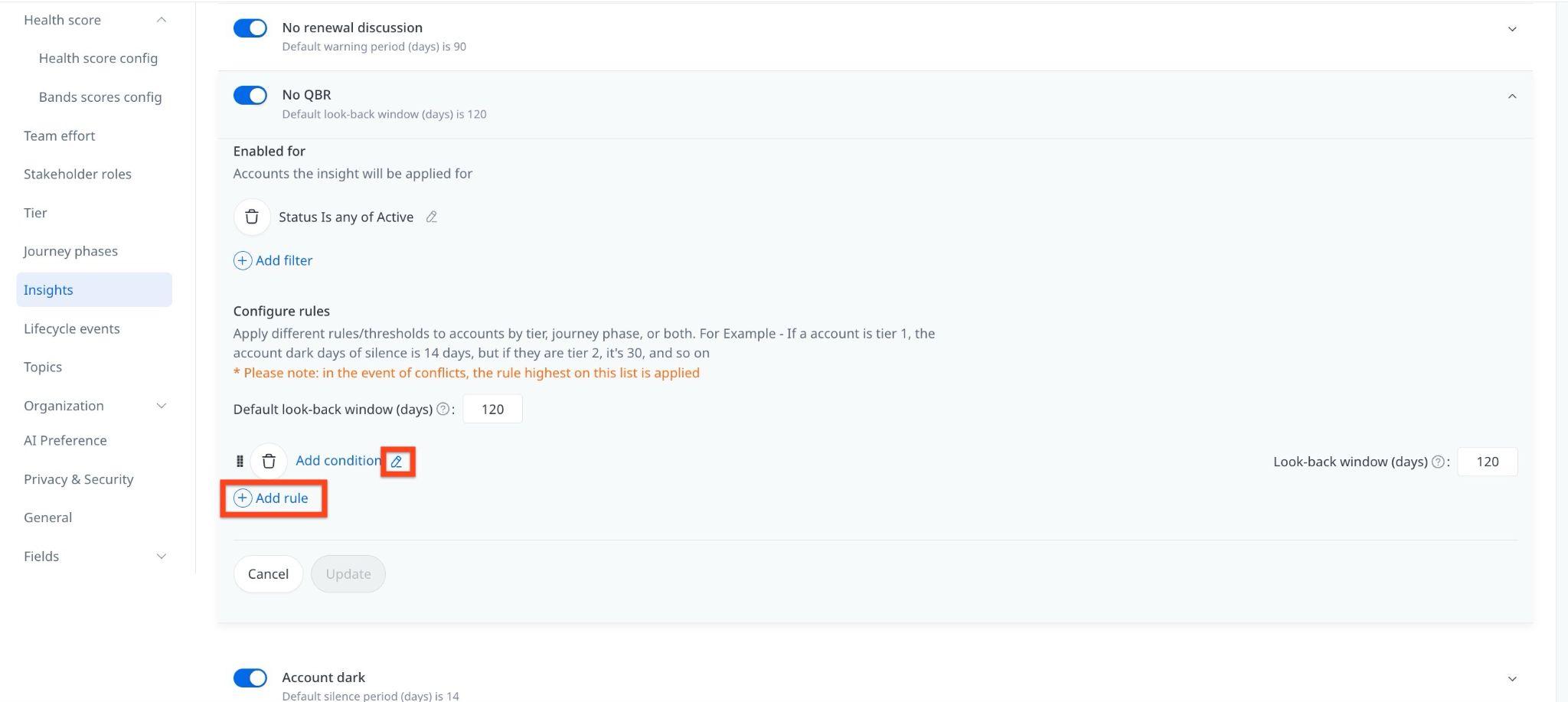
- Select Field, Operator and Value. Define which accounts the insight should apply to. For example, update the Account Dark or No Reach-Out insights by tier to reflect how frequently you expect customer interaction.
Repeat this process for all insights that are turned on. This ensures that only meaningful alerts appear in Staircase AI and your connected notification channels. - Click Update.
Create Custom Insights
You can define new insights tailored to your business logic:
- In the Custom insights section, click Add custom insight.

- Enter a value for Label and select a Category from the dropdown list.

- In the Conditions section, select Field, Operator and Value. Define the rules and filters for your scenario. For example, Create a custom insight to detect at-risk accounts based on, renewal due this quarter or next, sentiment or engagement score below 30 and no login activity in the past 30 days.
- Click Test insight to preview which accounts currently match the rule.
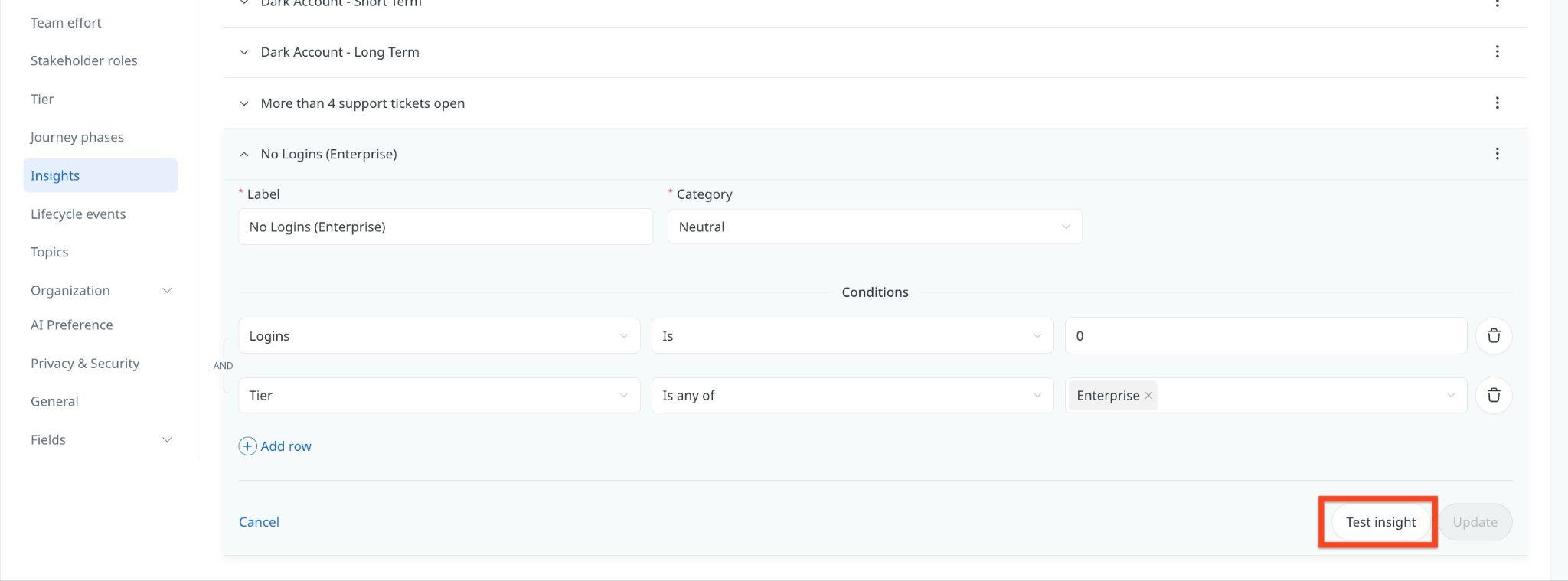
- Click Save.
The new insight appears for any applicable accounts. You can also trigger notifications, assign it to a risk bucket or display it on the Executive Dashboard.