
Skilljar and Gainsight CC Integration
This article helps admins understand and configure the Skilljar integration with Gainsight Customer Communities (CC). The integration creates a unified digital customer hub by connecting learning and community experiences. It supports unified login, unified navigation, federated search, and education widgets in CC. As a result, learners can discover training more easily, and Admins can deliver a more seamless customer education experience.
Overview
The Skilljar and Gainsight Customer Communities (CC) integration connects community and learning experiences across both platforms. When the integration is enabled, community members and learners can move between Gainsight CC and Skilljar through a shared sign-in experience, without signing in again. This creates a more seamless and connected journey between community content and training.
With Skilljar + Gainsight CC Integration, Gainsight Community acts as the authentication hub. All sign-in requests, whether initiated from Community or from Skilljar, are routed through the Community login page. Any authentication method configured in Community, such as Google, SAML, or username and password, is automatically available for both platforms.
- Shared sign-in experience: Allows learners and community members to sign in once and access both Skilljar and Gainsight CC without signing in again. Beyond the shared sign-in experience, the integration also supports other features that help deliver a more unified experience across both platforms.
- Centralized authentication management: Admins manage authentication settings in Gainsight CC for both platforms.
- Unified navigation: The Gainsight CC header can replace the native Skilljar header for a more consistent navigation experience.
- Unified profile experience: The Gainsight CC profile appears across both platforms, while Skilljar-specific learning details remain available.
- Education widgets in CC: Admins can display Skilljar content directly on community pages.
- Federated search: Learners and community members can search across Skilljar, Gainsight CC, and other connected sources from one search experience.
- The Skilljar and Gainsight Customer Communities integration does not support configurations where the Community is private and the Skilljar Academy is public.
- Customer Communities widgets embedded in Skilljar are displayed only in English, even when learners select a different language in the Academy.
Prerequisites
Before configuring Skilljar + Gainsight CC Integration, ensure the following requirements are met:
- You have an active Gainsight Community (CC) instance.
- You have an active Skilljar instance.
- You have admin access to the Gainsight Community control panel.
- You have admin access to the Skilljar admin panel.
- The Skilljar App is enabled in CC Control.
Enable Skilljar + Gainsight CC Integration
To enable Skilljar + Gainsight CC Integration for your Organisation, create a support ticket with the following details:
- Product: CC
- Subject: SJ-CC Integration
- Description: Request to complete the setup for SJ-CC integration
- SJ Instance ID: <Provide your Skilljar instance ID>
- CC Instance URL: <Provide your CC instance ID>
- Product Category: Skilljar
- Severity: Normal
How Skilljar + Gainsight CC Integration Works
When the Integration is enabled, the Gainsight Community instance serves as the central authentication hub for both Community and Skilljar on your Unified Login page. The following describes the authentication flow:
- A user navigates to either Community or Skilljar and selects Sign In.
- The user is redirected to the Community login page, regardless of which platform they started from.
- The user authenticates using any available method (for example, Google, SAML, or username and password).
- After successful authentication, the user is signed in to both Community and Skilljar.
- The user can navigate between Community and Skilljar without signing in again.
This flow works in both directions. If a user signs in from Community first, that user is also authenticated in Skilljar. If a user signs in from Skilljar first, the Community login page is displayed, and upon successful authentication, the user has access to both platforms.
When a user signs out of one platform, the session on the other platform is also terminated.
Configure Authentication for Skilljar and Gainsight CC Integration
Because Community acts as the authentication hub, all authentication configuration is performed within the Community control panel. Changes made to authentication settings in Community are automatically reflected on the Skilljar login page.
Configure Default Authentication
Admins can manage the unified login experience from the End User SSO page.
To configure the SSO option:
- Log in to Control.
- Navigate to Integrations > End Users. The End Users SSO page appears.

- Turn on the Default authentication toggle.
Any changes take effect immediately. For example, if you turn off username and password authentication in Community, that option is no longer available on the login page for either Community or Skilljar.
You can also configure SSO to enable your end-users to authenticate to the Community through an Identity Provider of your choice, using a single ID and password.
For more information on how to configure the SSO, refer to the Single Sign-on (SSO): Getting Started article.
Once the SSO is configured, admins can map the SSO fields. The SSO field mapping enables admins to map user identity fields such as ID, Email, Username, and Avatar between their Identity Provider (IdP) and Gainsight’s platform.
For more information on SSO Field mappings, refer to the SSO Field Mapping article.
Sign with Skilljar and Gainsight CC Integration
After the Skilljar + Gainsight CC Integration is enabled, and when users log into Skilljar, they are redirected to the community login page.
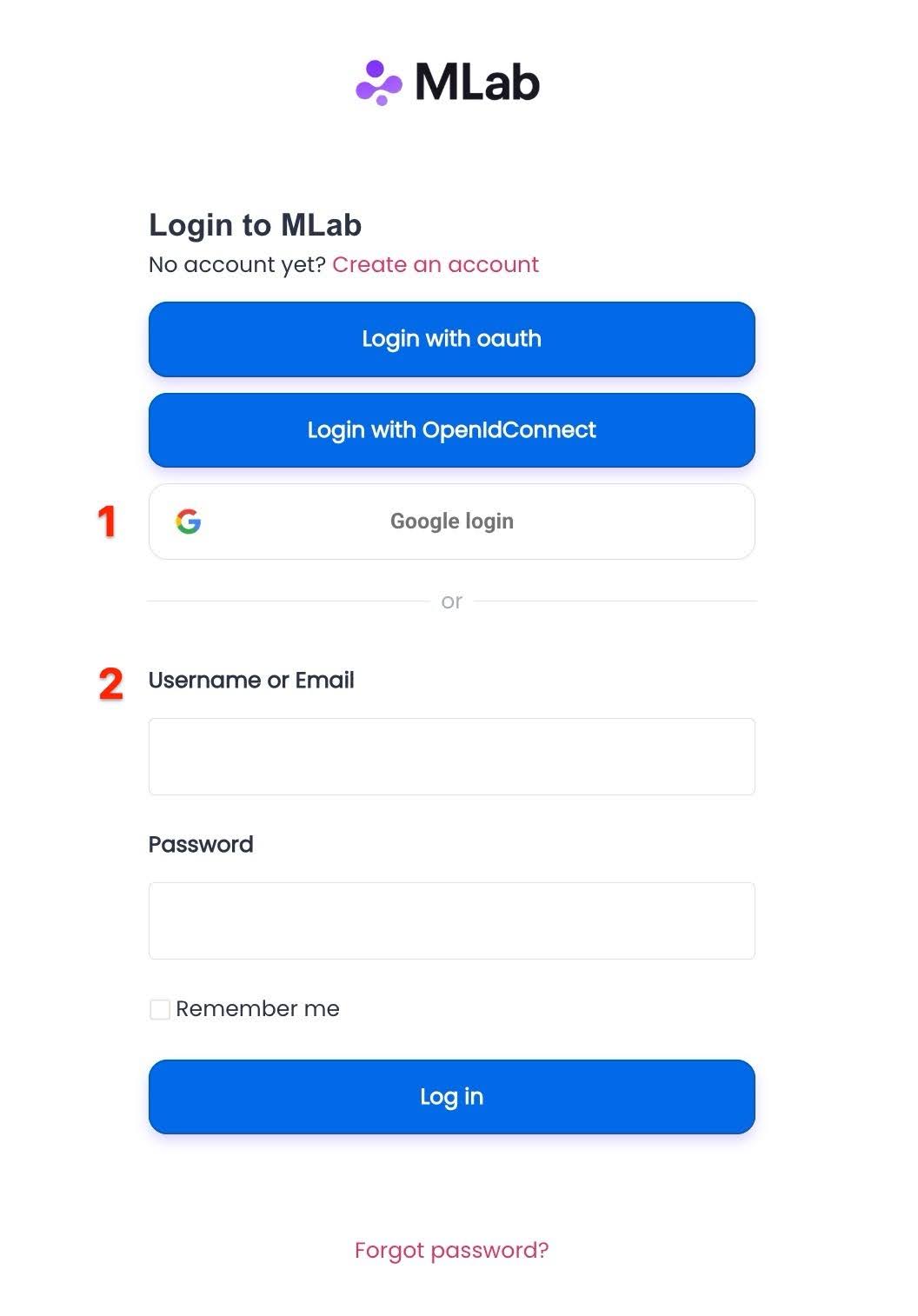
Users can either use Google login or Username or Email to complete the login process. Once the login is completed, the user has access to both platforms.

Unified Navigation
The Unified Navigation feature allows you to replace the native Skilljar header with the Community header, providing a seamless navigation experience for users across both platforms. The Unified Profile is included as part of this setup, meaning the Community profile replaces the Skilljar profile.
The Unified Navigation is configured in two steps: first in Community, then in Skilljar.
Set Up Navigation in Community:
The MEGA MENU widget contains four sections: CONTENT, IMAGE, LAYOUT, and STYLE. Each section allows you to configure the navigation elements and set your preferred style of the mega menu bar.
For more information on how to configure the mega menu, refer to the Configure Mega Menu Widget in Destination article.
Set Up Navigation in Skilljar:
To configure the header layout from Skilljar:
- Open your Skilljar dashboard.
- Expand Theming header on the left, and select Themes.
- On the Themes page, select the theme associated with your Unified login domain.
- Navigate to the Header section.

- Clear the Embed header from your Gainsight Customer Community checkbox. The header option appears.

Note: When the checkbox is selected, the Community header is displayed. In some cases, a color mismatch may appear between the Community header and the Skilljar navigation container. To resolve this, clear the checkbox, update the Skilljar header background color to match the Community header, and then select the checkbox again. - Make the required changes to the following header options
- Logo
- Logo Link
- Background Color
- Text Color
- Header links

- Click Save.
For more information on themes, refer to the Managing Themes article.
Once enabled, the Community header replaces the native Skilljar header on all academy pages. To revert to the Skilljar native header, clear the Embed header from your Gainsight Customer Community checkbox.
Unified Profile
The Unified Profile provides a consistent profile experience across Customer Community (CC) and Skilljar by displaying the Community profile in both platforms. When Unified Navigation is enabled, the Community profile replaces the native Skilljar profile interface.
This ensures users have a single, familiar place to manage their profile and access key options while navigating between Community and learning content.
Access Skilljar profile (My Learning):
Although the Community profile is unified across platforms, users can still access
- Click the profile avatar in the header

- Select My Learning. The My Learning page appears.

IMPORTANT
Unified Profile does not merge user data or systems between Community and Skilljar.
- User data remains stored separately in each platform.
- Authentication is managed through Unified Login, not the profile.
- No profile fields or learning data are synchronized between systems.
Education Widgets in Community
Education widgets allow admins to promote Skilljar content on Community pages. Once the integration is enabled, the following education widget options are available:
- Public Courses: Displays courses available to a given learner in the academy.
- Enrolled Courses: Displays courses the learner is currently enrolled in.
- Learning Paths: Displays learning paths available to the learner.
These widgets can be added to any Community page that has customization mode enabled.
.png?revision=1)
The content card within a widget can be customized with additional details:
- Thumbnail
- Description
- Due date
- Expiration date
- Certificate
- Price
- Card content
- Heading and appearance
- Tags
- Number of displayed events
- Upcoming-session timeframe
- Registration information
- Date, time, instructor, and delivery method
- Number of remaining events
A progress bar is displayed for content that is in progress. Admins can also define the number of tiles displayed in the widget.
Add Education Widget to a Community Page
You can promote the Skilljar content on the Community page, which can display Featured Courses, Learning paths, Instructor-led training, etc.

To add the Education widgets in Community:
- Log in to your CC page.
- Click Edit layout.
.png?revision=1)
- Scroll to the location where the Education widgets are to be added and click the plus icon. The Choose a Widget dialog appears.
.png?revision=1)
- From the Education widgets section, select the widget to be configured. The selected widget’s slide-out panel appears.
.png?revision=1)
- Configure the widget card.
Note: Configuration options vary for Virtual Instructor-Led Training (VILT) widgets. VILT-specific settings include the session timeframe and instructor name. - Click Done once the widget configuration is completed.
You can combine multiple content widgets on a single page to create a dedicated education homepage within Community, complete with featured courses, enrolled courses, learning paths, and federated search.
Federated Search
Federated Search provides a unified search experience across Community, Skilljar, and any other connected sources. When configured, end users can search for content across both platforms from a single search banner. The search banner is available on both Community and Skilljar pages.
Prerequisites for Federated Search
- The Skilljar App must be enabled in CC.
- If a customer previously added a custom CC widget loader using custom JS/HTML, it must be removed before configuring Federated Search.

Configure Federated Search
Enable the Federated Search bar on the catalog page in Skilljar and manage its configuration from the Search Banner in Gainsight Customer Communities (CC). You can configure Federated Search for both Classic and Builder pages.
To configure on the Builder page:
- Open your Skilljar dashboard.
- Expand Domain & Publishing header on the left, and select Domains.
- Click Catalog Pages of the domain where the Federated Search should be enabled.

- Select the required Builder Catalog Page.
- Click Add Content to Page. The Add Content page appears.

- Select Federated Search. The Federated Search block appears on the content page.
- Click on the three horizontal dots beside the Federated Search block.

- Click Edit. The Unified Login page appears.
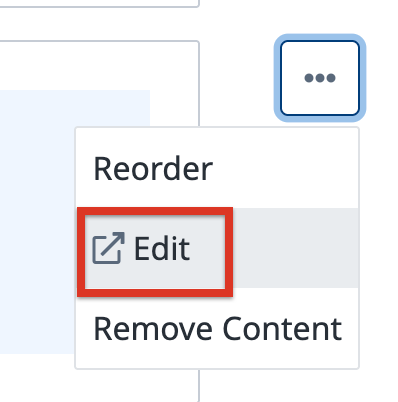
- Provide the required details on the Search Banner panel.

- Click Done and click Publish.
To configure Federated Search on Classic Catalog Page:
-
Click Catalog Pages of the domain where the Federated Search should be enabled.
-
Select the required Classic Catalog Page.
-
Navigate to Search Behaviour and select Federated search.
.png?revision=1&size=bestfit&width=516&height=513)
The Catalog page hero search banner is replaced with Federated search. For more information on the builder pages, refer to the Create and Edit Builder Pages article.
How Federated Search Works
Federated Search is also linked to the community, and users in Skilljar can leverage the search to find information from the community platform as well.
- The Federated Search banner is configured in Gainsight CC Control. Once configured, it is applied across all Skilljar pages. There is no option to configure different banners per page.
- Any changes to the configuration automatically apply to all Federated Search banners across the academy.
- Search results include content from Community, Skilljar, and any other sources connected to federated search.