
Configuring Organization Settings
Manage different organization settings, including your organization name, notification email address, payment gateways, and dashboard users via the Organization tab within your Skilljar dashboard.
Organization Settings
To access your organization settings via your Skilljar dashboard, expand the Organization header on the left and select Settings.

Business Information
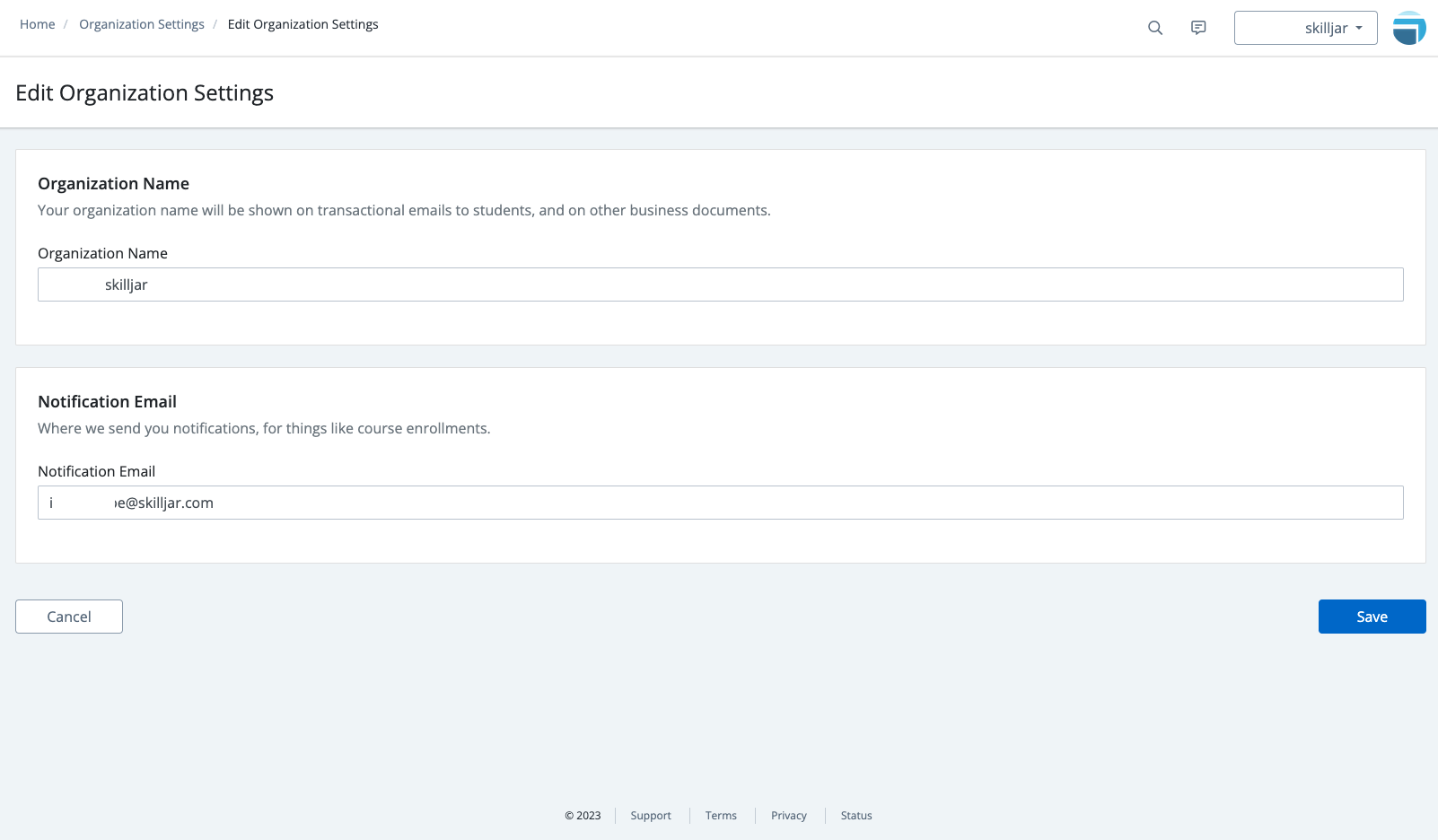
Select Edit Settings to update the name of your organization (this is displayed on purchase statements for courses sold, for example.) You can also update the email address used to send and receive information regarding your account. Examples of emails sent to this address include confirmation for admin actions, like bulk uploading live event attendance or bulk registration of students to courses, and task notifications.
Payment gateways
If you are going to charge for courses, domain subscriptions, or course bundles, you can set up a payment gateway to process e-commerce transactions.
We support Stripe and PayPal. Stripe enables you to accept all major credit cards. PayPal enables you to accept payment via a customer's PayPal account. You can enable Stripe or PayPal at the Organization level.
Detailed steps on how to set up your payment gateways can be found here: Processing Payments and Selling Courses

Dashboard Users
To access your dashboard user settings, expand the Organization header and select Dashboard Users.
This lists every Dashboard User and admin who has access to your organization's Skilljar account. To add a user to the organization, follow the steps at Managing and Adding Dashboard Users.

SCIM Provisioning
SCIM (System for Cross-domain Identity Management) automates how your Skilljar Dashboard users are provisioned and managed. When connected to an identity provider (such as Okt, Azure AD, and more), user accounts are created, updated, and deactivated automatically as your team changes. Roles and permissions flow directly from identity provider group memberships into Skilljar, so the right access is always in place without manual dashboard edits.
To enable SCIM provisioning in your Skilljar dashboard, reach out to your Customer Success Manager.
SCIM manages Dashboard users only and does not affect learner accounts.
For more information, refer to the SCIM Provisioning for Dashboard Users article.
API Credentials
You can generate, then use your API key to call Skilljar's API to manage learners, perform token-based SSO, and receive event notifications via webhooks,
We've also partnered with Zapier, a service that enables you to connect Skilljar with hundreds of platforms without writing any code. Using Zapier, you can integrate Skilljar with common tools like Salesforce.com, Google Docs, Evernote, MySQL, Mailchimp, and many more. Zapier is free for up to 100 tasks per month.
Learn more: Getting started with the Skilljar API.