
Integrate with Stripe
IMPORTANT
The functionality described in this article is not applicable to the Skilljar Starter package.
This article explains the process to integrate Stripe in Skilljar.
Overview
Integrate with Stripe to process eCommerce transactions for offers that you sell, such as domain subscriptions, courses, paths, and plans. This article explains how to set up the Stripe integration with your Skilljar training platform.
Skilljar by Gainsight offers two Stripe integration options, which are as follows:
- Legacy Stripe Integration: The legacy integration supports organization-level setup managed within Skilljar.
- Upgraded Stripe Integration with Checkout Sessions (recommended): A domain-level Stripe integration that supports additional features, such as automatic tax calculation and currency conversion. Most of the features are managed in Stripe.
If you are currently using the legacy integration, we strongly recommend transitioning to our upgraded Stripe integration.
Comparison of Legacy and Upgraded Stripe Integrations
The following table highlights the key differences between the legacy Stripe integration and the upgraded Stripe integration in Skilljar.
|
Feature |
Legacy Stripe Integration |
Stripe Integration with Checkout Sessions |
|---|---|---|
|
Integration setup |
Configured at the organization level in Skilljar |
Configured at the organization level in Skilljar |
|
E-commerce enablement |
Available at the organization level only |
Available by domain |
|
License packages and bulk credits |
Managed in Skilljar |
Managed in Skilljar |
|
Promo codes |
Managed in Skilljar |
Managed in Stripe |
|
Tax calculation |
Not supported |
Managed through Stripe |
|
Multi-currency pricing |
Not supported |
Managed through Stripe |
|
Product catalog |
Managed in Skilljar |
Managed in Skilljar and Stripe |
|
E-commerce reporting |
Available in the Skilljar Order Report |
Available in the Skilljar Order Report and Stripe Analytics |
|
Payment page |
Hosted in Skilljar |
Hosted in Stripe |
|
Group discounts |
Managed in Skilljar |
Configured in Skilljar and applied during Stripe checkout |
Upgraded Integration Setup Process
Connect Stripe to Skilljar
The process to connect Stripe to Skilljar applies to both legacy and upgraded Stripe integration.
To connect Stripe:
- From the Organization dropdown in the left navigation bar, select Settings.

- Select Connect with Stripe. The Skilljar Stripe authentication page opens.
- Enter your email and password into the Stripe sign-in page. Once authenticated with Stripe, you are redirected to the Organization page in the Skilljar Dashboard.
- Click Authorize access to this account and complete the provided form.
- Once authenticated to Stripe through Skilljar, the Organization page is updated to show your Connected Account and your Stripe account ID. By default, Skilljar retrieves the live mode API key upon authentication.
IMPORTANT: You must have Stripe admin permissions to sign in to an existing Stripe account via Skilljar.

Enable Stripe Checkout Sessions
After connecting Stripe to your Skilljar Organization, for the learner to get the Stripe Checkout page, you need to enable it through Stripe.
To enable Stripe checkout:
- Open your Skilljar Dashboard, expand the Domain & Publishing header on the left, and select Domains.
- Click Domain Settings for the domain you want to enable Stripe Checkout.

- Navigate to Stripe Checkout Sessions and select the Enable “Stripe Checkout Sessions” Feature checkbox.
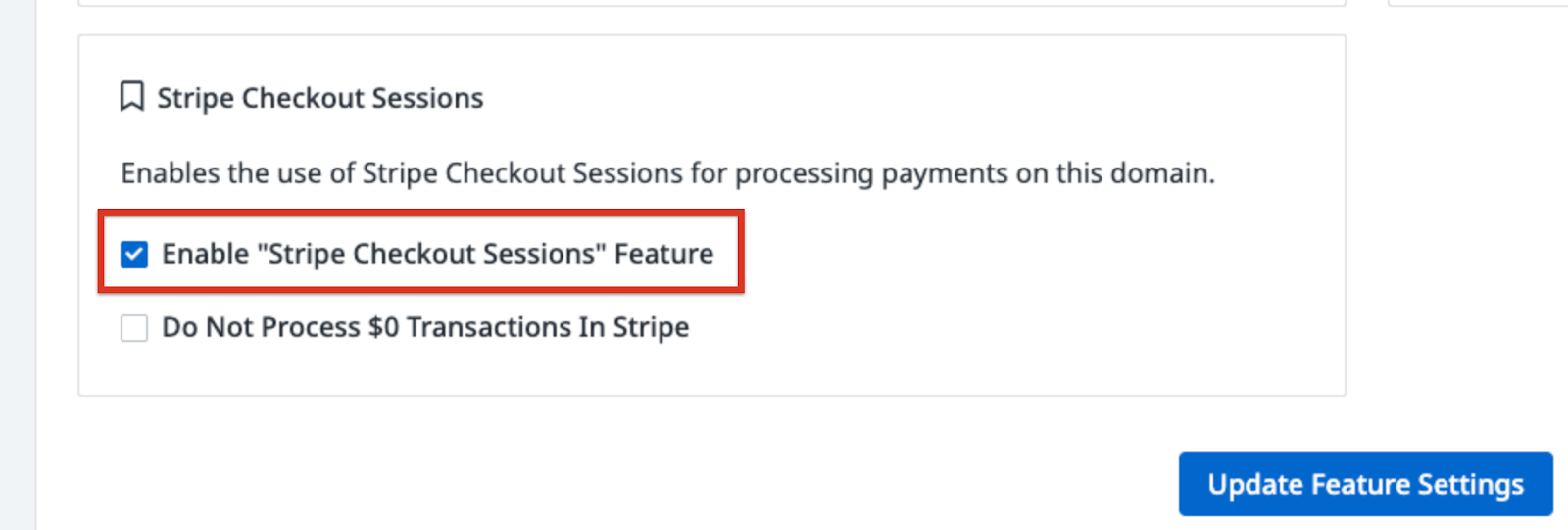
- (Optional) Select the Do Not Process $0 Transactions In Stripe checkbox to prevent learners from accessing the course for free (or bypassing the Stripe transaction) using Training Credits. If not selected, unpriced training sessions are not recorded in Stripe analytics and appear only in the Skilljar Dashboard.
- Click Update Feature Settings to save the changes.
Once Stripe checkout is enabled, the following page appears at checkout when a learner purchases a course:

Configure Prices
After enabling Stripe checkout, update information such as metadata of a domain, published course, or path in Stripe to configure the prices.
Update the following required metadata in Stripe:
|
Metadata |
Description |
|---|---|
|
SKU |
Identifies the SKU configured for a published course or path. To find the SKU:
|
|
domain |
Specifies the URL of your training site’s landing page. |
|
offer_type |
Specifies the type of offer from the following:
|
|
offer_iteam_id |
Identifies the offer item ID from the course or path URL. This is the last alphanumeric value after the final slash. |
Test the Upgraded Integration
To test the upgraded integration, refer to Stripe’s Testing article. We recommend testing the new Stripe integration in a separate Skilljar domain with sample content before enabling it in production.
Upgraded Stripe Integration with Checkout Sessions Features
Tax and Multi-Currency Support
In the upgraded Stripe integration with Checkout Sessions, you can enable automated tax handling, including VAT, and multi-currency support directly through Stripe. These features are configured and managed entirely within Stripe and are reflected on the updated Payments Page during the checkout process.
Because tax and currency functionalities reside within Stripe (not Skilljar), it is strongly recommended that customers review Stripe’s policies, documentation, and setup guidelines to ensure accurate configuration and compliance.
To get started, refer to the following Stripe resources:
- Stripe Tax
- Set up Stripe Tax
- Tax Reporting
- Adaptive Pricing
- Manual Currency Price
- Build a Payment page
Reports
In the upgraded Stripe integration, Stripe maintains the primary system of record for content sales data. Customers can access expanded financial analytics in Stripe. However, the Skilljar Order Report remains available.
For more information on reporting, refer to Stripe reporting.
Promo Codes
In the upgraded Stripe integration, the Promo codes are no longer created in the Skilljar dashboard. Instead, you create and manage coupons and promotion codes directly in Stripe.
|
Feature |
Legacy Stripe Integration |
Upgraded Stripe Integration |
|---|---|---|
|
Promo code setup |
Skilljar dashboard > Promo Codes |
Stripe dashboard > Coupons |
|
Where learners enter promo codes |
Skilljar order review page |
Stripe checkout page |
|
Supported discount types |
Percentage and fixed amount |
Percentage and fixed amount, plus Stripe options such as expiration dates, product restrictions, and usage limits |
|
Migration requirement |
Not applicable |
Existing Skilljar promo codes must be recreated in Stripe |
Standard promo codes created in the Skilljar dashboard do not work on domains that use the upgraded Stripe integration. To continue using the existing promo codes, recreate them in Stripe.
For more information on creating coupons and promo codes in Stripe, refer to Coupons and promotion codes article.
Bulk Purchase Codes
Promo codes generated automatically through the purchase-for-someone-else flow continue to work with the upgraded Stripe integration. When a user purchases content for another user, Skilljar creates a redemption code that the recipient enters on the order review page. These codes reduce the price to $0, so the learner either completes a zero-dollar Stripe checkout session or skips Stripe entirely if Do Not Process $0 Transactions in Stripe is enabled in the domain settings. No migration is required for these codes.
Group Discounts
Group discounts continue to work in the upgraded Stripe integration, and no changes are required to the existing Skilljar configuration. When a learner qualifies for a group discount, Skilljar calculates the discounted price and passes it to Stripe for checkout. If the learner belongs to multiple groups, the highest discount is applied automatically.
The main difference is that the final payment page is now hosted by Stripe instead of Skilljar.
Group discounts can stack with Stripe promo codes. Because the discounted price is sent to Stripe before checkout, learners can still apply a Stripe promo code on top of the group discount. Review your discount strategy to avoid larger combined discounts than intended.
For example, if a learner receives a 25% group discount on a $100 course, the price is reduced to $75 when entering a Stripe Checkout Session. If the learner then applies a 20% Stripe promo code, the final price becomes $60.
If you use both group discounts and Stripe promo codes, review your discount strategy carefully to make sure the combined discount does not exceed the intended maximum.
To reduce the risk of unintended discount stacking, you can:
- Set minimum amount restrictions on Stripe promo codes so they do not apply to already discounted prices.
- Use product-level restrictions on Stripe coupons to exclude courses that commonly use group discounts.
Bulk and Multi-Seat Purchases
Bulk purchasing continues to work as before. Learners select the quantity on the Skilljar order review page, and the purchase is processed through Stripe, including any applicable group discount pricing.
The purchase-for-someone-else workflow is also supported. In this flow, Skilljar generates a bulk promo code that the recipient enters on the order review page to reduce the price to $0. Enrollment is then fulfilled either through a zero-dollar Stripe checkout session or by skipping Stripe, depending on your domain settings. These bulk promo codes are the only Skilljar-managed promo codes supported in the upgraded Stripe integration.
Training Credits
Training credits are still managed in Skilljar. If a learner applies credits that cover the full purchase price, the transaction is completed in Skilljar, and the learner is not redirected to Stripe.
Licence Package and Access Codes
The creation and management of License Packages and Access Codes remains the same for both the legacy and upgraded Stripe integration. Refer to the License Packages and Access Codes articles.
Limitations
The upgraded Stripe integration has the following limitations:
- One-time payments only: The upgraded integration currently supports one-time payments only. Subscription billing is not supported.
- No saved payment methods: Learners cannot save a payment method for future use.
- No automatic promo code migration: Existing Skilljar promo codes are not migrated automatically. Recreate them manually in Stripe.
- No Skilljar-based refund workflow: Process refunds in Stripe. Skilljar does not provide a native refund workflow for the upgraded integration.
- No support for syndicated commerce: The upgraded integration supports purchases made only on Skilljar-hosted training sites. If you syndicate content to another LMS, that platform must manage commerce and then pass enrollment to Skilljar after purchase.
- Single Stripe integration only: Skilljar supports only one Stripe integration at the organization level. If you use multiple domains, all products across those domains must be available through the same Stripe integration.
Migrate from Legacy to upgraded Stripe Integration
Customers using the legacy Stripe integration can migrate to the upgraded Stripe integration by clicking Sync Catalog to Stripe in Organization > Settings, under Payment Gateways.
This action copies all catalog items from enabled domains to Stripe, along with the metadata required for Stripe Checkout Sessions. When the sync finishes, the most recent sync timestamp is displayed next to the connected account.

- Do not change the content's metadata after it is updated in Stripe. Modifications may create duplicate products in the Stripe product catalog.
- You can perform the backfill only once from legacy to upgraded integration. This action is permanent and cannot be undone.
Reuse Existing Stripe Content from Another Platform
Skilljar allows you to reuse products and pricing already configured in Stripe, typically from another LMS or external ecommerce platform.
If Skilljar and Stripe metadata are not mapped correctly, duplicate products may be created, leading to inconsistent reporting and fragmented analytics. To avoid this complexity, Skilljar recommends creating new content in Skilljar instead of reusing existing Stripe product records.
To use the existing Stripe catalog:
- Connect the Stripe account to Skilljar. For more information, refer to the Connect Stripe to Skilljar section.
- Recreate the existing Stripe content, such as courses, paths, and plans, with the same name and structure as your existing Stripe catalog.
- Copy the metadata content from Skilljar and update the corresponding content in Stripe.
- Enable the Stripe Checkout. For more information, refer to the Enable Stripe Checkout section.
Integration Setup Process (Legacy Integration)
Connect Stripe to Skilljar
To connect Stripe, follow the steps below:
- From the Organization dropdown in the Dashboard left navigation bar, select Settings.

- Select Connect with Stripe. A Skilljar Stripe authentication page will open in your browser.
- Type your email and password into the Stripe sign-in page.
- Once authenticated with Stripe, you will be redirected to the Organization page in the Skilljar Dashboard.
- Once your Stripe account is activated, you will be redirected to the Organization pages in the Skilljar Dashboard.
- Click Authorize access to this account on
- To sign in to an existing Stripe account, select Sign in.
- To activate a new Stripe account, complete the provided form.
- Once authenticated to Stripe via Skilljar, the Organization page will update to show your Connected Account and your Stripe account ID. By default, Skilljar retrieves the live mode API key upon authentication.
Attention: You must have Stripe admin permissions to sign in to an existing Stripe account via Skilljar.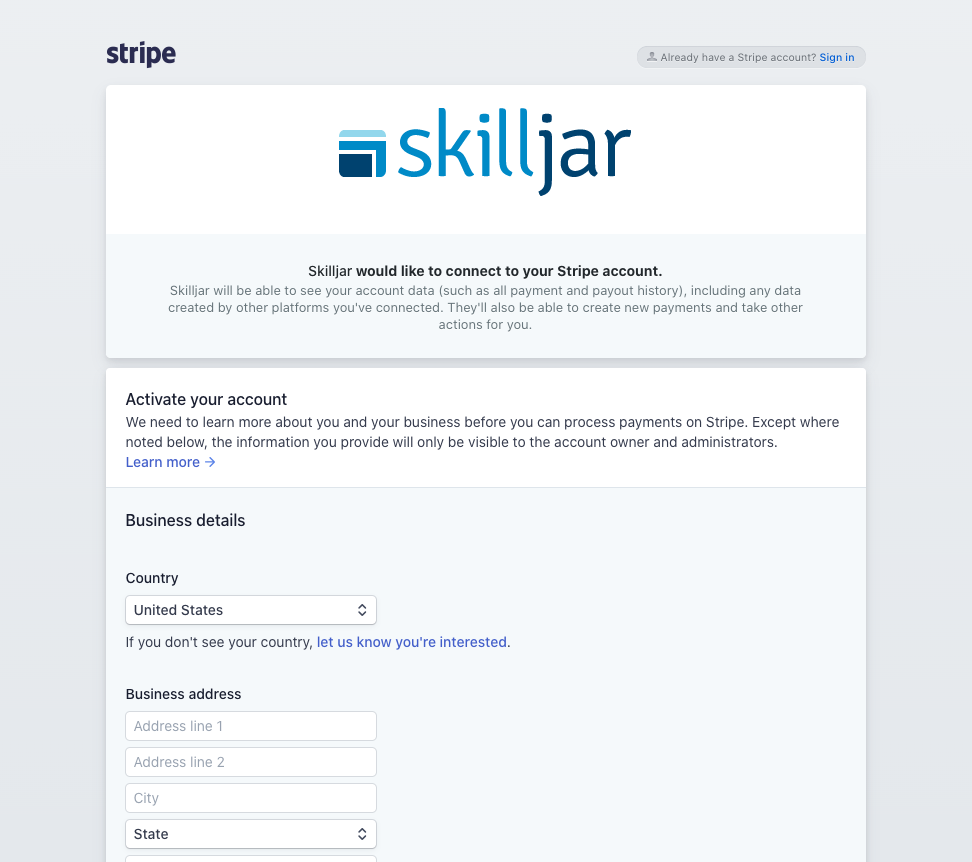
Complete test payments
Stripe provides two API keys: one for live mode and one for test mode. By default, Skilljar retrieves the live mode API key upon authentication. While in live mode, you cannot use test Stripe cards.
To enable the test mode API keys on the backend of Skilljar, contact Skilljar Support and include your:
- Skilljar Organization name
- Stripe Account ID
- Stripe Public test API key
- Stripe Secret test API key

Best practice: If you have a Sandbox Organization, enable your Stripe account first to allow for testing of your company’s entire eCommerce flow (for example, Skilljar purchase to Stripe to your accounting/finance systems).
Use the Stripe test cards to test these example student payment flows in Skilljar on your training domain:
- Purchase priced course at full price
- Purchase priced course with promo code (<100% discount)
- Purchase domain subscription.
To re-enable the live mode API keys on the backend of Skilljar, contact Skilljar Support with your Skilljar Organization name. You can then send the following items via a secure service such as LastPass or Dropbox:
- Stripe Account ID
- Stripe Public live API key
- Stripe Secret live API key

Learn more: Stripe Docs, Testing.
Integration data flow
An offer in Skilljar refers to priced domain subscriptions, course bundles, and courses. For any offer type, Skilljar sends Stripe:
- skilljarUserEmail, the email from the student’s training domain account
- skilljarQuantity, the number of offers purchased
- skilljarOfferType, the offer type (i.e. domain, published_path, published_course)
- skilljarOrderId, the purchase order ID
- skilljarOfferSku, the offer SKU
- skilljarDescription, the offer description
If an offer is on a priced published course, Skilljar sends Stripe:
- skilljarCourseTitle, the published course title
- skilljarPublishedCourseId, the obfuscated ID
If an offer is on a domain subscription, Skilljar sends Stripe:
- skilljarDomainName, the training domain name
- skilljarDomainAccessDurationUnit, the access duration period
Events and logs details the API calls when the payment was created, charged, and payment succeeded.
To enable billing details in the Stripe form on the purchase page in Skilljar, contact Skilljar Support and include your Skilljar Organization name
Remove or Disable Stripe Integration
To remove Stripe:
To remove the Stripe integration from your Skilljar organization, contact Skilljar Support and include your Skilljar organization name. This applies to both the legacy Stripe integration and the upgraded Stripe integration.
After the integration is removed, learners can no longer make payments through Stripe on your training domains.
To disable the Upgraded Stripe Integration:
To disable the upgraded Stripe integration for a domain, clear the Enable Stripe Checkout Sessions checkbox in that domain’s settings. The domain then reverts to the legacy Stripe integration.
When you disable the upgraded Stripe integration, the domain returns to the legacy Stripe integration.
FAQs
What information do I need to activate a new Stripe account via Skilljar?
To complete the Stripe activation from via Skilljar, you will need the following information:
Business details:
- Country
- Business address
- Business phone
- Type of business
- Employer Identification Number
- Business website
- Business description
- Time from payment until customers receive goods/services
Individual or sole proprietor details
- Full name
- Phone number
- Date of birth
- Last 4 digits of Social Security number
- Home address
Credit card statement details
- Statement descriptor
- Support phone number
- Customer support address
Bank details
- Routing number
- Account number
Two-step authentication
- Password
Learn more: Stripe Docs, Account.
Will a Stripe receipt automatically be generated and sent upon purchase?
Not by default. If you'd like, you can contact our Customer Success team or support@skilljar.com to enable this feature for your organization. Once enabled, when a learner makes a purchase on Skilljar using Stripe, Stripe will automatically send an email receipt to the learner's email address. Please see your Stripe Dashboard to review the email receipt branding and customization options.
Can Skilljar calculate sales tax and pass that value through to Stripe?
Yes, through upgraded Stripe integration, you can calculate Taxes.
What student registration flows will bypass the Stripe payment details?
Students in these scenarios will not need to enter their name or billing details for a Stripe payment:
- Student purchases a course, with a 100% discount on the course, using a promo code.
- Student registers for a free course.
- Admin manually registers a Student in a course from the Skilljar Dashboard.
You can prevent bypassing Stripe integration by selecting the Do Not Process $0 Transactions checkbox in the checkout session.
Does Skilljar store student credit card information in legacy Stripe Integration?
Skilljar does not store credit card information and only collects transaction details with Stripe’s tokenization process. We also use SSL on the purchase pages where we collect credit card information.
Can Avalara be used?
Yes, via Stripe. Avalara operates post-purchase and does not affect the learner checkout experience.
What changes with the upgraded Stripe integration?
The final payment step now takes place on a Stripe-hosted checkout page instead of in Skilljar. Promo codes are also managed in Stripe instead of the Skilljar dashboard.
Do existing Skilljar promo codes still work?
No. Standard promo codes created in the Skilljar dashboard do not work with the upgraded Stripe integration. Recreate them in Stripe to continue using them.
Do training credits and access codes still work?
Yes. Training credits, license codes, and access codes continue to work in Skilljar and are applied before the learner is redirected to Stripe.
Should I test this before enabling it in production?
Yes. Gainsight recommends enabling the upgraded Stripe integration on a test domain first, then validating the purchase flow before rolling it out more broadly.
|
|
Direct Stripe Integration |
|
|---|---|---|
|
What objects are used/created in Stripe? |
An offer in Skilljar refers to priced domain subscriptions, course bundles, and courses. For any offer type, Skilljar sends Stripe:
If an offer is on a priced published course, Skilljar sends Stripe:
If an offer is on a domain subscription, Skilljar sends Stripe:
Stripe then sends the following data back to Skilljar: Preview unavailable |
The customer will have full control over how it's mapped from Skilljar. |
|
How are taxes handled? How would Avalara ↔︎ Stripe integration work? Do the taxes show up in Skilljar when the customer is making a purchase? |
Skilljar does not calculate sales tax or add it to the sticker price. Some customers choose to include tax in the total price listed in Skilljar and separate taxes in their external systems. To collect tax on your eCommerce purchases, we advise that you set up an external payment processor and configure your tax calculations in that processor. |
With the external payment processor configured, when a user clicks on "Proceed to Checkout" in Skilljar, they will be redirected to the external payment checkout URL with the purchase_id appended to the URL as a query parameter. The external processor can then send taxes back to Skilljar and we can pull it into the Order Report section of the Administrator Dashboard. Some customers choose to add a sentence that notifies users that regional/local taxes will be added at checkout. |
|
Is promo code data sent to Stripe? |
The Skilljar system shows what promo code the learner uses, the offer price, and the promo price (the price the user paid after applying the promo code). |
The customer will have full control over how Skilljar data is mapped to Stripe. |
|
Integration - How does it work? |
The direct Stripe integration securely embeds Stripe's payment page during the Skilljar checkout flow. Stripe manages the charging process and informs Skilljar of the outcome of the Charge. Skilljar never stores any purchasing data, credit card information, etc. Depending on the successful purchases, Skilljar will allow the completion of purchase and registration into the course. Stripe provides 2 API keys: one for live mode, one for testing mode. By default, Skilljar retrieves the live mode API key, but while in live mode you cannot use test Stripe cards. |
This would be managed by the customer and how they would like to manage the API. |