
Connect Skilljar to Microsoft Copilot
This article explains how to add the Skilljar Model Context Protocol (MCP) server as a tool in a Microsoft Copilot Studio agent.
Overview
Connect Microsoft Copilot Studio to Skilljar, allowing the agent to perform permitted learning-management tasks from natural-language instructions.
Prerequisites
You need:
- A Skilljar account with Dashboard access.
- Access to Microsoft Copilot Studio.
- Permission to edit the required Copilot Studio agent.
- Permission to add tools and configure authentication for the agent.
This integration applies to agents created in Copilot Studio. It does not describe the consumer Microsoft Copilot application.
Supported Use Cases
The Skilljar MCP server can help your agent:
- Find and manage students.
- Enroll students in courses.
- Create and organize groups.
- Create courses and HTML lessons.
- Update lesson content, titles, and order.
- Translate course content.
Each user signs in separately. The available actions match the permissions assigned to that user in the Skilljar Dashboard.
Add Skilljar as an MCP Tool
To add Skilljar MCP:
- Open Microsoft Copilot Studio.
- Open the required agent.
- Navigate to the agent’s Tools section.

- Select Add a tool.

- Select Model Context Protocol.

-
Enter the following server URL:
https://mcp.skilljar.com/mcp - Select OAuth 2.0 as the authentication type.
- Select Dynamic discovery as the OAuth configuration type.
- Select Create.

Note: Dynamic discovery allows Copilot Studio to discover the Skilljar authorization endpoints and register the connection without requiring you to enter each OAuth endpoint manually. - Click Create. The Skilljar Login Page appears.
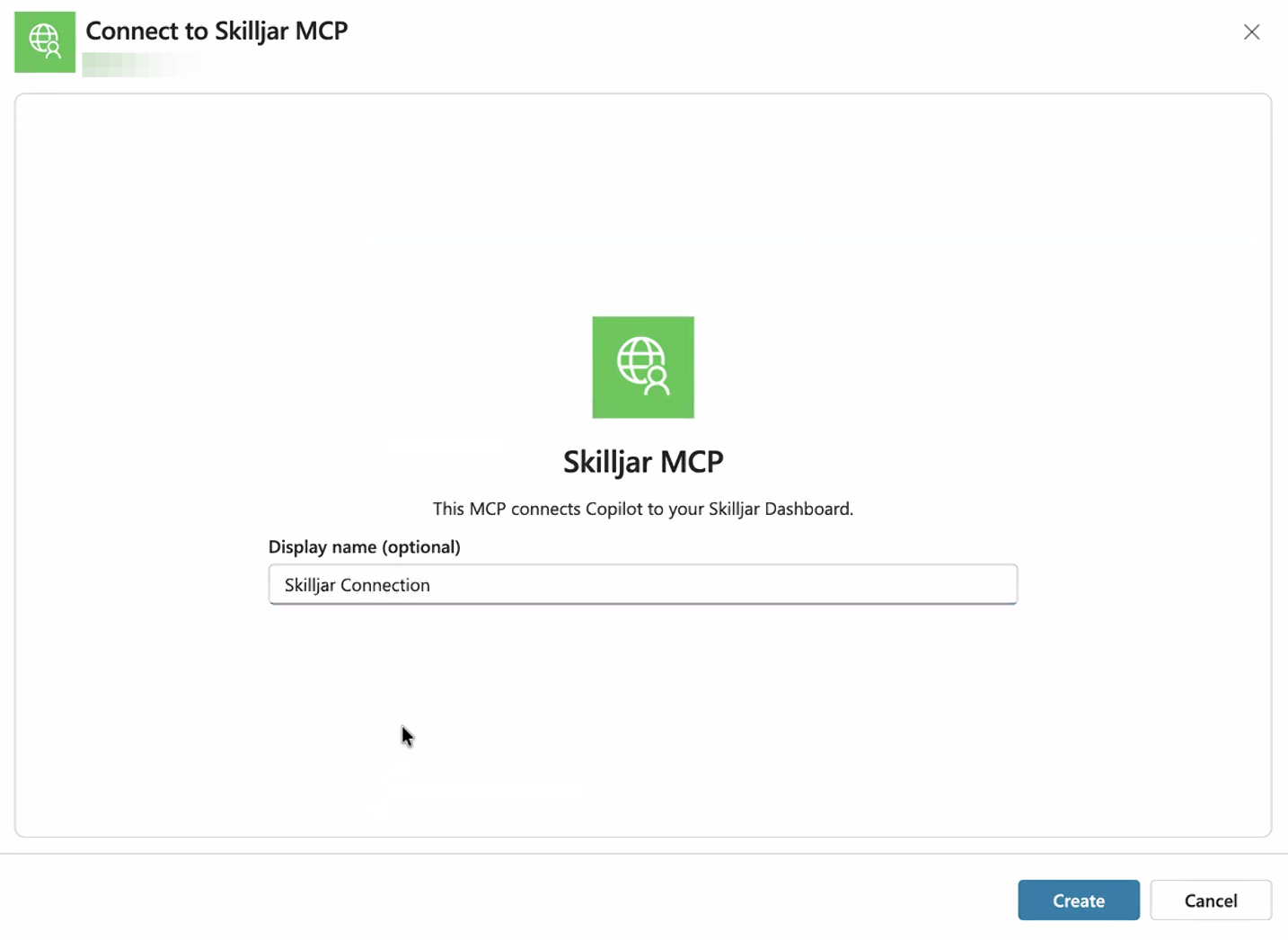
- Provide your Skilljar credentials and click Log in.

- Click Allow access.
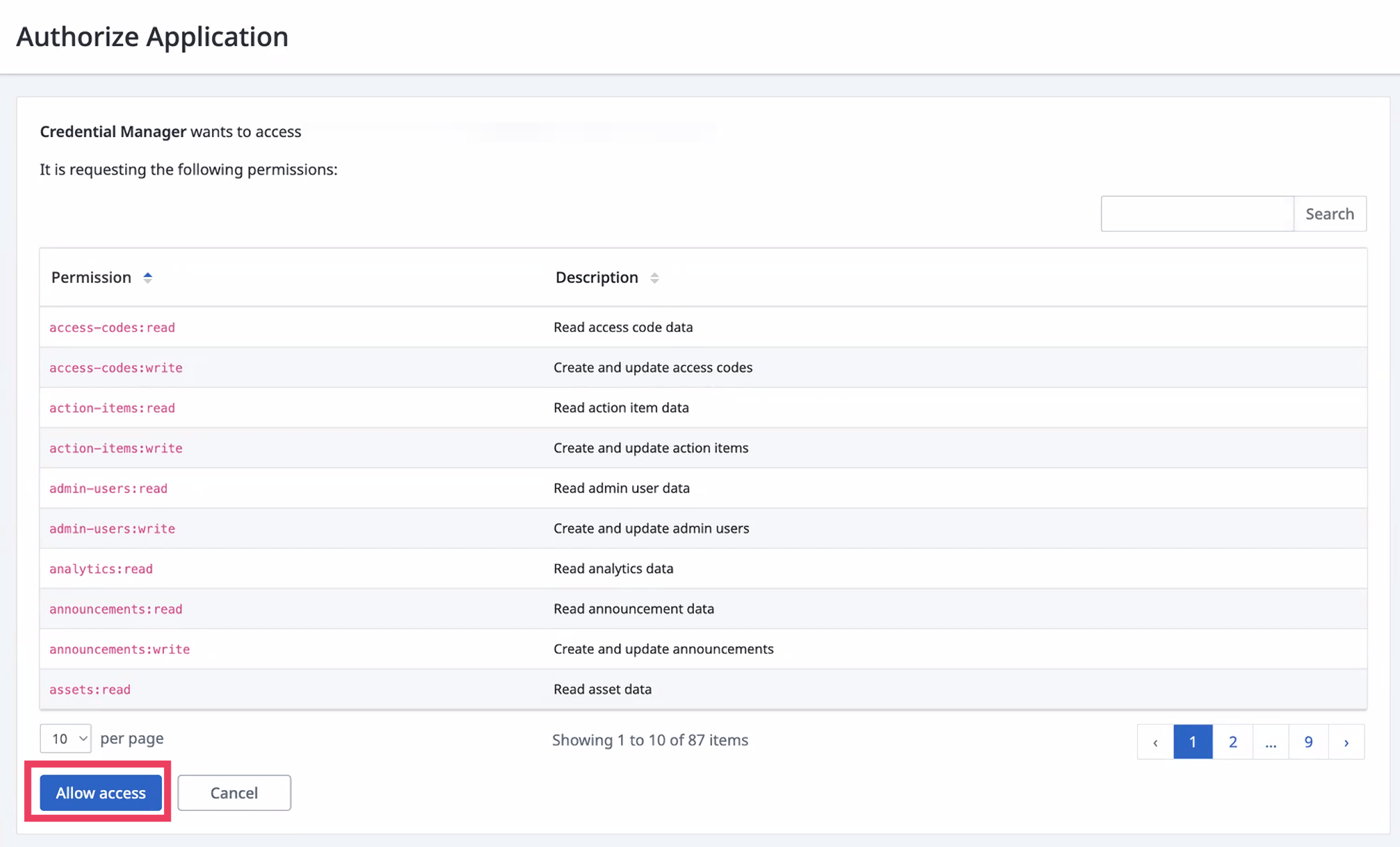
- Return to Copilot Studio. Skilljar MCP is added to your agent.
Copilot Studio stores the resulting token and refreshes it when required. You do not need to create or store a Skilljar API credential. For prompts to use, refer to the MCP Library.
The agent can perform only the actions permitted for the Skilljar user who authorized the connection.
Disconnect Skilljar
To disconnect the integration:
- Open the agent in Copilot Studio.
- Open the Skilljar MCP tool.
- Remove or disconnect the associated Skilljar connection.
- Save the agent.
A Skilljar organization administrator can also revoke the connection from Settings > API Credentials > Connections in the Skilljar Dashboard.