
How To Rotate Credly-Acclaim Auth Token
IMPORTANT
The functionality described in this article is not applicable to the Skilljar Starter package.
Create new token in Credly
Please see this Credly help center Article on the process for more information - https://credlyissuer.zendesk.com/hc/en-us/articles/28143019451035-Auth-Tokens-for-Authorization
- Navigate to Developers -- Authorization Tokens and Add Token. Be sure to indicate permissions.


- Once you have added the token, click on the old version and delete. Swap the new for the old wherever you use the auth token in your system.
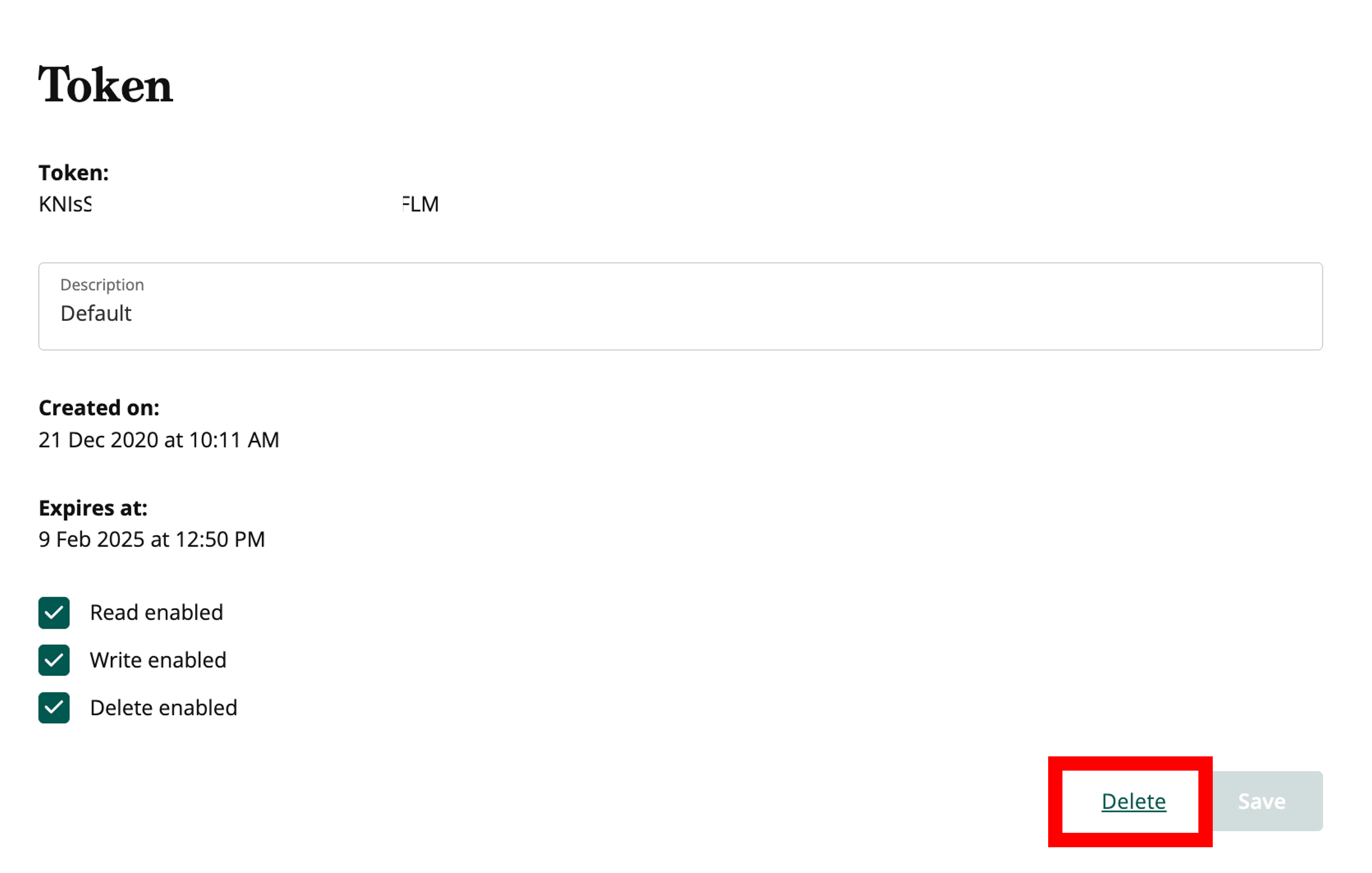
Once you have deleted the old Auth Token the Skilljar Integration will not work until you complete the steps below.
Rotate new Credly token in Skilljar Dashboard
- Navigate to the Credly Acclaim Integration page within your Skilljar Dashboard which can be found here - https://dashboard.skilljar.com/integrations/credly-acclaim
- Click on your Credly integration to open up the integration settings

- Update the "Acclaim API Token" field with your newly generated token and click Save"

We advise you test the new Auth Token setup. If you receive an error or if your badge does not generate please reach out to Skilljar Support at support@skilljar.com