
Viewing Quiz Responses
Student responses to quizzes using our built-in quiz tool are recorded in the Analytics section of the dashboard.
View a summary of quiz responses
For a summary view of responses:
Navigate to the Quiz Analytics page in the Dashboard:https://dashboard.skilljar.com/analytics/quizzes

A table summarizes where the quizzes are published, total completions, average score, and a passing score (if set).

View specific quiz question responses
To view insights on quiz question responses, which also include question bank questions in the quiz, click on the specific quiz title. Learn more about question banks here.
- For Multiple Choice and Multiple Answer Questions, the results will show the percentage of student responses that were correct as well as all responses:


- For Fill in the Blank questions, you'll a summary of correct responses:
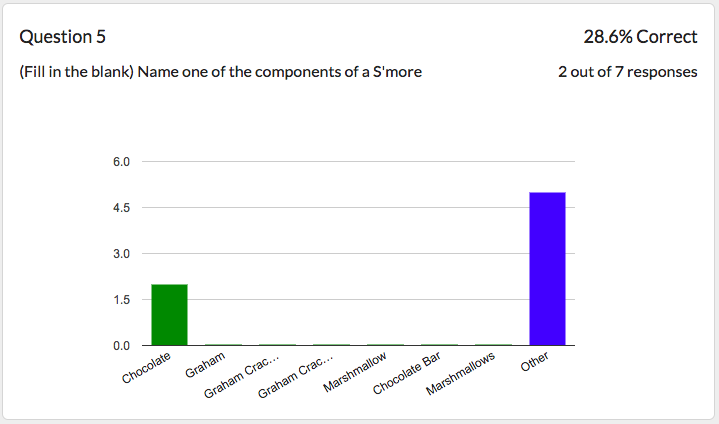
- If a free-form text question requires manual grading, you'll see a summary of the responses that were marked correct or incorrect:

View a Specific Student's Responses
For a detailed view of responses and to export quiz data via CSV:
- Select the Students tab within a specific Quiz.

- Select a student's name to see the quiz responses for a specific student

Export Quiz responses
Download all student responses to a quiz from the Analytics feature
- Navigate to the Quiz Analytics page and select a Quiz.
- Select the Students tab from within the quiz.
- Click on the CSV button to export all responses:
