
Bulk Upload Quizzes
IMPORTANT
The functionality described in this article is not applicable to the Skilljar Starter package.
This article helps admins understand how to upload questions to quizzes and question banks.
Overview
Skilljar enables you to bulk upload questions into quizzes and question banks. In a single upload, you can add questions to existing quizzes and question banks or create new ones, eliminating the need to add questions individually.
Bulk Upload Questions to Quizzes and Question Banks
Perform the following steps to bulk upload questions to quizzes or question banks:
- Open your Skilljar dashboard.
- Expand the Course Management header on the left, and select Quizzes.
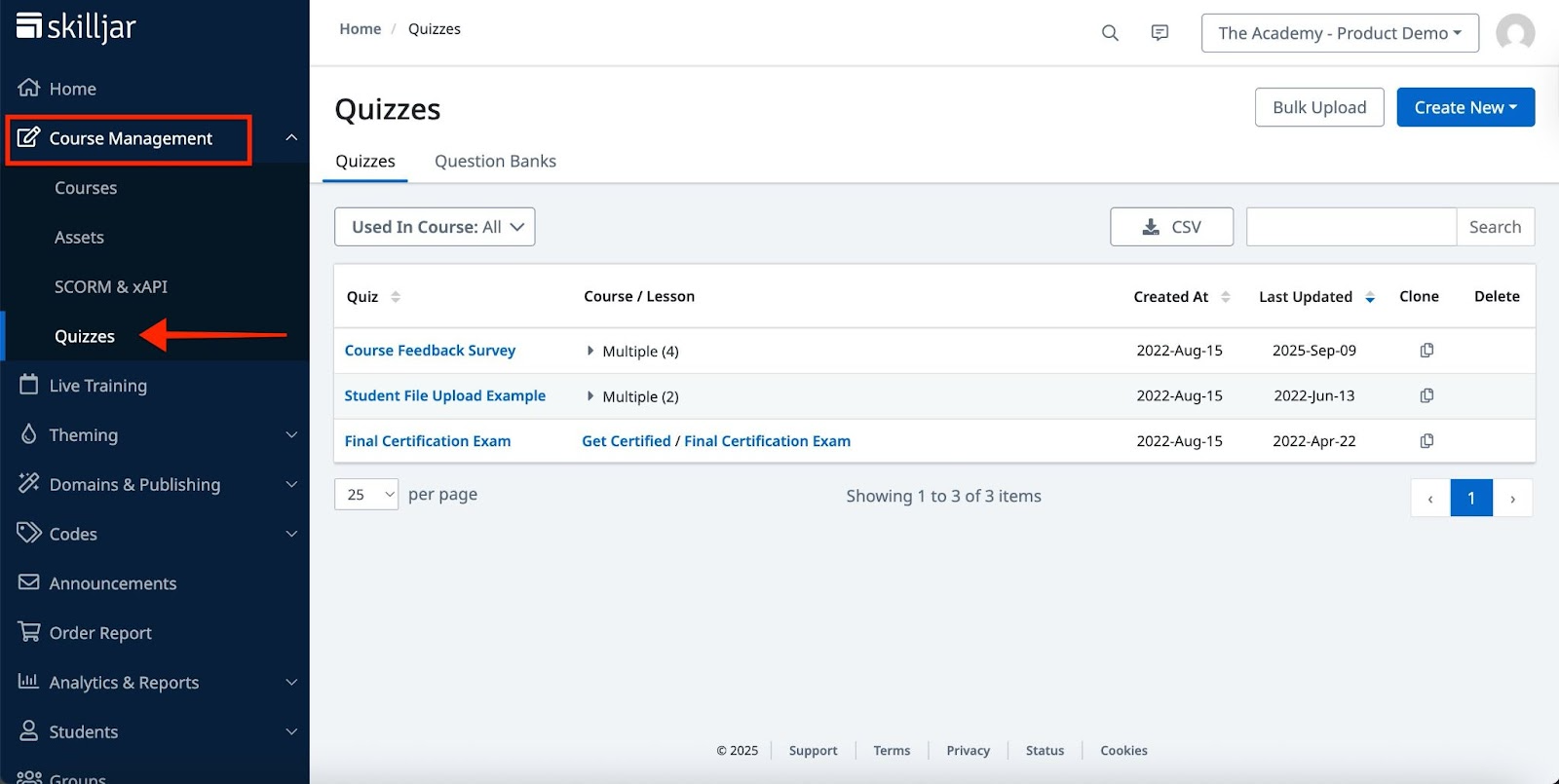
- On the Quizzes page, click Bulk Upload.

- In the Bulk Upload, click Download Quiz Bulk Upload CSV. The CSV file starts to download.

- Navigate to the downloaded file in your local system. By default, it is saved as bulk_quiz_template.csv.
- Open the file, provide the necessary details, and save it.
For more information on data validation for the CSV file, refer to the Data Validation of Bulk Upload CSV section. - Drag and drop the updated CSV file into the Upload Quiz Bulk Upload File field. Alternatively, click browse to locate the CSV file, then click Open.
Note: If there are any errors or warnings, they will be displayed under the Upload Quiz Bulk Upload File field. Fix the errors in the file, and click Please try again to reload the file. - Click Configure Quiz Settings.
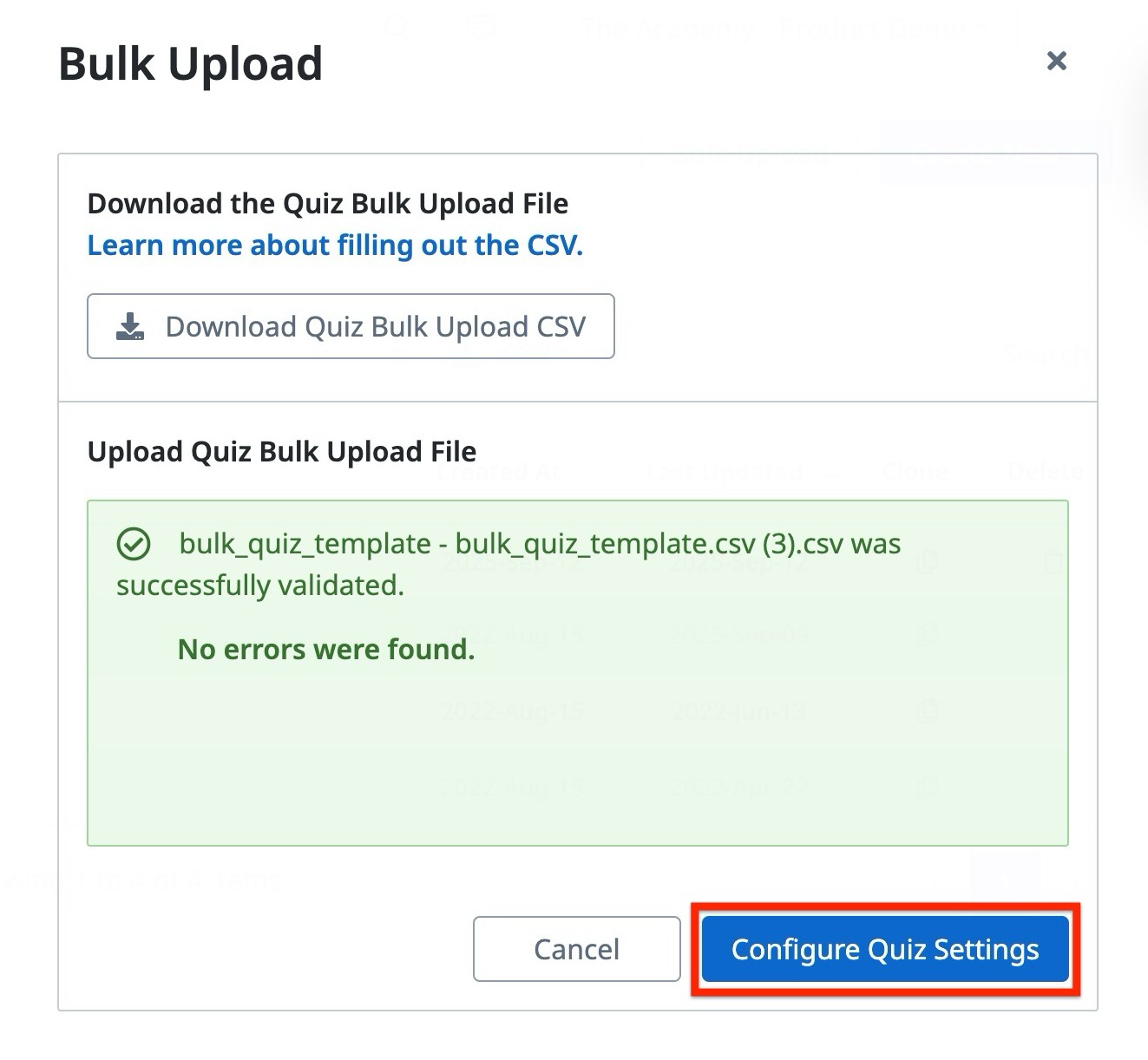
- Provide the details in the Quiz Settings panel, scroll down, and click Save. The newly created Quizzes and Question Banks appear in their respective tabs under the Quizzes page.

Note- Quiz settings apply only to newly created quizzes; existing quizzes remain unchanged.
- The Limit Question Count setting cannot be applied through bulk upload. It must be configured manually for each quiz.
- Click the Quizzes or Question Banks to manage the details. For more information on managing Quizzes, refer to the Create & Manage Quizzes article.
Data Validation for Bulk Upload CSV
This section explains the validation process for the bulk upload CSV. To obtain the bulk upload CSV file, refer to the Bulk Upload Questions to Quizzes and Question Banks section and follow the instructions through Step 4.
The Bulk upload CSV file consists of the following headers:
| Header | Description |
|---|---|
| quiz_id |
Specify the quiz ID to update questions in an existing quiz. Note: To find the Quiz ID, open the quiz from the Quizzes page. In the page URL, the last 12 alphanumeric characters represent the Quiz ID. |
| question_bank_id |
Specify the question bank ID to update questions in a existing question bank. Note: To find the question bank ID, open the question bank from the Quizzes page. In the page URL, the last 12 alphanumeric characters represent the Question Bank ID. |
| new_quiz_name | Specify a name to create a new quiz. You can provide the same quiz name multiple times to add multiple questions to the same quiz. Note: Entering the name of an existing quiz in this column will create a new quiz with the same name. |
| new_question_bank_name |
Specify a name to create a new question bank. You can provide the same question bank name multiple times to add multiple questions to the same question bank. Note: Entering the name of an existing question bank in this column will create a new question bank with the same name. |
| new_quiz_description |
Specify a description for the quiz.
|
| is_case_sensitive | Specify as TRUE if the answer needs to be case sensitive. Note: This header applies only to the Fill in the Blank question type. If left blank, this header defaults to FALSE. |
| requires_manual_grading | Specify as TRUE if the answers requires manual grading. Note: This header is only required for Free Text Response questions. If left blank, this header defaults to FALSE. |
| correct_answer_feedback_text |
Specify a feedback text to display when the student provides a correct answer to a question. Note: This header is optional. |
| incorrect_answer_feedback_text |
Specify a feedback text to display when the student provides an incorrect answer to a question. Note: This header is optional. |
| answer_feedback_text | Specify a feedback text to display when the student provides an answer. Note: This header is optional. |
| is_graded | Specify as TRUE, if the answer needs to be graded. Note: This header defaults to FALSE if left blank. |
| is_optional | Specify as TRUE to mark the question as optional. Note: This header defaults to FALSE if left blank. |
| question_type |
Provide one of the following question types:
|
| question_text | Specify the question to be displayed to the student. |
| answer_text_1 | Specify the first answer option to be displayed. |
| answer_correct_1 | Specify as TRUE if the first answer is correct; if not, specify as FALSE. |
| answer_text_2 | Specify the second answer option to be displayed. |
| answer_correct_2 | Specify as TRUE if the second answer is correct; if not, specify as FALSE. |
Note
- All headers (with the exception of additional answers) must be present in the CSV. However, the order of headers is not strictly enforced.
- Only one of the following headers can be filled per row: quiz_id, question_bank_id, new_quiz_name, and new_question_bank_name.
- If you do not have access to the specified quiz ID or the question bank ID, the questions will not be updated.
- For additional answer types, you can add answer_text and answer_correct header pairs with the appropriate suffix numbering.
For example: answer_text_3,answer_correct_3; answer_text_4,answer_correct_4… - Fields that do not apply to a particular question type are ignored if filled.
- For the Multiple Choice question type, there should be at least one correct answer.
- For the Linear Scale question type, there must be between 2 and 10 answers.