
Manually Adding and Removing Users to Live Training
IMPORTANT
The functionality described in this article is not applicable to the Skilljar Starter package.
Users can self-register and self-cancel from Live Training events, but you can manually add or remove them to a live training event through the dashboard. To bulk add users, go here.
To add a user to a Live Training event:
- Create a live training event, instructions found here.
- Navigate to the Live Training feature
- Select the live training event
- Select the "Add User" button on the upper right corner

- Input the user's email address, First Name, and Last Name and click "Save" or "Save an add another" to continue adding.
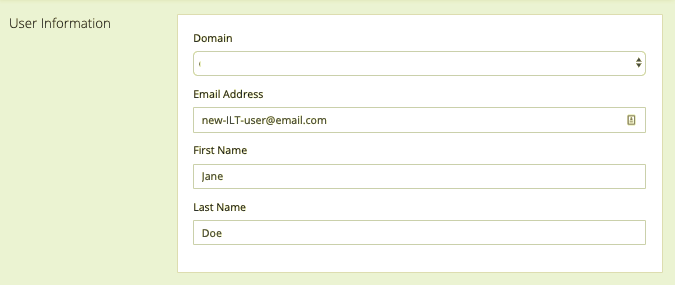
- You'll see the user added to the event.

This enrolls the user into the domain and course (if not already enrolled) and adds them to this live training event. This also sends the user an email containing the event details with a way to add it to their calendar (see below).

Important: If this is a new user who has not registered to your training site before, to log in and see the lesson they will need to follow the "Forgot Password" process to set their password.
To remove a user from a Live Training event:
- Navigate to the Live Training feature
- Select the live training event
- Select the Remove "x" for this user

- You'll be prompted to confirm you want to remove them, select "OK" or "Yes."

- The user will then receive a cancellation email, including information on removing the event from their calendar:

This removes the user from this specific live event, but they are still enrolled in the course, so they can choose a new event as needed. - If an event is cancelled by a Skilljar Admin (see here), any students registered for the event will be notified through an email sent by Skilljar to inform them (if enabled in Lesson settings, which is the default)
