
Create Bulk Live Training Events
This article helps admins understand how to create or update live training events in bulk.
Overview
Create and update multiple live training events using a CSV file. This reduces manual work and helps you manage large numbers of events efficiently.
Bulk Import Live Training Events
To bulk import live training events:
- Open your Skilljar Dashboard.
- Click Live Training on the navigation pane. The Live Training page appears.
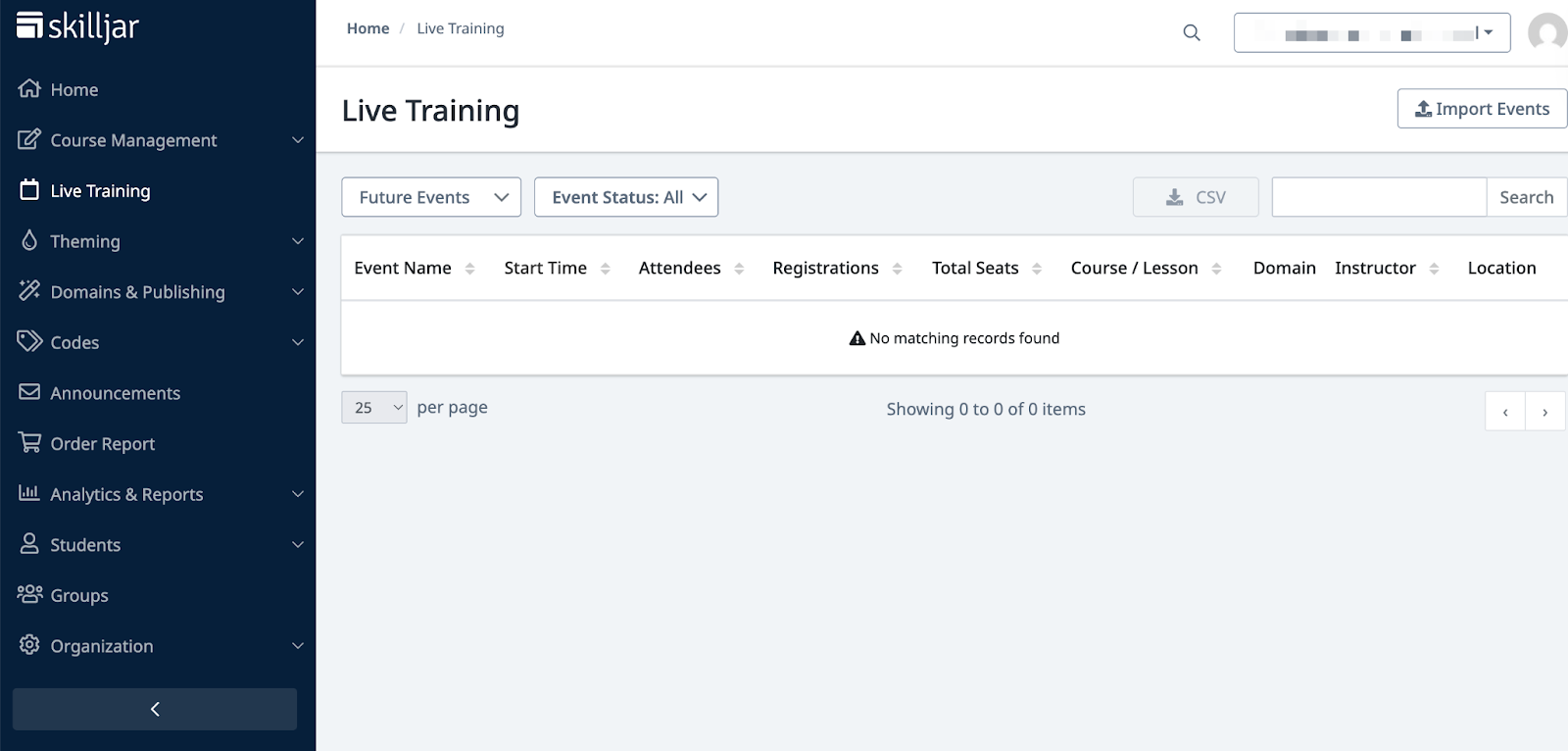
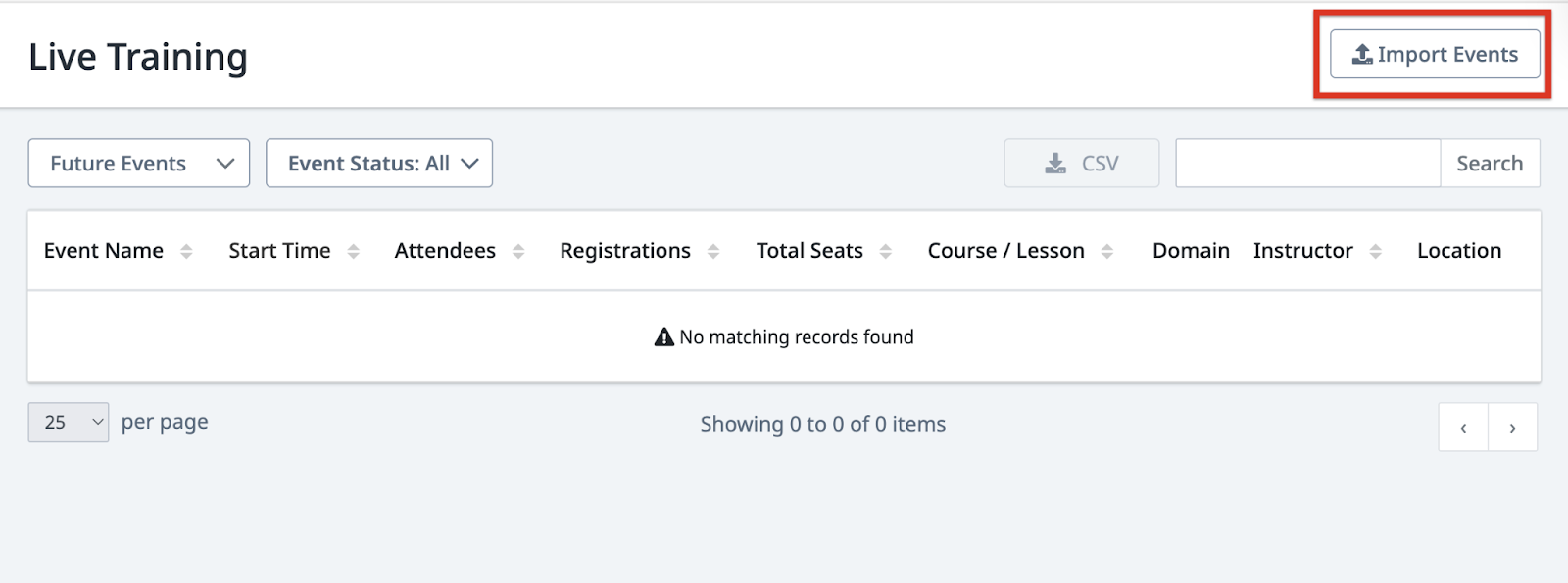
- On the Live Training page, click Import Events. The Import Events panel appears.
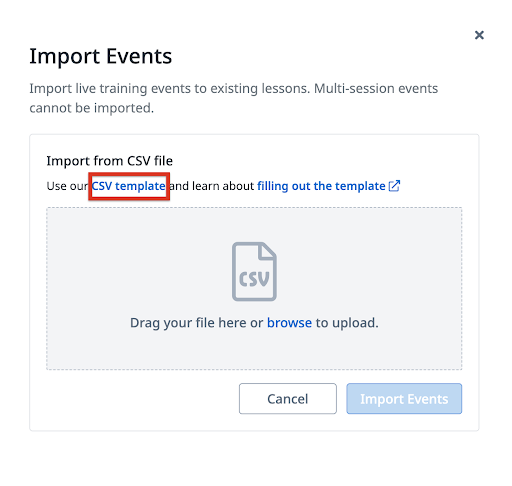
- Click CSV template to download the recommended template for efficient event updates. The CSV file starts to download.
- Open the downloaded file on your local system.
- Provide the required details in the CSV file, and save it. For more details, refer to the Data Validation of Live Training Events CSV section.
- Drag and drop the updated CSV file into the upload area. Alternatively, click browse, locate the file, and then click Open.
Note: Any errors or warnings will be displayed under the Upload Area field. Fix the errors in the file, then click try again to reload it. - Click Import Events.

- After the upload completes, review the created or updated records on the Live Training page.
Data Validation of Live Training Events CSV
This section explains the validation process for the bulk import of live training events CSV. To obtain the bulk upload CSV file, refer to the Bulk Import Live Training Events section.
|
CSV Field |
Description |
Mandatory |
|---|---|---|
|
lesson_id |
Unique ID of the live training lesson associated with the event. |
Yes |
|
event_name |
Name of the live training event. |
Yes |
|
start_datetime |
Start date and time of the event. Format: YYYY-MM-DD HH:mm:ss |
Yes |
|
end_datetime |
End date and time of the event. Format: YYYY-MM-DD HH:mm:ss |
Yes |
|
timezone |
Time zone for the event. |
Yes |
|
session_type |
Specify one of the following session types:
|
Yes |
|
instructor_email |
Email address of the instructor assigned to the event. |
Yes |
|
location |
Event location. |
No |
|
seats_total |
The maximum number of learners who can register. |
No |
|
description_html |
HTML-formatted description of the event. |
No |
|
post_registration_instructions_html |
HTML-formatted instructions that are shown after registration. |
No |
|
event_link |
URL for the event. |
No |
|
Tag_1 to Tag_20 |
Assigned Tags for the event. |
No |
For more information, refer to the example template.