
Embed a Microsoft PowerPoint Presentation as a Lesson
Embed Microsoft Office PowerPoint presentations (PPT) as a lesson type via a view link or embed code via IFrame gathered or generated in various ways within your Office 365 settings. In this article, we'll show you how you can use a Microsoft Office PowerPoint presentation as a lesson within your Skilljar training platform.
To learn more about embedding content in a lesson, see Embed Content in a Lesson and learn more about lessons at Lessons 101.
You'll need a Microsoft Office account to create a PowerPoint presentation file.
Create the link/embed code
Create the Microsoft PowerPoint presentation and then create the embed link.
- On the PowerPoint file, select File and then Share.

- Select Embed.
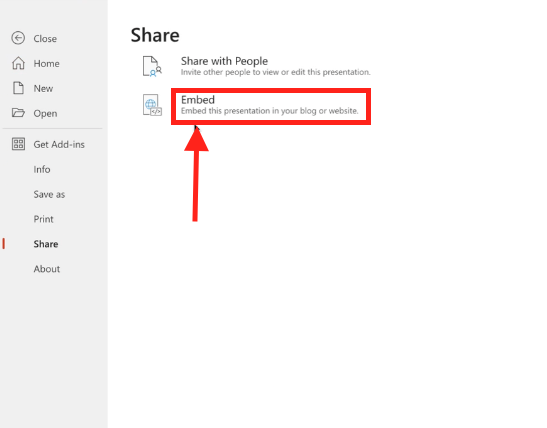
- On the popup screen, select Generate.

This will create the link which can then be copied and shared externally using the steps below.
Gather the link/embed code
Upload the PowerPoint presentation to your Microsoft OneDrive/Office 365, and make sure it's shareable to anyone.
Placing access restrictions on the PPT may prevent it from rendering as a lesson. There are various ways to gather the PPT link, and your share and access rights may depend on your organization’s setup. Please check with your system admin and your Office 365 settings.
Collect the link by following these steps in your PowerPoint program.
- Select Share and then Manage Access.
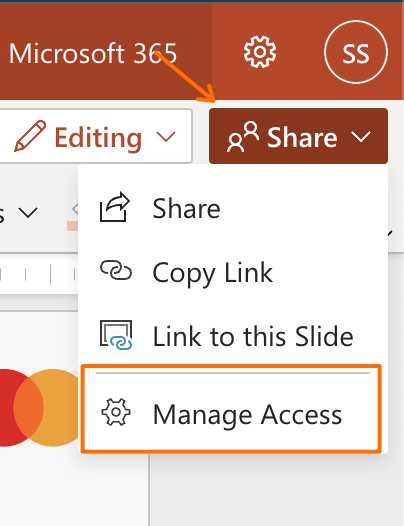
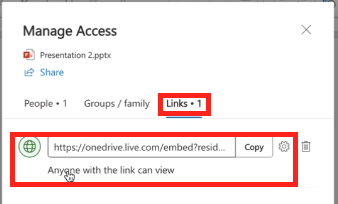
- Select the Links tab.
- Copy the top OneDrive link to the PowerPoint, which will say “Anyone with the link can view.” Again, this will depend on your organization’s access and share restrictions, as well as your Office 365 settings.
Create a Files or Web Content Lesson
Next, open your Skilljar dashboard and create the course (if not already created) and then the lesson. To turn your PPT presentation into a lesson you must create a text lesson.
- Select New Lesson.
- In the flyout window select Files or Web Content.

- Select the Embed Link Tab.
- Paste your copied PowerPoint link/code into the URL field.
- Change the Type selection to Any Website (Via iFrame).
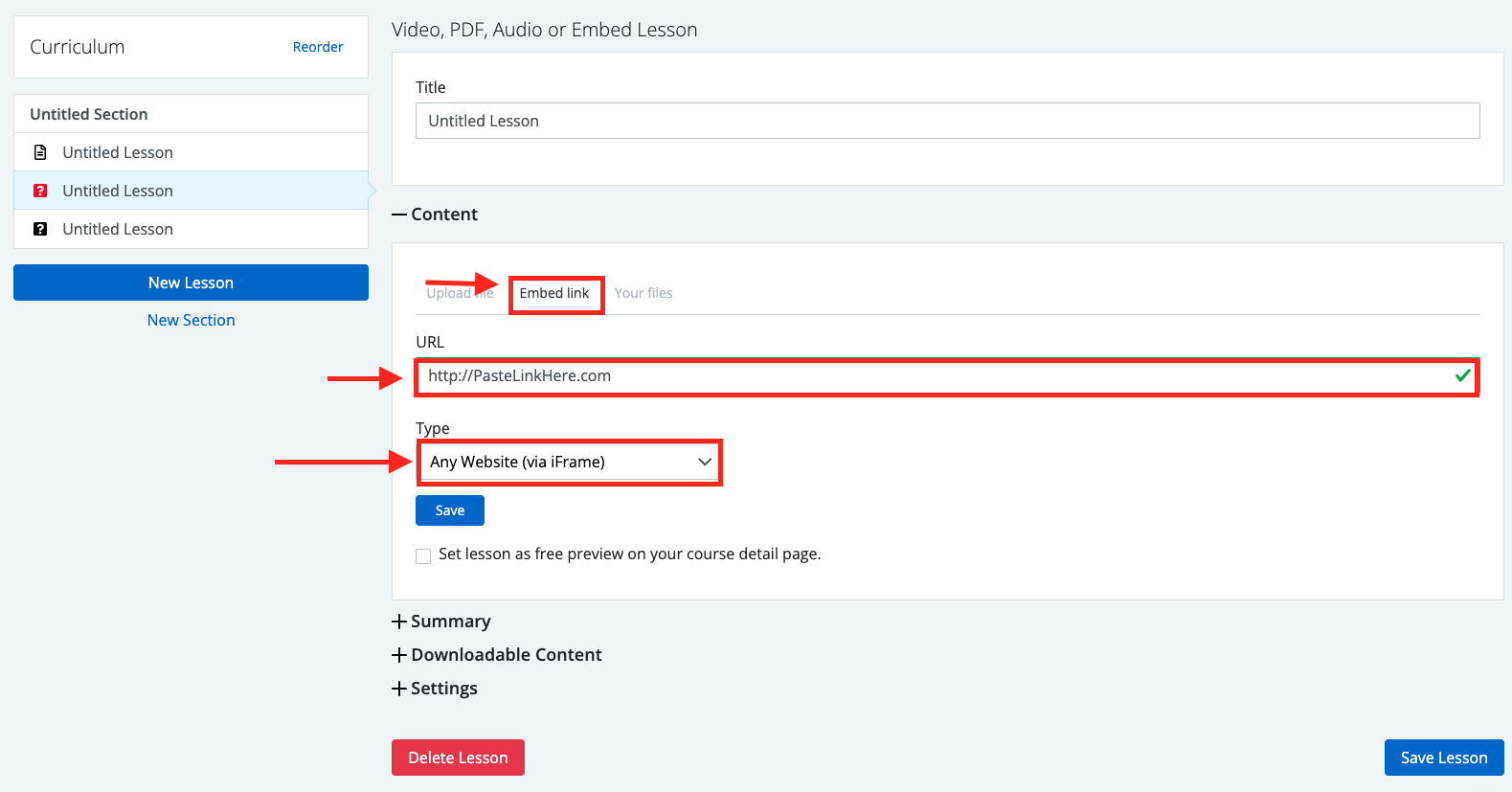
- Give the lesson a title and add any necessary details and settings.
- When you're finished, select Save Lesson. You can preview the lesson after saving it by selecting Preview and then This Lesson. The PowerPoint will also now appear in your Skilljar Asset library.
The PowerPoint lesson will now be included in your course.