Integrate Salesforce Knowledge Base with In-App Hub (formerly KC Bot)
This article explains how to integrate the Salesforce Knowledge Base with Gainsight PX Knowledge Center Bot.
Overview
Gainsight PX allows you to add your Salesforce Knowledge Base content to the Knowledge Center (KC) Bot. This allows your users to access your Salesforce Knowledge Base within the KC bot. For more information about Salesforce Knowledge Base, refer to the Salesforce Knowledge article from the Additional Resources section.
Salesforce Integrations
Gainsight PX provides two instances of Salesforce Integration under the Integrations section. One in the Data Integrations section and the other in the Knowledge Center Integrations section.
Salesforce Integration widget in the Data Integrations section allows you to sync data from Salesforce to PX and vice-versa. For this to work, you must authorize Gainsight PX with Salesforce. On the other hand, the Salesforce Integration widget in the Knowledge Center Integrations section allows you to display Salesforce Knowledge Base content in the KC Bot. However, this integration does not provide authorization functionality. So, the Salesforce Integration widget in the Data Integrations section must be used to complete authorization. After the authorization is successful, the Salesforce Knowledge Base content is synced and displayed in KC bot.
This article explains how to authorize PX with Salesforce, and then display Salesforce Knowledge Center content in PX. For more information about the data sync process, refer to the Salesforce Integration in Gainsight PX (Bi-Directional) article from the Additional Resources section.
Authorize Gainsight PX
This section explains how to authorize Gainsight PX with Salesforce. Once authorization is successful, you can display Salesforce Knowledge Base content in KC Bot.
To authorize Gainsight PX with Salesforce:
- Log in to Gainsight PX.
- Navigate to Administration > Integrations.
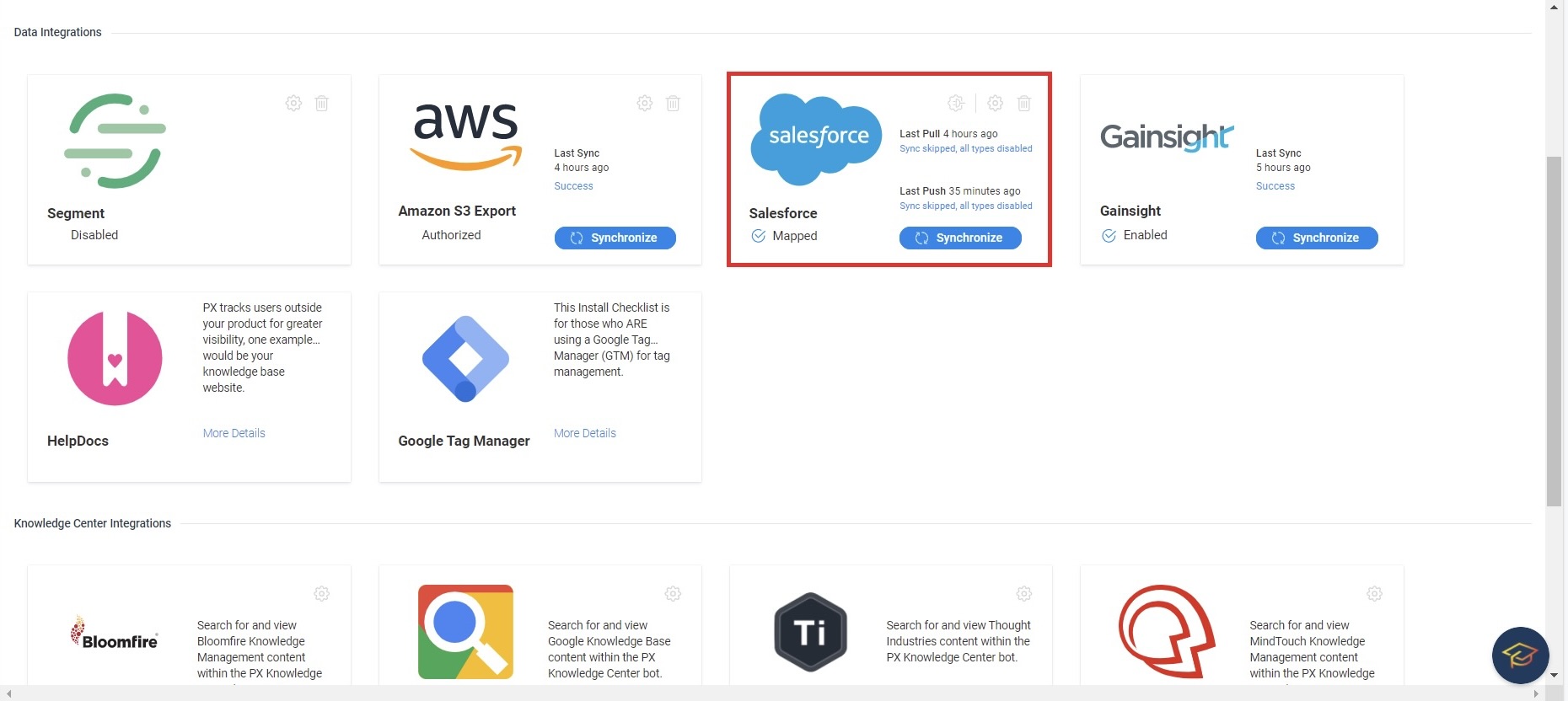
- Click Authorize on the Salesforce Integration widget in the Data Integrations section.
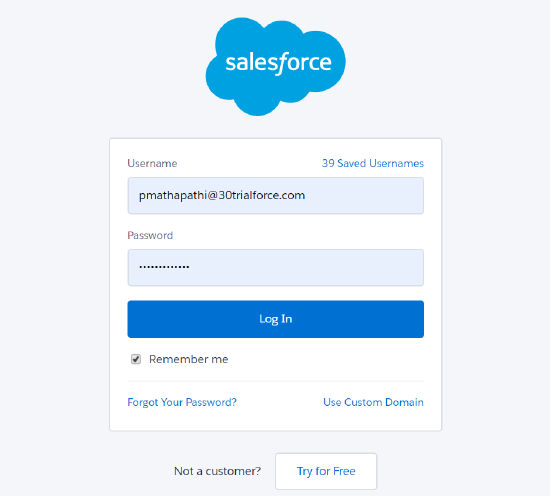
You are redirected to the Salesforce login page. If you have already logged in to your Salesforce org in another tab, you directly view the Allow Access screen. If you are logged in to multiple Salesforce accounts, you can choose to authorize Gainsight with the Salesforce account which contains the Knowledge Base. - Enter your Salesforce Username and Password and click Log In.
- Click Allow on the Allow Access window. Authorize button on the Salesforce Integration widget is now replaced with the Synchronize button.
Enable Salesforce Knowledge Base
After you authorize Gainsight PX with Salesforce org, enable the connection using the Salesforce Integration widget in the Knowledge Center Integrations section.
To enable Salesforce integration:
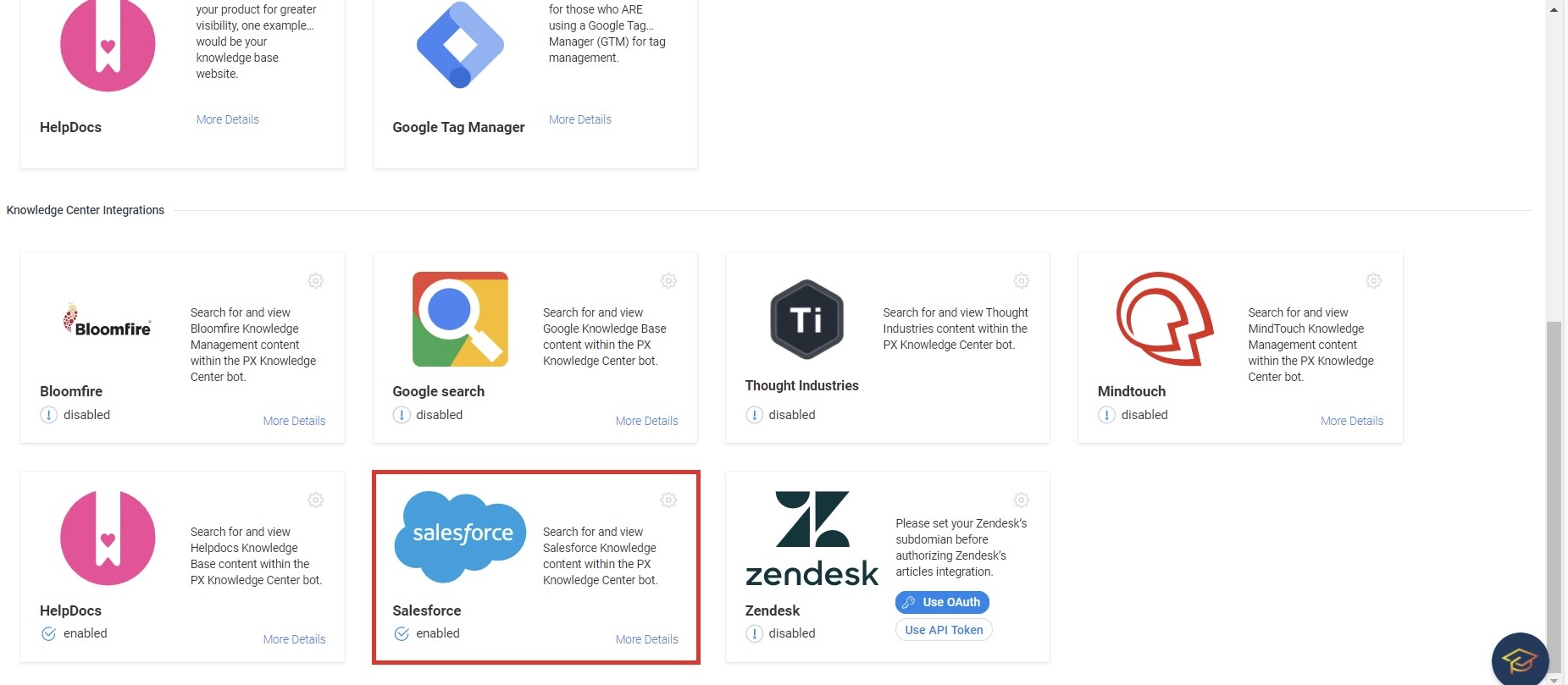
- Click the Settings icon on the Salesforce Integration widget in the Knowledge Center Integrations section.
- Enter your Salesforce Sub Domain which contains the Knowledge base.
- Click Apply. Unauthorized label on the widget is now changed to Enabled.
Use Salesforce Knowledge Base in KC Bot
This section explains how to add the Salesforce Knowledge Center to the KC Bot in Gainsight PX.
Limitation: Salesforce Knowledge Base integration does not allow articles to be rendered in the bot. Hence the user is navigated to Salesforce Knowledge Base when they click on the article in the bot.
To add Salesforce Knowledge Base to KC Bot:
- From the left pane, click on Knowledge Center Bot.
- Click on the KC Bot in the Knowledge Center page.
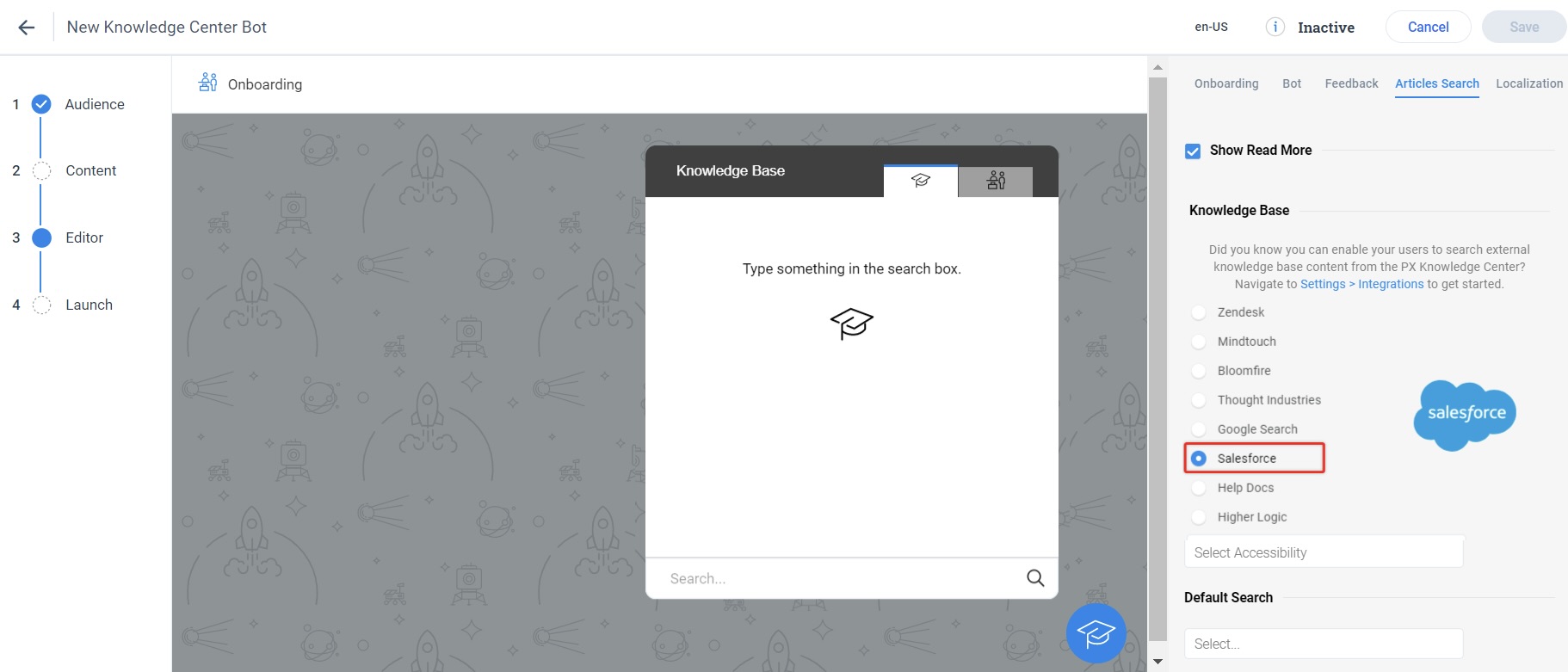
- In the Editor step, navigate to the Articles Search tab on the right.
- Select the Docs Search Tab checkbox.
- Select the Salesforce radio button in the Knowledge Base section. The Knowledge Base tab is shown in the bot preview.
- Select the audience for the article from the Select Accessibility dropdown.
- Public: Unauthenticated users can view the content
- Partner: Access is restricted to authenticated users with Partner profile
- Internal: Access is restricted to internal users
- Customer: Access is restricted to authenticated users with Customer profile
Note: For more information on article visibility settings, refer to Who sees Each Article? section of the Configure Article and Field Visibility article in Salesforce docs from the Additional Resources section.
- Click Save.
- In the Content step, navigate to the Articles tab.
- Click on the Link button.
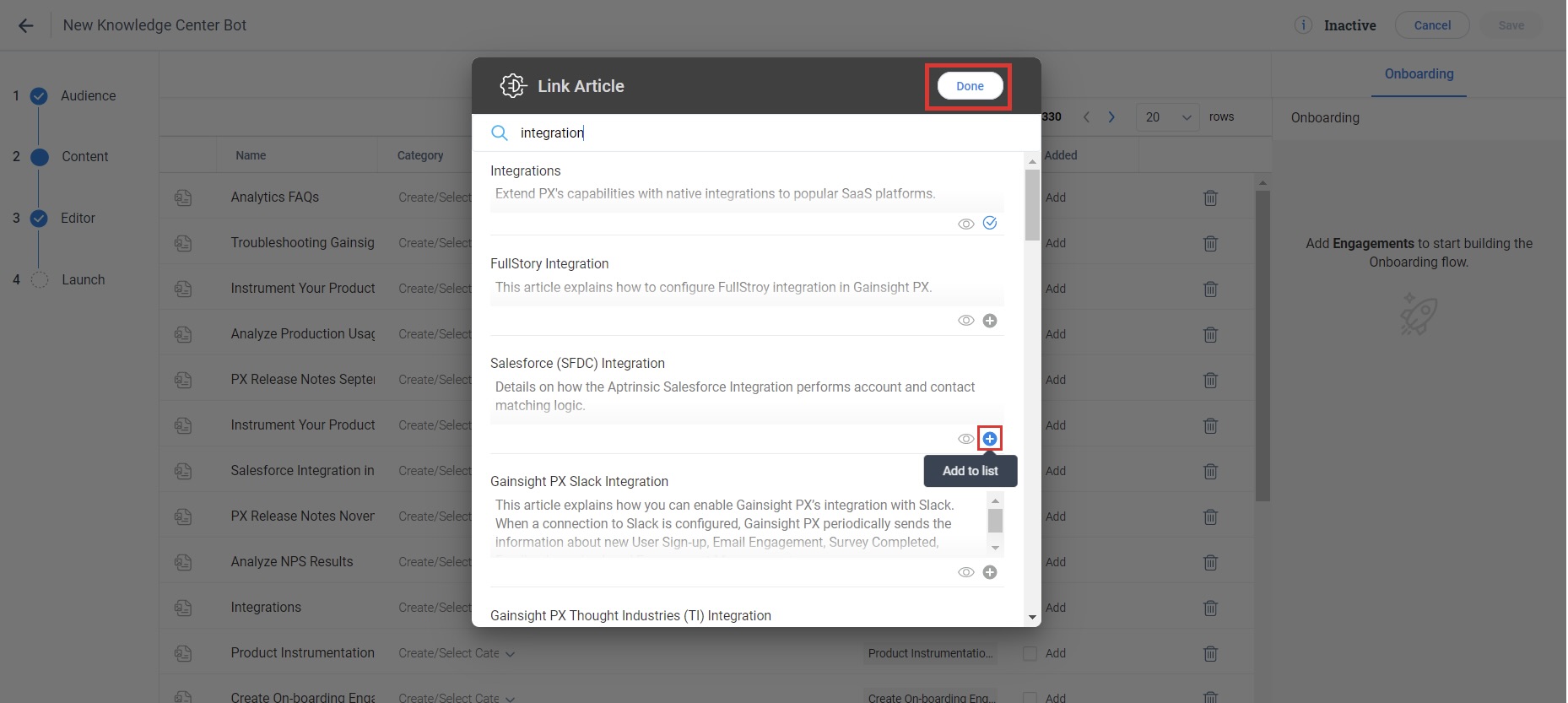
- Search for the articles from your Salesforce Knowledge Center by typing the article names. When you type the name, a set of matching articles are displayed.
- Click the + (Add to List) icon for the required articles.
- Click Done.
- Select the Add checkbox next to the article you want to include in the KC Bot.
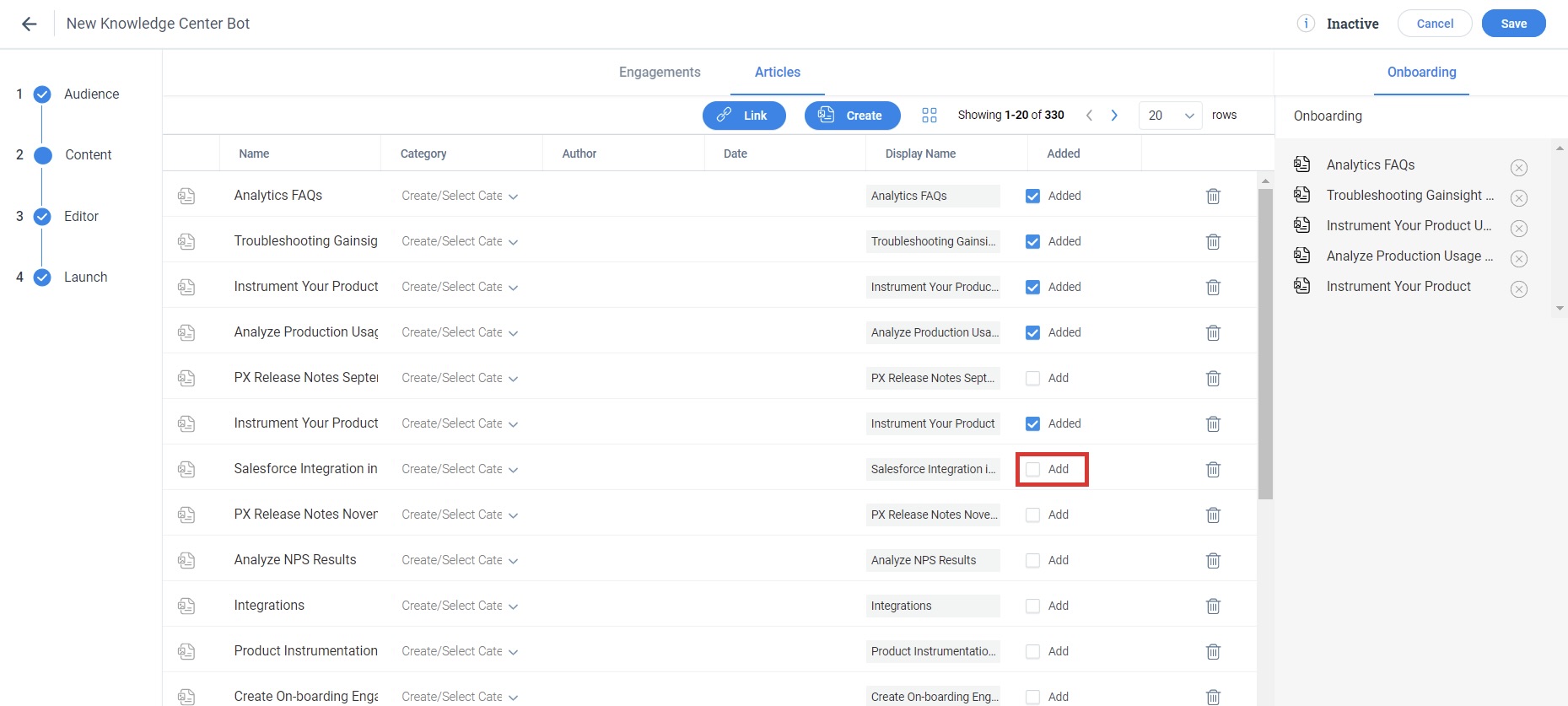
After you add all the required articles from your Salesforce Knowledge Base, create Categories to organize your articles.
Add Categories
This sub-section explains how to organize your articles into categories.
To add categories:
- Click Create/Select Category drop down on the Category column next to the article.
- Enter a name for the Category and press enter or select Create Category name.
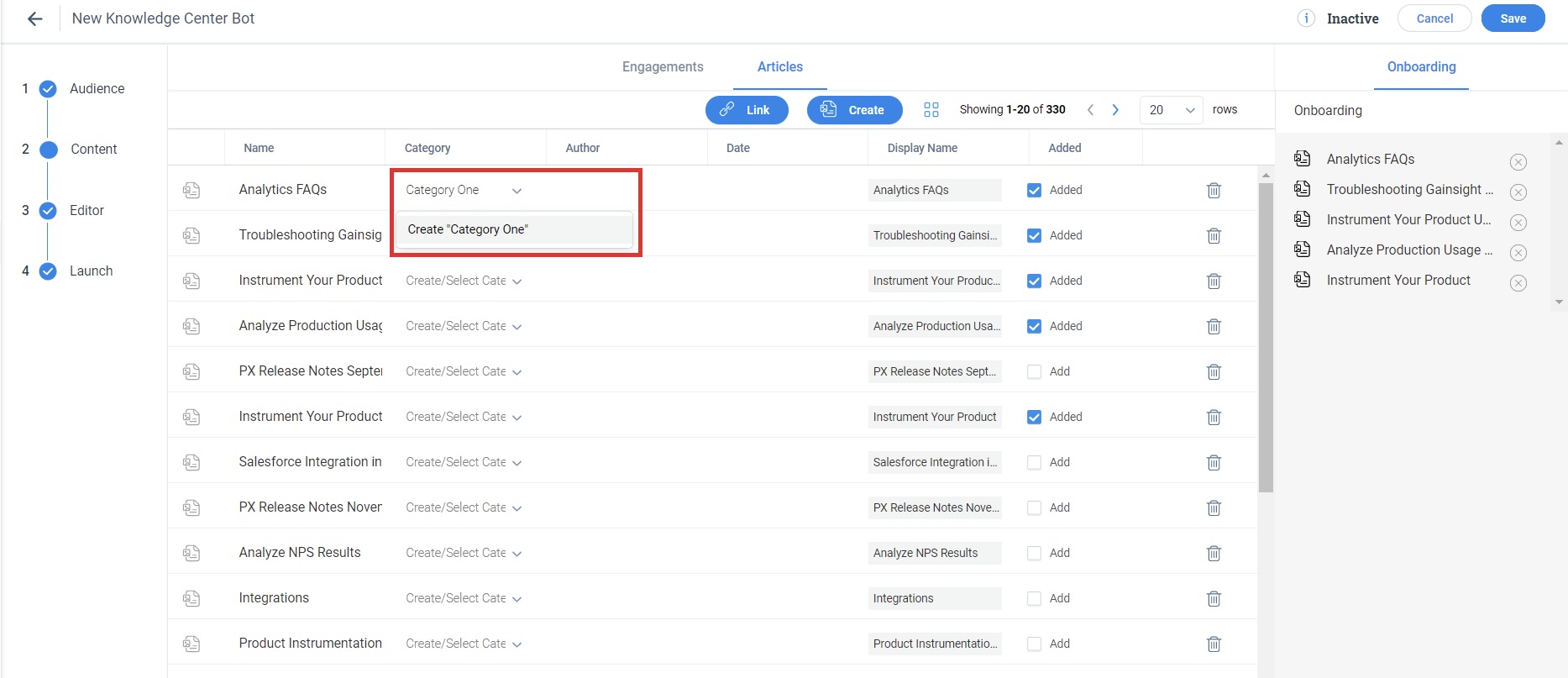
- Similarly, create and assign categories to articles, as required. Navigate to the Editor step to preview how your articles appear on the KC bot.