---
title: "Install Gainsight PX NativeScript"
slug: "install-gainsight-px-nativescript"
updated: 2026-11-23T12:30:19Z
published: 2026-11-23T12:30:19Z
canonical: "support.gainsight.com/install-gainsight-px-nativescript"
---
> ## Documentation Index
> Fetch the complete documentation index at: https://support.gainsight.com/llms.txt
> Use this file to discover all available pages before exploring further.
# Install Gainsight PX NativeScript
This article explains how developers can use the Gainsight PX NativeScript code in their NativeScript applications.
## Overview
Gainsight PX can effectively monitor your application, track usage data, provide real-time analytics and display engagement analytics.
You can use the Gainsight PX NativeScript plugin in your mobile application development. This codebase is platform-independent and works with Android and iOS. You can ingest the Gainsight PX code into any mobile application which is developed using the NativeScript application.
## Download and Install NativeScript Plugin
To install the Gainsight PX module from [*Github*](https://github.com/Gainsight-Central/px-nativescript-sdk):
1. Add the plugin as a dependency in your application `package.json` file. Add the following to the **Dependencies** section:
```plaintext
"nativescript-gainsight-px": "https://github.com/Gainsight-Central/px-nativescript-sdk.git"
```
1. Run:
```plaintext
npm install
```
(or equivalent).
Alternatively, install directly from the command line:
```plaintext
npm install https://github.com/Gainsight-Central/px-nativescript-sdk.git
```
### Integrate Gainsight PX Editor
Gainsight PX Mobile Editor helps you manage PX engagements and Product Mapper from your mobile application.
The In-app Editor allows you to:
- Preview engagements in the mobile app
- View the Product Tree
- Create, edit and delete Module/Features
- Add Tap Rules for Module/Features
To use the in-app editor, copy the Scheme to integrate your mobile application with the your platforms that Gainsight supports.

You can activate the editor using deep linking and forwarding the link to the SDK. While forwarding the information, you as a developer have the ability to implement your own logic and permissions before launching the editor.
The integration procedure is based on [*Urlhandler plugin*](https://www.npmjs.com/package/nativescript-urlhandler) method, but supported by all deep linking plugins:
#### Android
To perform the integration, add the following to your app/App_Resources/Android/src/main/AndroidManifest.xml file, in the activity object:
```plaintext
```
#### iOS
Navigate to your app/App_Resources/ios/ folder. Perform the following steps to add editor scheme to ios project.
1. Info.plist using Xcode:
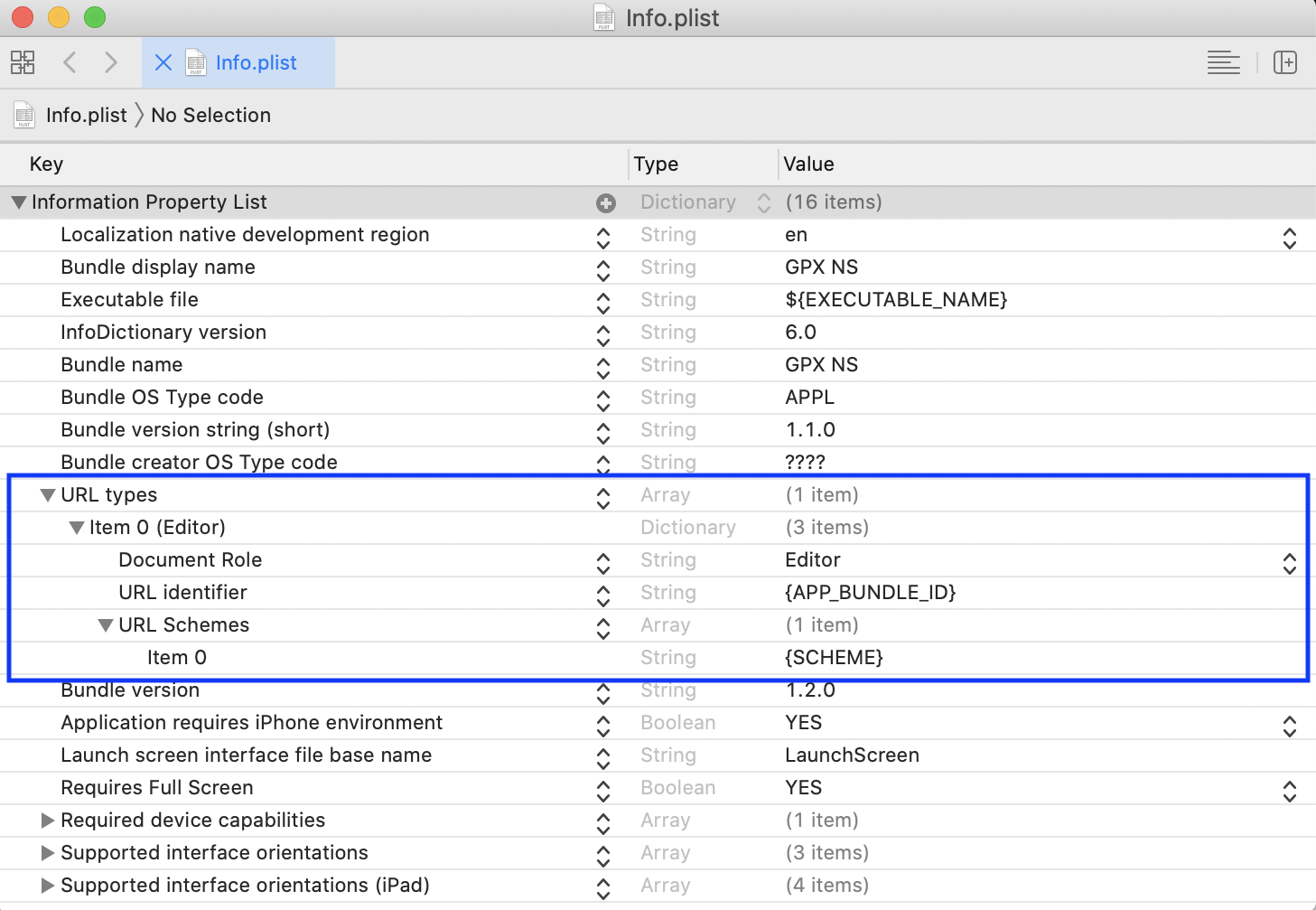
1. Open Info.plist using Xcode.
2. Add **URL Types** to plist file.
3. Add {SCHEME} for **URL Schemes** items.
2. Info.plist as TextEdit:
1. Open Info.plist using TextEdit file.
2. Add the following code snippet in the file:
```plaintext
CFBundleTypeRole
Editor
CFBundleURLName
{APP_BUNDLE_ID}
CFBundleURLSchemes
{SCHEME}
```
#### On NativeScript application
Add the following code to your *app ts* file:
```plaintext
handleOpenURL((appURL: AppURL) => {
Gainsight.enterEditing(appURL.toString());
})
```
## Using Gainsight PX
This section explains how to get started with Gainsight PX mobile app development. You can customize the default settings as required. For more information, refer to the [Gainsight PX Configuration](/v1/docs/install-gainsight-px-nativescript#gainsight-px-configurations) section of this article.
### Initialize Gainsight PX
Once you install Gainsight PX, you can use it in your application.
**Note:** The code used in this section is platform-independent and can be used in Android or iOS mobile applications. To track data with Gainsight PX:
1. Insert the following import code in the header section:
```plaintext
import {Gainsight} from 'nativescript-gainsight-px';
```
1. Use the following code to initialize Gainsight PX.
```plaintext
let configurations = new Configurations("")
configurations.enableLogs = true
GainsightPX.getInstance().initialize(configurations)
.then(() => {
console.log("GainsightPX is initialized");
})
.catch((error) => {
console.log(error.status);
})
```
**Note:** You must use the initialization code only once in your entire application. (We recommend using this code in the beginning of the app.)
### ExceptionCallback
This section explains how to get exceptions if occurred in the SDK. All the Gainsight PX methods return a *Promise.* The exceptions are passed into catch as errors using GainsightPXCallback interface.
The properties of GainsightPXCallback are as follows:
```plaintext
export interface GainsightPXCallback {
status: GainsightPXCallbackStatus;
methodName?: string;
params?: object;
exceptionMessage?: string;
}
export enum GainsightPXCallbackStatus {
FAILURE = 0,
SUCCESS = 1
}
```
The properties of GainsightPXCallback are as follows:
- The **status** property informs if the created event is success/failure.
- The **methodName** property informs about the invoked function name.
- The **params** object gives the event properties that are sent to create an event.
- The **exceptionMessage** informs about the exception that occurred.
### Create Events
This section explains how to create events that can track data from your mobile application. Events are actions associated with your app and allow you to track various actions performed by users on your app.
#### Screen Events
This section explains how to create events that can track data from your mobile application. Events are actions associated with your app and allow you to track various actions performed by users in your app. Currently, the Gainsight PX SDK supports four types of events. You can use the Screen event to track each of your screens visited by the user. The syntax to capture screen events is as follows:
```plaintext
GainsightPX.getInstance().screenEvent("<#screen-name#>", "<#screen-class#>");
```
You can also create a screen event to just capture the name of the screen and exclude all of the other details.
```plaintext
GainsightPX.getInstance().screen("<#screen-name#>", "<#map#>")
```
#### Custom Events
Custom Events are used to track specific actions in your app.
The syntax to track custom events is:
```plaintext
GainsightPX.getInstance().customEventWithProperties(<#custom_event_name#>, <#map#>);
```
You can also track custom events without any properties.
The syntax for this is:
```plaintext
GainsightPX.getInstance().customEvent(<#custom_event_name#>);
```
#### Identify Events
These events are used to identify a user or an Account uniquely. Gainsight PX provides you with the following syntax:
```plaintext
GainsightPX.getInstance().identifyWithUserId(<#user_id#>)
GainsightPX.getInstance().identify(<#user#>, <#account#>)
```
The following line of code can be used to track a user:
```plaintext
var user = new PXUser("<#user_id#>")
user.usem = "david@gmail.com"
```
The list of properties supported for User tracking is given in the table below:
| **Property** | **Data type** |
| --- | --- |
| ide | String |
| usem | String (Email) |
| userHash | String |
| gender | String |
| lastName | String |
| firstName | String |
| signUpDate | Date |
| title | String |
| role | String |
| subscriptionId | String |
| phone | String |
| countryCode | String |
| countryName | String |
| stateCode | String |
| stateName | String |
| city | String |
| street | String |
| continent | String |
| postalCode | String |
| regionName | String |
| timezone | String |
| longitude | Double |
| latitude | Double |
| organization | String |
| organizationEmployees | String |
| organizationRevenue | String |
| organizationIndustry | String |
| organizationSicCode | String |
| organizationDuns | Int |
| accountID | String |
| firstVisitDate | Date |
| score | Int |
| sfdcContactId | String |
| customAttributes | Map |
The list of Attributes for Account Object are given in the table below:
| **Property** | **Data Type** |
| --- | --- |
| name | String |
| trackedSubscriptionId | String |
| industry | String |
| numberOfEmployees | int |
| sicCode | String |
| website | String |
| naicsCode | String |
| plan | String |
| countryCode | String |
| countryName | String |
| stateCode | String |
| stateName | String |
| city | String |
| street | String |
| continent | String |
| postalCode | String |
| regionName | String |
| timezone | String |
| latitude | Double |
| longitude | Double |
| sfdcId | String |
| customAttributes | Map |
### General Methods
This section describes the general methods (functions) of Gainsight PX SDK. There are three general methods:
| **Method Name** | **Method** | **Description** |
| --- | --- | --- |
| Flush | *Gainsight.flush()* | This method sends all events in the queue to the server, by ignoring the scheduled auto flush. Generally, you need not use this method but there could be situations in which you may need to flush out events. |
| Enable/Disable | *Gainsight.enable()* *Gainsight.disable()* | These methods help you to enable or disable event tracking on your app. When you use the disable method, no event is sent to the server. You can use the disable method on data sensitive areas of your app. |
### Global Context
Once you create all the required events, you can set events with a global context. You can set a global context with key-value pairs and send them with the payload. Global context can be set on Date, String, Double, and Boolean data types. Global Context data is stored at the memory level and not disk-level. The key-value pairs are sent with the Payloads. If an application is terminated, all the key-value pairs are erased.
The following code snippet can be used to set the global context:
```plaintext
GainsightPX.getInstance().setGlobalContext(<#[String: GlobalContextValue]#>);
```
The following code snippet can be used to check if key is available:
```plaintext
GainsightPX.getInstance().hasGlobalContextKey(<#Name of the key#>)
```
The following code snippet can be used to remove the key:
```plaintext
GainsightPX.getInstance().removeGlobalContextKeys(<#Array Of Keys#>)
```
### EngagementCallBack
Gainsight PX provides the Engagement Callback feature for mobile engagements that you create for mobile applications. This feature helps in receiving a callback for all button actions and URL clicks that the end-user performs on an engagement. Once you receive the callback, you can decide your next action like helping the user to navigate to a new screen, or perform an API call and so on.
**Prerequisite**
Ensure that you have installed/configured the Gainsight PX Mobile SDK v1.5.1 or above.
To use the Engagement Callback feature, you need to extend the EngagementCallback class and pass on the extended class instance to the engagementCallback variable in gainsightPX configuration.
Example:
```plaintext
import {EngagementCallback, EngagementMetaData, JsonMap} from "../../../src/gainsight-px-bridge.common";
import { Toast } from "~/utils/Toast";
export class GlobalEngagementCallback extends EngagementCallback {
constructor() {
super();
}
onCallback(engagementMetaData: EngagementMetaData) {
super.onCallback(engagementMetaData);
if (engagementMetaData.actionType === "link") {
let text = "EngagementMetaData:"
+ ", actionText: " + engagementMetaData.actionText
+ ", actionType: " + engagementMetaData.actionType
+ ", engagementId: " + engagementMetaData.engagementId
+ ", engagementName: " + engagementMetaData.engagementName
+ ", scope: " + engagementMetaData.scope.toString()
Toast.showText(text);
}
}
}
let configs: GainsightPXConfiguration = {
apiKey: <##API_KEY##>,
shouldTrackTapEvents: true,
enableLogs: true,
reportTrackingIssues: true,
engagementCallback: new GlobalEngagementCallback()
};
Gainsight.initialize(configs)
.catch((error: GainsightPXCallback) => {
console.log('initialize exceptionMessage: ' + error.exceptionMessage)
});
```
#### EngagementMetaData Properties
The following table describes the properties in the arguments received from the EngagementCallBack event listener :
| **Property** | **Type** | **Description** |
| --- | --- | --- |
| actionText | string | The text of the linked element. |
| actionType/ actionsType(iOS Native) | string | Refers to the element that invoked the Engagement Callback. **Possible values**: *link*, *button*. |
| engagementName | string | Name of the engagement for which the callback is received |
| scope | object | Mobile screen scope where the engagement is shown. **Possible values**: *screenName*, *screenClass*. |
| engagementId | string | ID of the engagement for which the callback is received . |
* actionData - reserved property for future usage; currently functions similar to actionText
* params - reserved property for future usage to send any custom parameters.
## Gainsight PX Configurations
This section describes methods, whose configurations can be modified by you during the initialization stage.
| **Method Call** | **Default** | **Description** | **Override by Server?** |
| --- | --- | --- | --- |
| *pxHost(PXHost host)* | PXHost.US | Setting the data center that Gainsight PX instance will send the events to. | No |
| *flushQueueSize* | 20 | The number of events that are considered to form a batch to be sent to the server. Once this limit is reached, PX sends the events to the server even if it's still not the time for that (by the timer) | Yes |
| *flushInterval* | 20 sec | The time interval during which the client checks if there are any new events to send to the server | Yes |
| *collectDeviceId* (this method is applicable only to Android application) | true | Whether or not to collect the device id from the device | No |
| *enableLogs* | False | Which log level should be logged to CatLog. By default false is logged | No |
| *trackApplicationLifecycleEvents* | true | Should the client auto-track app-related events (APP_OPENED, APP_INSTALLED, and APP_UPDATED) | No (Server can drop the event based on remote configuration |
| *shouldtrackTapEvents* | false | Should the client auto-track tap events **Note**: Enabling this helps you track only the single tap gestures. | Yes |
| *proxy* (string) | null | There's an option to send the network requests via proxy (mainly for security reviews) | Yes |
| *maxQueueSize* | 1000 | The maximum number of items to queue before starting to drop old ones. | No |
## Additional Resources
| [*Overview of Gainsight PX Mobile SDK*](/v1/docs/overview-of-gainsight-px-mobile-sdk) |
| --- |
| [*Create Engagements for Mobile App*](/v1/docs/create-engagements-for-mobile-app) |
| [*Instrument your Mobile Application with Product Mapper*](/v1/docs/instrument-your-mobile-application-with-product-mapper) |
| [*Integrate Gainsight PX Editor with your Mobile Platform*](/v1/docs/integrate-gainsight-px-editor-with-your-mobile-platform) |