
Gainsight CS Release Notes Q3 September 2026
Gainsight Release Notes Version September contains the following subsections:
- New Features: Introductions to new features in the release.
- Announcements: Describes important changes to the application that are implemented now or will be in the near future.
- Enhancements (per module): Describes improvements made in the existing product capabilities.
Icon Glossary For Release Notes
- Click here for more information on icons used in Release Notes
-
Titles Description Enhancement can be viewed only after the admin configures it in the product and makes it available for end users. The feature or content within the feature has been generated using Gainsight AI. End users have access to the enhancement without Admin configuration This symbol indicates that the enhancement originated as a customer suggestion from Gainsight Community.
Quick View
| Type | List of Enhancements / New Features |
|---|---|
| Announcements | |
| New Feature |
|
| Admin-Control Update |
|
| Automatic Update |
|
Announcements
General
Quick Access to Gainsight University from Gainsight CS
Gainsight CS now includes a dedicated University icon that provides direct access to Gainsight University.

Timeline
[Know More][BETA] Relationship Resolution
Gainsight introduces Relationship Resolution for Gainsight CS standalone customers and for Gainsight CS and Staircase AI joint customers. This feature automatically logs AI-generated meeting follow-ups and auto-captured emails to the correct product-level Relationship, using rule-based matching against Contact and User data. This eliminates the need for users to manually identify and tag the relevant Relationship.
This feature is listed in the Beta Center as an announcement with a link to documentation. To enable the feature, navigate to the Staircase integrations tab. A separate toggle is not available in the Beta Center.
Prerequisite: Meeting Sync, Email Sync, or both must be enabled through the Staircase integration.
For more information on Relationship Resolution, refer to the Relationship Resolution section in this document.
New Feature
Timeline
[Know More][BETA] Relationship Resolution
Gainsight introduces Relationship Resolution for Gainsight CS and Gainsight CS + Staircase AI joint customers. CSMs can now ensure every AI-generated meeting follow-up and auto-captured email is automatically logged to the correct product-level Relationship in Timeline, eliminating manual tagging.
Prerequisite: Requires Meeting and/or Email sync enabled through Staircase Integration.
Key Benefits
- Automatically map emails and meetings to the correct product-level Relationship without manual tagging.
- Get accurate relationship-level insights directly in Timeline.
- Focus on customer engagement instead of administrative data cleanup.

How It Works
Relationship Resolution uses two parallel checks to determine the correct relationship for each incoming email or meeting. The first is deterministic matching based on Contact and User data, and the second is AI product identification based on conversation content and your Organization Profile. The results are combined to tag the correct product-level Relationship in Timeline. If no match is found, the activity is logged against the Company.

This feature is listed in the Beta Center as an announcement with a link to documentation. To enable the feature, navigate to the Staircase integrations tab. A separate toggle is not available in the Beta Center.
For more information on how Relationship Resolution works, refer to the Relationship Resolution article.
Enhancements
360
[Know More]Control Company Status Visibility in C360 and Sidebar
Admins can now control whether the company status appears in both the full C360 page and the mini 360 sidebar view. You can configure the Company Status visibility per layout, giving teams the flexibility to display only the information relevant to their organization.
What's New
- The company status is now visible in the mini 360 sidebar view in addition to the full C360 page.

- A new Show or hide the Company Status section toggle is available in Administration > 360 Layouts > C360 when editing a layout. The setting applies to both the full C360 page and the mini 360 sidebar view.
- By default, the toggle is turned on and the Company Status section is visible in both the full C360 page and the mini 360 sidebar view.
- Turning off the toggle hides the Company Status section from both the full C360 page and the mini 360 sidebar view.

For more information on how company status visibility works, refer to the Configure 360 Layouts article.
View Stakeholder Engagement in C360 with People Widgets
Admins can now view stakeholder engagement insights directly in C360 through two new widgets, People Heatmap and People Network, available on the C360 Summary page. These widgets show the strength of engagement between your internal team members and customer stakeholders without requiring you to switch to the Staircase application.

This feature is available only to customers who have purchased both Gainsight CS and Staircase.
What's New
People Heatmap
The People Heatmap widget displays a grid of internal team members and customer stakeholders. Colored dots indicate the engagement strength between each pair of contacts:
- Green: Strong engagement
- Yellow: Average engagement
- Red: Weak engagement
You can hover over a dot to view an engagement summary. You can click a dot to view the full communication history between the two contacts.
People Network
The People Network widget displays a graph of internal and customer contacts. Color-coded lines indicate the engagement strength between contacts:
- Green: Strong relationship
- Yellow: Average relationship
- Red: Weak relationship
You can hover over a contact to view engagement details. You can click a contact to view the full communication history.
- Both widgets display data for the last 90 days.
- Customer contact names that exist as person records in Gainsight are clickable and navigate to the corresponding P360 page. Names without a Gainsight person record are not clickable.
- Both widgets appear automatically in the C360 Summary layout for customers who have purchased both Gainsight CS and Staircase.
Example Business Use Case
A CSM preparing for a quarterly business review needed to understand the engagement levels between their team and key customer stakeholders. Previously, they had to switch to the Staircase application to view the stakeholder heatmap and network. With the People Heatmap and People Network widgets now available in C360, the CSM can identify weak relationships, view communication history, and take action directly from the account page without leaving Gainsight.
For more information on how to view and configure stakeholder engagement, refer to the Implement Insight Agent (Staircase AI) Integration and Configure Summary Section in C360/R360 articles.
View Stakeholder-Level Insights in C360 and P360
Gainsight Customer Success (CS) surfaces stakeholder-level AI insights from Staircase directly into C360 and P360. The Person AI Attributes stores Staircase AI signals at the individual stakeholder level. These insights are also aggregated as counts at the company level in C360, giving you a complete picture of stakeholder engagement across your accounts without switching to the Staircase application.
This feature is available only to customers who have purchased both Gainsight CS and Staircase.
What's New
A new Person AI Attributes standard object is automatically created in Gainsight CS when the Staircase integration is active. This object stores four stakeholder-level AI insight fields. Insights sync from Staircase in near real time. You can search for this object by name in Administration > Customer Data > Data Management.
The following four insight fields are available in the Person AI Attributes object:
| Field Name | Description |
| Stakeholder Not Engaged | Indicates whether the stakeholder is not currently engaged or active in communication |
| No Reach Out To Stakeholder | Indicates whether no outbound communication or reach out has been made to the stakeholder |
| Stakeholder's Title Has Changed | Indicates whether the stakeholder's official job title has changed or been updated |
| Account Personal Changed | Indicates whether the account personnel associated with the account have changed |
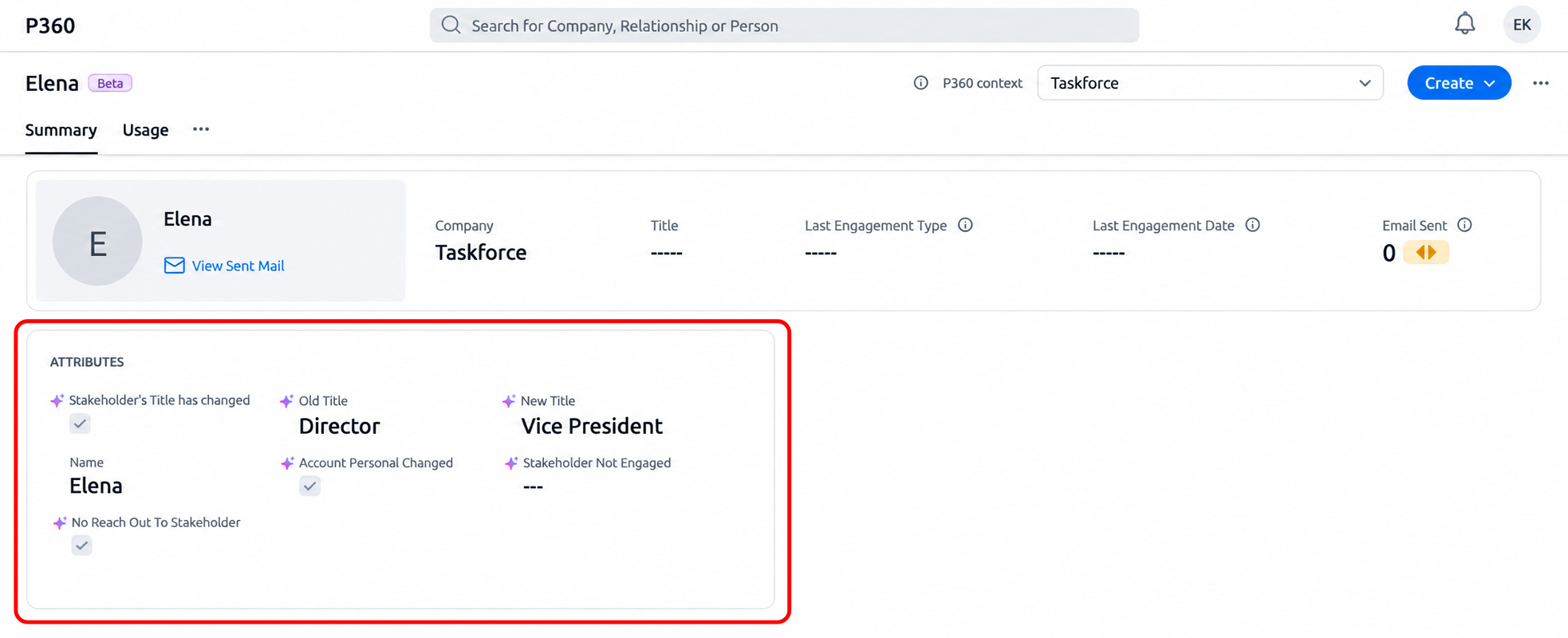
For the Stakeholder's Title Has Changed insight, the Old Title and New Title fields are also available to capture the previous and updated job titles.
Field values use the following logic:
- NULL: Staircase has not evaluated the stakeholder yet
- FALSE: Staircase evaluated the stakeholder and no signal was detected
- TRUE: Staircase detected a signal for the stakeholder
P360
In P360, you can add the four insight fields to the Attributes widget in the P360 Summary layout. Once added, the fields appear in the Attributes section of the person record.

These fields display actual values only when you view the person record in the Company context. In the Overview context, the fields appear empty.
C360
In C360, the four insights appear as aggregated counts in the Attributes section of C360. For example, if one stakeholder within a company has had a title change, the Stakeholder's Title Has Changed field displays a count of one.

Key Benefits
- View stakeholder-level engagement signals directly in P360 without switching to the Staircase application.
- Identify at-risk stakeholders faster using insights such as Stakeholder Not Engaged and No Reach Out To Stakeholder.
- Drive actions and workflows using stakeholder-level signals in Rules and Programs to automate outreach and engagement.
Example Business Use Case
A CSM noticed that a key stakeholder's title had changed from Director to Vice President. Using the Stakeholder's Title Has Changed insight in P360, the CSM viewed the old and new title directly in the person record and triggered a congratulatory email through a Journey Orchestrator program without leaving Gainsight CS.
For more information on how insights work, refer to the Implement Insight Agent (Staircase AI) Integration article.
Data Management
[Know More]Customize Form Layouts for Low-Volume Custom Objects
Admins can create and configure form layouts for low-volume custom objects in Data Management, or from within Report Builder without navigating away from their report.
Each layout controls which fields appear when a CSM adds or edits a record, how those fields are grouped and ordered, and whether each field is editable or read-only.
What's New
The following capabilities are now available:
- Choose which fields appear in the form. Fields excluded from the layout are not visible to end users.
- Set each field as editable or read-only to prevent system-managed fields from being accidentally overwritten.
- Mark fields as required at the form level without changing their requirement status on the object.
- Add help text to individual fields to give CSMs context on what to enter.
- Group related fields into named sections for a clearer, more logical form structure.
- Reorder fields within each group and reorder groups within the layout using drag-and-drop controls.
Note: Every field in a layout must belong to a group. When a field is dragged into the layout for the first time, Gainsight automatically creates a default group to contain it. - Choose a one-column or two-column layout depending on the form’s complexity.
- Create multiple layouts per object, with no limit on the number of layouts.
- Edit, switch, or create layouts directly from the Report Builder without navigating away.
Limitations
- Form layouts are supported on low-volume custom objects only. Form layouts do not support Salesforce (SFDC), non-Matrix Data Architecture (MDA) objects.
- Mandatory fields defined at the object level are automatically included in all form layouts and cannot be removed.
- Marking a field as required in a form layout does not make it required at the object level.
Example Business Use Case
A CSM team uses a low-volume custom object for a program maturity assessment, where CSMs rate customers across 20 attributes. With customizable form layouts, the admin can hide system-managed fields entirely, group the manual-entry rating fields into logical sections, and add help text to clarify what each rating means. These changes reduce data quality issues without renaming fields or adding label workarounds.

For more information on how to create forms, refer to the Configure Form Layouts for Low-Volume Custom Objects article.
Gainsight Home
[Know More]Reposition the Summary Ribbon on Gainsight Home
Admins can reposition the Summary Ribbon to any vertical position in the Home layout by enabling flexible placement in General Settings.
Enabling the setting is a one-way action. A confirmation dialog box appears before the change takes effect, warning admins that the action cannot be reversed.
Key Benefits
Flexible ribbon placement addresses common layout constraints:
- Admins who want to display onboarding text, enablement links, or a welcome widget at the top of the Home page can move the Summary Ribbon out of the fixed top position.
- CSMs who prioritize a specific KPI widget at the top of their Home page can reposition the ribbon on their personalized view if the Disable Personalization of Home for non-Admins toggle is turned off.
Enabling flexible ribbon placement is irreversible. Once admins turn on this setting, they cannot turn it off.
Example Business Use Case
An admin on the CS Operations team wants to display a welcome message and quick-links widget at the top of the GS Home as a daily starting point for CSMs. The admin turns on flexible ribbon placement and drags the Summary Ribbon to the middle of the layout. The repositioned ribbon opens the top section for the welcome widget. The ribbon continues to display KPI data in its new position, and CSMs who prefer the ribbon higher can reposition it within their personalized view, where personalization is permitted.
 For more information on how to reposition the summary ribbon, refer to the Configure Gainsight Home article.
Horizon Analytics [Reports and Dashboards]
[Know More]Manage Form Layouts for Low-Volume Custom Objects in Report Builder
Admins can now manage form layouts for low-volume custom objects directly from the Report Builder. Form layouts configured in Data Management surface in the Report Builder and dashboards, giving CSMs a structured, guided data entry experience when adding or editing records.
For information on how to create and configure form layouts, refer to the Customize Form Layouts for Low-Volume Custom Objects section.
What's New
- Admins can access a new Manage Form Layout button in the Report Builder for reports built on low-volume custom objects. The Manage Form Layout button provides the following options:
- Edit Layout: Edit the existing layout and choose to update it or save it as a new layout.
- Switch Layout: Switch to a different layout created for the same object.
- Create New Layout: Create a new layout from within the Report Builder.

- Admins see an info banner in the Report Builder when a report built on a low-volume custom object has no default layout configured. The info banner prompts admins to create a layout. Gainsight automatically sets the first layout created as the default.
- CSMs see the Add Record and Edit Record forms in dashboards reflecting the configured layout. Field groups, help text, and read-only fields appear as configured by the admin.
The Manage Form Layout option is available only for reports built on low-volume custom objects.
Example Business Use Case
A CSM team runs a quarterly health review report built on a low-volume custom object. The admin notices that the Add Record form does not match the team's review process. The admin clicks Manage Form Layout in Report Builder, edits the existing layout to reorder fields and add help text, and saves it as a new layout. CSMs immediately see the updated form when adding or editing records from the dashboard.
For more information on managing form layouts, refer to the Configure Form Layouts for Low-Volume Custom Objects article.
Require OTP Verification for Shared Reports and Dashboards
Admins can now apply OTP verification across all report and dashboard share types:
- Link
- Excel
- Image
Previously, OTP verification was supported only for Link shares. Recipients must complete OTP verification before accessing or downloading a shared report or dashboard. This ensures more secure access across all share types, preventing unauthorized access even if a shared link or email is forwarded to unintended recipients.

What's New
- Admins can turn on the Enable OTP Verification toggle in the Security & Access section when sharing a report or dashboard as a Link, Excel, or Image. The following behavior applies based on the share type:
- Link: The recipient is redirected to the Gainsight site to complete OTP verification before accessing the report in the browser.
- Excel: The recipient is redirected to the Gainsight site to complete OTP verification before the file download begins.
- Image: The recipient is redirected to the Gainsight site to complete OTP verification before the file download begins.
- The OTP setting applies globally to a report or dashboard. Gainsight applies it to all shared instances and share types, including previously shared links and files.
- When admins change the OTP setting on an already-shared report or dashboard, Gainsight displays a warning. Admins must confirm the change to proceed.
- The OTP verification toggle is available in the Security & Access section for both reports and dashboards. For reports, OTP verification applies to Link, Excel, and Image share types. For dashboards, it applies to Link, PPT, and Image share types.
- When the OTP verification toggle is turned off, recipients access the shared content directly without any verification step.
- When OTP verification is turned off at the time of sharing a file (Excel, Image, or PPT), Gainsight generates a direct link for recipients. Turning on OTP verification later does not restrict or revoke access to previously shared direct links. This behavior does not apply to Link shares, which are always Gainsight-hosted.
Example Business Use Case
A CSM shares a quarterly health report as an Excel file with an external stakeholder. To ensure only the intended recipient accesses the data, the admin turns on the Enable OTP Verification toggle in the Security & Access section before sharing. The recipient receives the email, clicks the download link, completes OTP verification on the Gainsight site, and the file download begins. This prevents unauthorized access even if the email is forwarded to unintended recipients.
For more information on how share reports and dashboards work, refer to the Create and Share Reports and Share Dashboards articles.
Journey Orchestrator
[Know More]Clone Evaluate Element in Programs
Admins can now clone a configured Evaluate element within a draft program and reuse its logic, instead of reconfiguring the element each time. This capability reduces configuration time in larger programs where the same branching conditions are used across multiple paths and helps maintain consistent Evaluate logic.
Previously, admins had to configure every Evaluate element manually, even when it closely matched an existing Evaluate element in the same program.
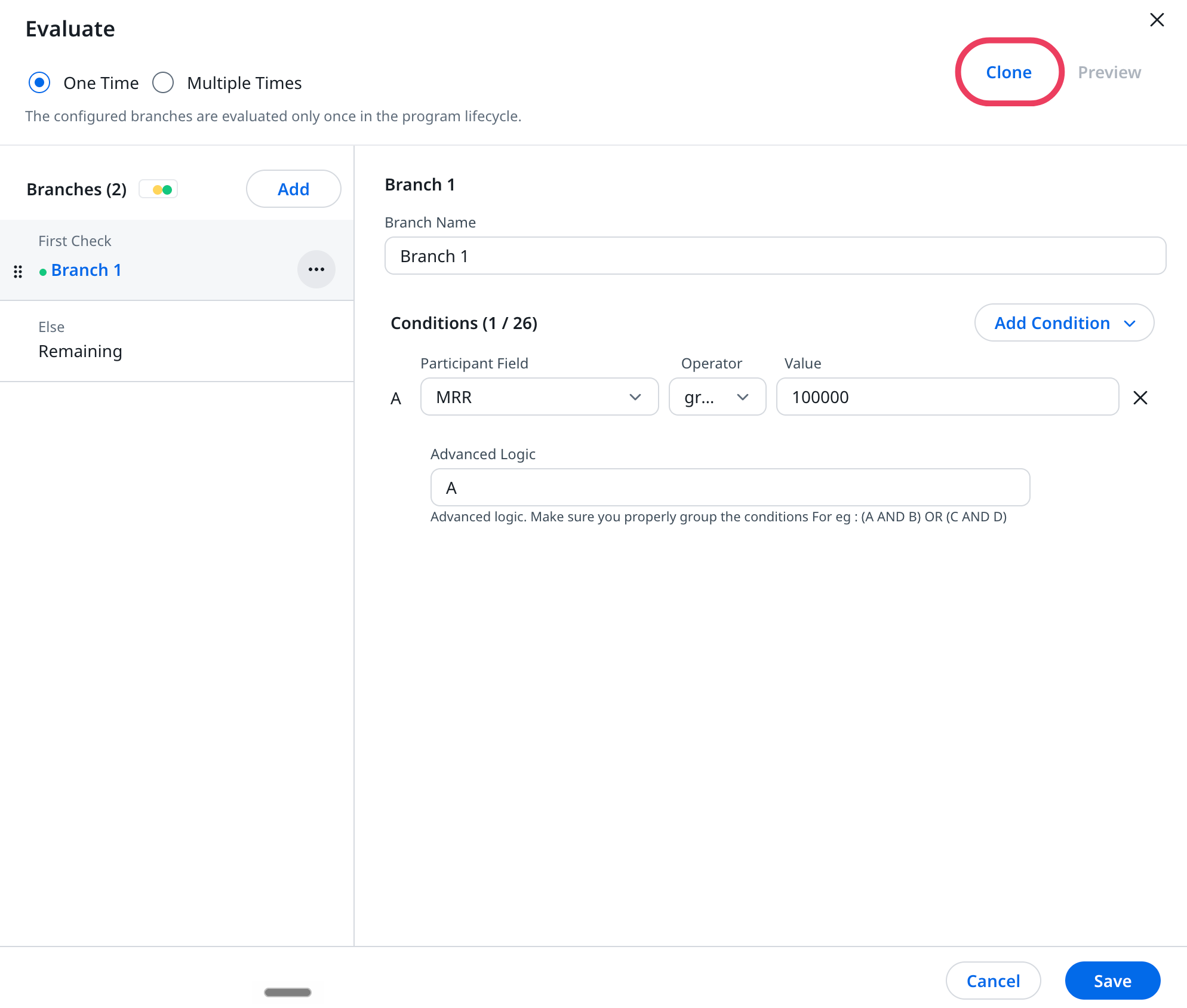
Branch conditions that reference survey answers or previous steps have their values cleared in the clone. Reconfigure these conditions after you connect the step.
What’s New
- Clone a configured Evaluate element from its configuration menu. The clone copies its branching logic into a new element.
- Review a confirmation message before the copy is created, so you know the outcome before you proceed.
- Connect the cloned step to the required path in the Program Builder canvas, then adjust only the required Branch Conditions.
The Clone Evaluate element appears next to the original Evaluate element.

For more information on the Clone Evaluate element, refer to the Program Elements article.
Exclude Participants from Another Program
Admins can now exclude participants by referencing another program directly, rather than exporting and uploading a CSV file. Journey Orchestrator now excludes any participant whose recipient email appears in the programs you select, which helps keep already-engaged participants from being re-enrolled and messaged twice.
Configure the exclusion before you publish the program. After the program is published, the exclusion configuration becomes read-only.
What’s New
- Use the new From another program option in the Audience Exclusion List to exclude participants from selected programs.
- Select participant statuses to exclude based on the Audience Re-Entry Criteria.
- Evaluate exclusions during each participant sync based on the recipient’s email address.
The From another program option is available under Audience > Advanced Settings > Audience Exclusion List.
 For more information on Audience Exclusion, refer to the Program Elements article.
Model Context Protocol
[Know More]Ask Staircase in Copilot, Gainsight AI Agent in Slack, and Gainsight CS MCP
Gainsight has now brought Ask Staircase into Copilot, Gainsight AI Agent in Slack, and Gainsight CS MCP. Previously, joint customers had to switch between CS MCP and Staircase to get a complete picture of an account.
What's New
- CSMs can now ask qualitative, account-specific questions in Copilot, Gainsight AI Agent in Slack, and Gainsight CS MCP.
- Answers are drawn from the customer's full communication history including emails, meetings, calls, support tickets, and escalations, using Staircase AI.
- Staircase citations might appear inline in responses so users can trace information back to its source.

Example Queries
CSMs can ask Ask Staircase questions such as the following:
- What is the current sentiment for Acme? Get data from Staircase as well.
- Summarize the Acme account. Get data from Staircase and Timeline.
- What are the risks for TechCorp? Get data from Staircase.
Limitations
Consider the following availability and query limitations in mind when using Ask Staircase:
- Ask Staircase is only available to Gainsight CS and Staircase AI joint customers.
- Ask Staircase supports qualitative, account-specific queries only. It does not support queries such as "How many meetings did we have with Acme last month?".
- Global queries across accounts are not supported.
- Ask Staircase is active by default. Admins can turn Ask Staircase on or off from Administration > Gainsight AI > AI Settings > AI Tool Management tab.

If the Ask Staircase tool is not reflected:
- ChatGPT admins must refresh their tools.
- Claude users can refresh the connection.
For more information, refer to the following articles:
Track AI Tool Activity with CS MCP Logs
Admins can now view a log of all AI tool calls made across Copilot, Gainsight AI Agent in Slack, and Gainsight CS MCP. Previously, admins had no way to track which tools were used, by whom, and when.
What's New
A CS MCP Logs object is now available in Data Management > Objects. Each row in the object represents one tool call and captures details such as the tool invoked, the user who triggered it, the source platform, and the status of the tool call. Admins can build reports on this object to monitor AI tool usage across their team.

CS MCP Logs does not display historical data. Data is available only for tool calls made after this feature is enabled.
For more information on CS MCP Logs, refer to the View CS MCP Logs article.
Track CTA and Success Plan Creation Source with Update Source Field
Admins can now identify where a Call to Action (CTA) or Success Plan was created or last updated using the new Update Source field. This field is now available in the Call To Action and Success Plan objects.
What's New
The Update Source field identifies the source of creation or last update for a CTA or Success Plan. The following values are now available:
| Value | Description |
|---|---|
| Copilot | Created or updated through Gainsight Copilot. |
| MCP | Created or updated through Gainsight CS MCP. |
For more information on the Update Source field, refer to the Cockpit Objects and Success Plan Objects articles.
Timeline
Configure Default Activity Type for AI Follow-Up and Auto Email Capture
Admins can now configure the default activity type for activities automatically logged to Timeline through AI Follow-Up and Auto Email Capture. By default, Gainsight logs AI Follow-Up activities as Meeting and Auto Email Capture activities as Email.
What's New
The following enhancements are included in this update:
- A new Email & Meeting Log Settings option is available in Administration > Timeline > Integrations, allowing admins to configure default activity types for activities auto-logged through AI Follow-Up and Auto Email Capture.
- Admins can select a custom default activity type for AI Follow-Up and Auto Email Capture separately.
- The selected default applies to all users and to new activities.

- Admins must have the Staircase AI integration configured to use AI Follow-Up default activity type settings.
- When the selected default activity type does not apply to the company or relationship against which Timeline logs the activity, the system default activity type is applied.
For more information on configuring the default activity type for AI Follow-Up and Auto Email Capture, refer to the AI Follow-Up and Auto Email Capture Admin Guide article.
Configure Activity Merge Window for AI Follow-Up
Admins can now define a custom Activity Merge Window for AI Follow-Up instead of using the fixed system default.
What's New
Admins can set the Activity Merge Window for AI Follow-Up from Administration > Timeline > Integrations > Email & Meeting Log Settings. The available options range from ±15 mins to a maximum of ±6 hours.
- If admins do not change this setting, the merge window remains at the system default of ±15 minutes.
- The Activity Merge Window setting applies only to Staircase AI connected integrations.

For more information on configuring the Activity Merge Window, refer to the AI Follow-Up and Auto Email Capture Admin Guide article.
View Recording Links for Gong.io and Salesloft Activities in Timeline
Gainsight has enhanced Timeline to include recording links for activities recorded through Gong.io and Salesloft using the Staircase integration. CSMs can now access the recording link directly from its Timeline activity to be redirected to the corresponding page to view the recording.
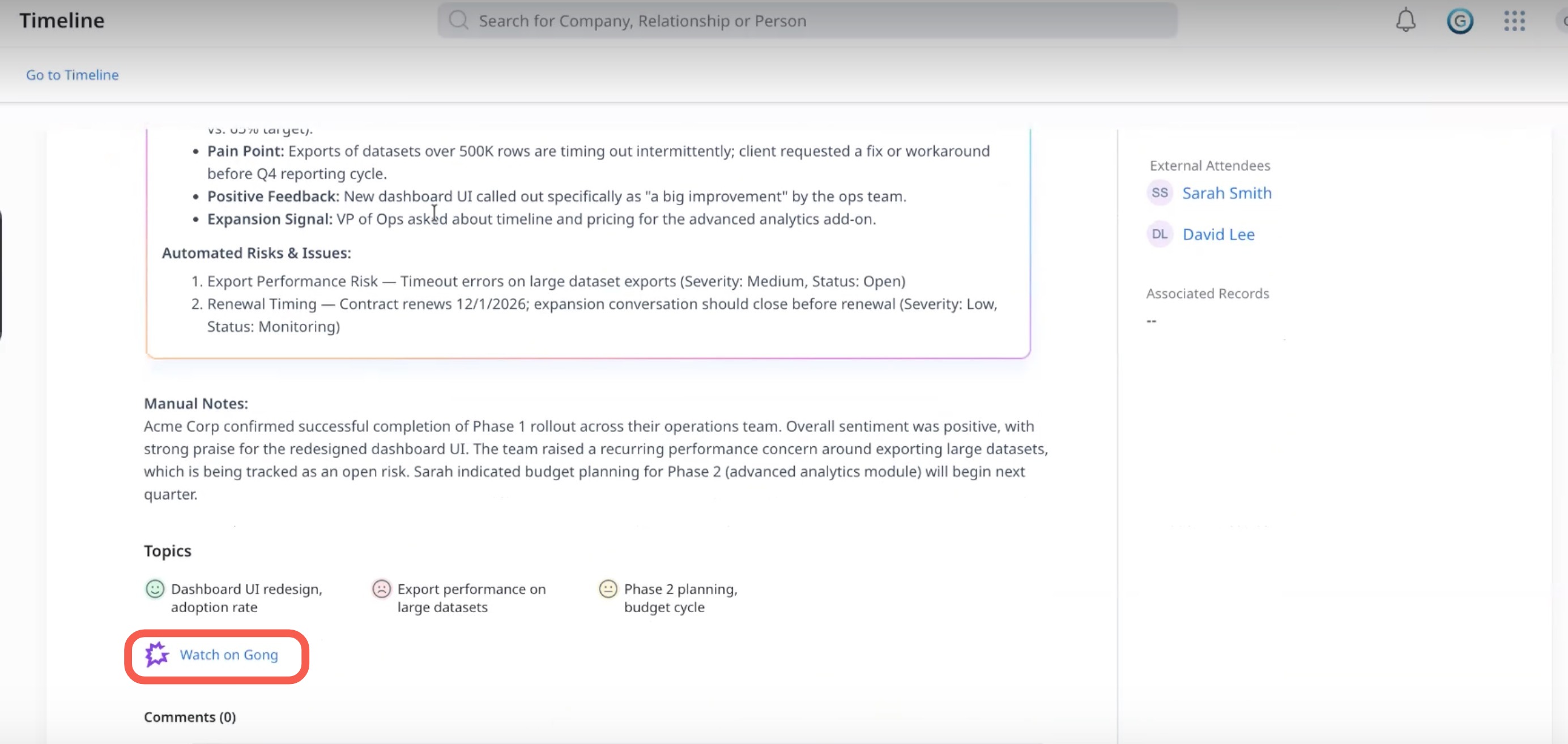
The same link appears as Watch on Salesloft for Salesloft activities.
Example Business Use Case
A CSM opens Timeline and sees an AI-generated meeting summary of a customer call recorded through Gong.io or Salesloft. Instead of switching tools to locate the recording, the CSM clicks the recording link right from the Timeline activity and is taken straight to it.
For more information on viewing recording links for Gong.io and Salesloft activities, refer to the AI Follow-Up User Guide article.
Additional Resources
For more information about the previous or upcoming major release versions/dates, refer to the Gainsight CS Release Process [updated for 2026] article.