---
title: "Sending Data to MixPanel"
slug: "sending-data-to-mixpanel"
updated: 2026-11-23T12:33:07Z
published: 2026-11-23T12:33:07Z
canonical: "support.gainsight.com/sending-data-to-mixpanel"
---
> ## Documentation Index
> Fetch the complete documentation index at: https://support.gainsight.com/llms.txt
> Use this file to discover all available pages before exploring further.
# Sending Data to MixPanel
IMPORTANT
**The functionality described in this article is not applicable to the Skilljar Starter package.**
You can send training data from Skilljar such as Student sign-ups, Course Enrollments, and Completions directly to MixPanel.
Skilljar sends data to MixPanel via our Javascript-based events engine (available in the [Theming](https://dashboard.skilljar.com/themes/) section of your Skilljar dashboard). Once configured, Skilljar will call MixPanel’s Analytics Javascript tracking software development kit (SDK) to track Student sign-ups and associated training events in real time. You can do this without any developer involvement by following the below guide.
You will need an active MixPanel account and MixPanel API key to use this integration. Skilljar doesn't maintain MixPanel. For specific MixPanel product support, please visit their [help center](https://help.mixpanel.com/hc/en-us).
## What is MixPanel?
MixPanel is a third-party analytics platform that allows you to track activity data from events within your Skilljar training platform and forward them along to downstream systems. You can use MixPanel to extract insights and analyze user behavior to improve the user experience of your training program.
You can learn more about MixPanel and receive specific product support for their platform via their [website](https://mixpanel.com/).
## Installing MixPanel Javascript & Tracking Anonymous Users
To install MixPanel analytics javascript, you’ll first need to generate the javascript code via your MixPanel platform. After you have that, follow these steps:
1. From your Skilljar dashboard, expand the **Theming** header on the left and select **Themes**. Alternatively, select **Theming** from your dashboard home page.
2. Select the theme that you’re using for the domain to open the settings.
3. Scroll down and expand the **Code snippets** header.
4. Scroll down to the **Analytics Tracking Code Snippet** box and add the MixPanel analytics javascript code snippet to load their tracking library (see below). The code within the **Analytics Tracking Code Snippet** loads on every page.
- **IMPORTANT:** Before adding the snippet below, you’ll need to replace **YOUR_API_KEY** with your MixPanel API key.
5. When you’re finished, select **Save** to apply the changes.
Please visit this page from MixPanel's documentation for the most up-to-date snippet if needed - [https://docs.mixpanel.com/docs/quickstart/install-mixpanel](https://docs.mixpanel.com/docs/quickstart/install-mixpanel)
**Example MixPanel Analytics Javascript - Add to Analytics Tracking Code Snippet:**
```plaintext
```
## Tracking Student Events
### Student Sign Up - Add to Conversion Code Snippet
In your [Skilljar dashboard](https://dashboard.skilljar.com/), go to your [Theme](https://dashboard.skilljar.com/themes/), scroll down and expand the **Code Snippet** header. Add this code to the **Global Code Snippet**:
```plaintext
```
NOTE: Please visit this page from MixPanel's documentation for more information on identifying users - [https://docs.mixpanel.com/docs/quickstart/identify-users](https://docs.mixpanel.com/docs/quickstart/identify-users)
### Course Enrollments - Add to Conversion Code Snippet
In your [Skilljar dashboard](https://dashboard.skilljar.com/), go to your [Theme](https://dashboard.skilljar.com/themes/), scroll down and expand the **Code Snippet** header. Add this code to the **Conversion Code Snippet**:
```plaintext
```
### Course Completion - Add to Course Completion Code Snippet
In your [Skilljar dashboard](https://dashboard.skilljar.com/), go to your [**Theme**](https://dashboard.skilljar.com/themes/), scroll down and expand the **Code Snippet** header. Add this code to the **Course Completion Code Snippet**:
```plaintext
```
NOTE: Please visit this page from MixPanel's documentation to learn more about tracking events - [https://docs.mixpanel.com/docs/quickstart/capture-events/track-events](https://docs.mixpanel.com/docs/quickstart/capture-events/track-events)
## Viewing Custom Event Data in MixPanel
Now that the MixPanel event tags have been installed in Skilljar, it’s time to confirm they are being received in MixPanel. Generate some test data by signing up as a new student on your Skilljar domain, enrolling in a course, and then completing the course to make sure everything has worked.
Next, in MixPanel go to the **Users** tab. Here you will see a stream of site visitors being sent to MixPanel by Skilljar if everything was set up correctly:
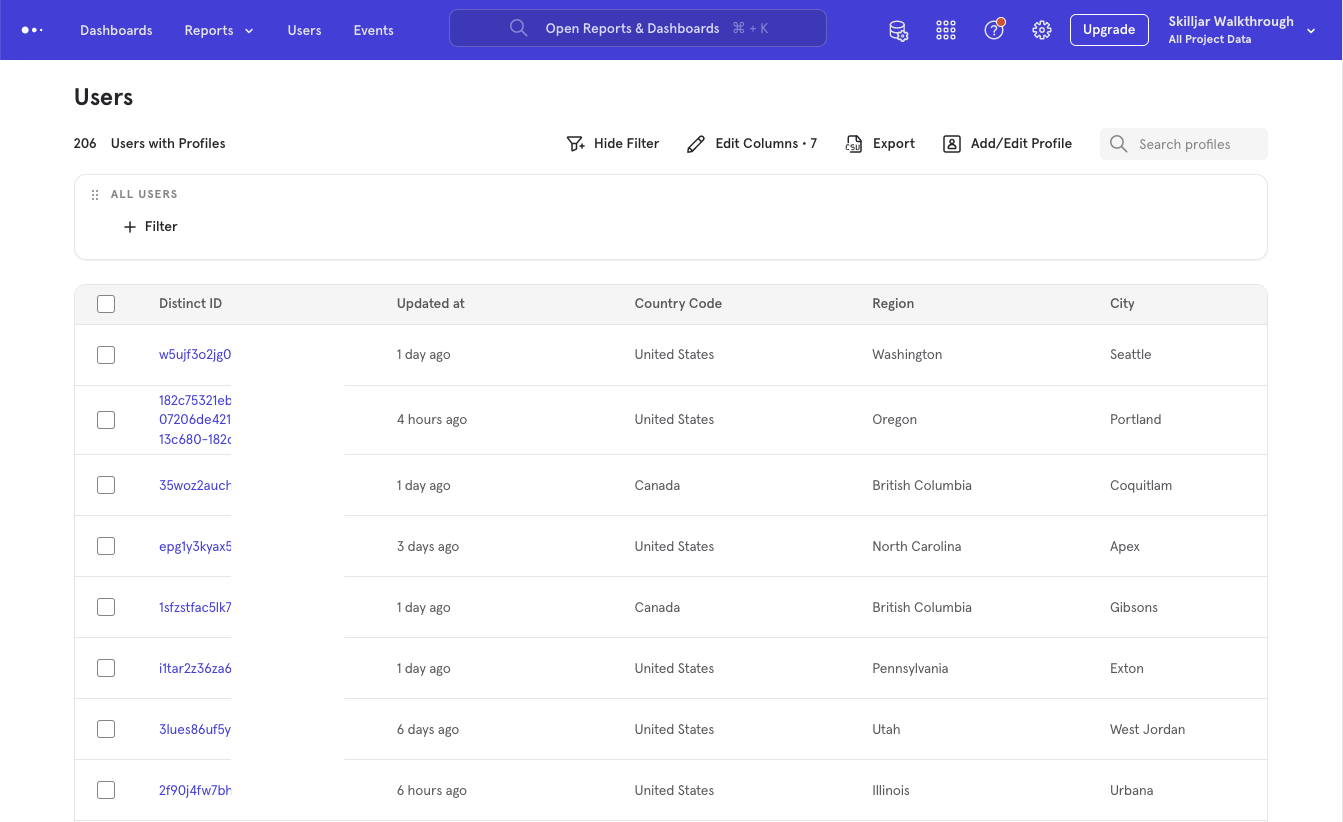
If you don't see any data in this table, you may need to wait a few minutes for MixPanel to update or carefully check each configuration step above for errors.