---
title: "Sending Data to Marketo"
slug: "sending-data-to-marketo"
updated: 2026-11-23T12:33:07Z
published: 2026-11-23T12:33:07Z
canonical: "support.gainsight.com/sending-data-to-marketo"
---
> ## Documentation Index
> Fetch the complete documentation index at: https://support.gainsight.com/llms.txt
> Use this file to discover all available pages before exploring further.
# Sending Data to Marketo
IMPORTANT
**The functionality described in this article is not applicable to the Skilljar Starter package.**
Send your Skilljar student registration and training activity data directly to [Marketo](https://www.marketo.com/). In this article, we'll discuss how you can send data to Marketo via your [Skilljar dashboard](https://dashboard.skilljar.com/).
To learn more about Marketo and receive product support, please visit their [site](https://www.marketo.com/).
## What is Marketo?
Marketo is a third-party software platform that allows businesses to assess and automate marketing tasks.
**The benefits include:**
- Automatically capturing student-lead data, such as first name, last name, email address, job title, and more
- Automating Marketo email workflows based on training activity (such as registrations, and completions) and a 360-degree view of your lead (training plus other data).
- Syncing data to Salesforce via the Marketo-Salesforce connector
*(Learn more about marketing your training in our eBook:* [*How to Market Customer Training*](https://blog.skilljar.com/using-email-to-drive-course-completions)*)*
The easiest way to send data to Marketo is via our Javascript-based events, which you can add to edit within the [Theming](/v1/docs/adding-web-analytics-conversion-tracking) area of your [Skilljar dashboard](https://dashboard.skilljar.com/). We call Marketo's [Munchkin API](http://developers.marketo.com/documentation/websites/lead-tracking-munchkin-js/) to add leads and training data. This can be done without any developer involvement.
**You will need:**
- Your Marketo ID (looks like XXX-XXX-XXX)
## General Tracking
In the **Analytics Tracking Code Snippet**, add the general Marketo tracking script. To do this, follow these steps:
1. Select the **Theming** header on the left and then **Themes** to open the [themes](https://dashboard.skilljar.com/themes/) page
2. Select the theme you want to edit under **Theme name** to open the settings page
3. Scroll down to the **Code Snippet** section and select the **+** icon to expand the options
4. Find the **Analytics Tracking Code Snippet** box and paste your codex. It will look something like this:
The script should look like:
```plaintext
```
## How to Associate a Skilljar Student with a Marketo Lead
Using Marketo’s form submission in the background and the skilljarUser javascript object, you can track a Skilljar student’s information. Refer to Marketo’s developer documentation about background form submissions located [here](https://developers.marketo.com/blog/make-a-marketo-form-submission-in-the-background/). The skilljarUser object can be used to populate the Marketo form fields. The following code shows how to modify Marketo’s example code to check isSkilljarFirstPageviewSinceAuth to make sure the form is submitted only on the first-page view after a student logs in.
The associateLead function has been deprecated by Marketo - [Deprecation of Munchkin Associate Lead Method - Marketo Developers](https://developers.marketo.com/blog/deprecation-of-munchkin-associate-lead-method/).
You'll have to create a form on the Marketo side with these fields:
- First Name
- Last Name
- Email
At this point grab the embed code from your form. This code goes into the **global code snippet** section of your [theme](/v1/docs/managing-themes) (found in the [theming](https://dashboard.skilljar.com/themes/) section of your dashboard) and will look something like this:
```plaintext
```
Your form should have an ID, it will look something like this mktoForm_1234 and need to go into a code snippet like this:
```plaintext
```
```plaintext
```
## Sending Course Enrollment Events
In the Conversion Code Snippet, pasting the following code will create web page views in Marketo for the Course Enrollment event. The query string parameters may include additional information like the course ID and title, order ID, price, currency, and more.
The URL in red has been edited for readability in Marketo. If you'd prefer the naming convention to be consistent with the way it was previously, replace the URL with "eventTypeUrl + skilljarCourse.title."
```plaintext
```
## Sending All Purchase Events
If you are selling domain access and want to capture all purchases (not just course enrollments), you may want to use a more complete script in the Conversion Code Snippet:
```plaintext
```
Learn more about [Conversion Tracking Advanced Javascript](/v1/docs/adding-web-analytics-conversion-tracking) objects.
## Sending Course Completion Events
In the Completion Code Snippet, pasting the following code will create web page views in Marketo for the Course Completion event. The query string parameters include additional information like the course ID and title and final lesson ID and title.
```plaintext
```
Learn more about [Conversion Tracking Advanced Javascript](/v1/docs/adding-web-analytics-conversion-tracking) objects.
## Results in Marketo
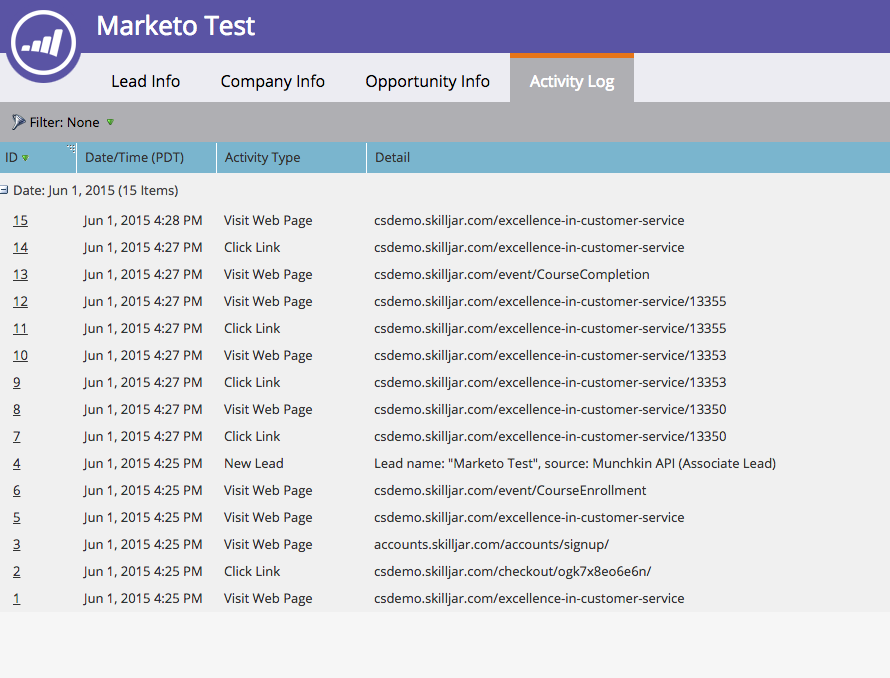
For a particular individual, the resulting activity log in Marketo will look like the following screenshot. Note ID 6 and ID 13, which correspond to the course enrollment and course completion events, respectively. You can create Marketo Smart lists based on these events.
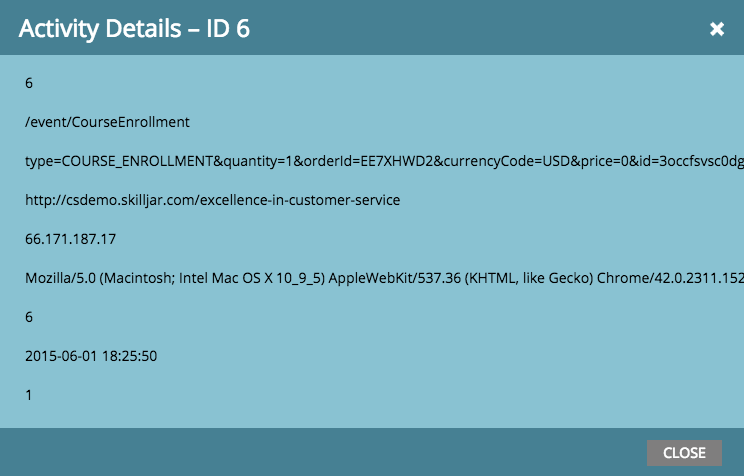
We send additional activity details for the course enrollment and course completion events. **The detail panel below shows the additional query string parameters, which include:**
- Course - id, title, lesson.id, lesson.title
- Enrollment - type, quantity, orderId, currencyCode, price