---
title: "Customizing Your Training Site with CSS and JavaScript"
slug: "customizing-your-training-site-with-css-and-javascript"
updated: 2026-11-23T12:33:17Z
published: 2026-11-23T12:33:17Z
canonical: "support.gainsight.com/customizing-your-training-site-with-css-and-javascript"
---
> ## Documentation Index
> Fetch the complete documentation index at: https://support.gainsight.com/llms.txt
> Use this file to discover all available pages before exploring further.
# Customizing Your Training Site with CSS and JavaScript
IMPORTANT
**The functionality described in this article is not applicable to the Skilljar Starter package.**
Customize the appearance of your training site beyond the template style options by adding custom cascading style sheet (CSS) code and JavaScript, giving your site a more personal touch. In this article, we'll walk you through how you can change the code and your site's look from within the theme section of your Skilljar dashboard.
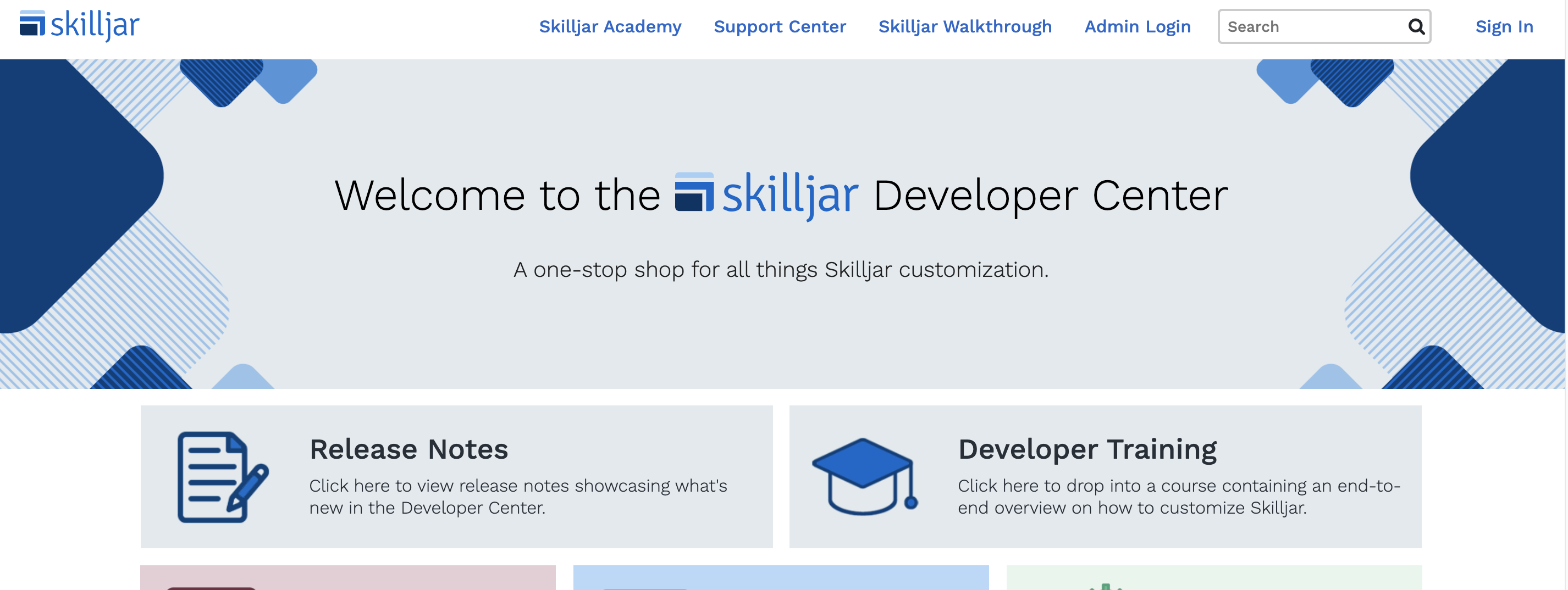
Find HTML theme templates and other developer resources on the [*Skilljar Developer Center*](https://developer.skilljar.com/).
If you don't have web development experience and would like an MVP theme to make your site look nice for your users - feel free to check out: [MVP Site Customization Options](/v1/docs/mvp-site-customization-options).
Read more about Skilljar page types and their different elements at [Customizing Your Training Site with CSS and Javascript: Element Targeting Overview](/v1/docs/customizing-training-site-css-javascript-element-targeting).
- **Note regarding language strings**: Many of the previous CSS Solutions used to change language strings throughout your site can now be edited from the Languages Tab within the Themeing section of your Skilljar Dashboard. For more information, see [Customizing Text and Translations on the Languages Tab](/v1/docs/customizing-text-and-translations-on-the-languages-page).
- **Note regarding custom header links:** If you would like to include custom header links to your global navigation bar (for example, see the [Skilljar Developer Center](https://developer.skilljar.com/) navigation below), please reach out to our Customer Success team, who can set this up for you or provide you with the code snippet.
## What are CSS and JavaScript?
CSS is a markup/coding language, much like HTML, which is used for editing the presentation of web pages and documents. It provides you with the flexibility to improve elements of your site, such as the layout, colors, fonts, and accessibility. JavaScript is a similar coding language, but instead gives web pages interactive elements that engage a user, such as search bars and videos.
## How to add custom CSS
To add custom CSS to your training site, go to your [Skilljar Dashboard](https://dashboard.skilljar.com/) and follow these steps:
1. Select the **Theming** drop-down on the left and then **Themes** to open the options page
2. Select the theme you would like to add custom CSS to open the options for that theme
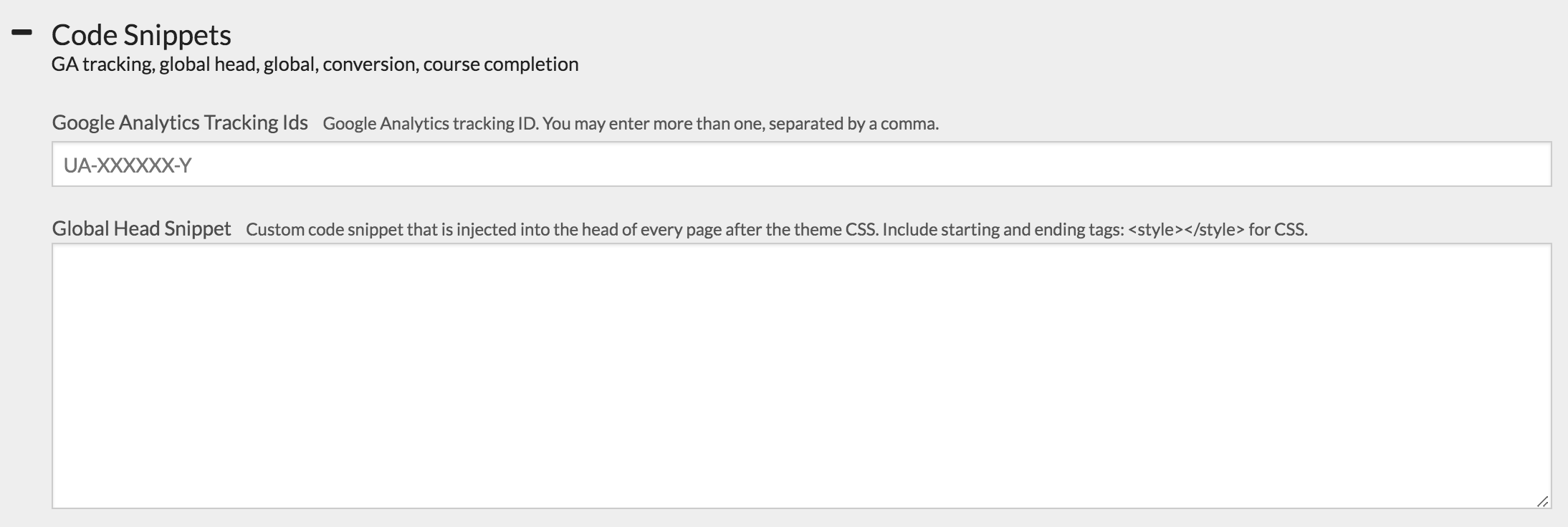
3. Scroll down to the **Code Snippets** section and expand by selecting the plus sign
4. Add your custom code into the **Global head snippet** field
5. Select **Save** to finish, or **Save and Continue Editing.**
## What you can update with custom CSS
- [Fonts](/v1/docs/add-custom-fonts-to-your-training-site-with-css)
- Colors
- Image and button sizes
- [Almost anything!](/v1/docs/customizing-training-site-css-javascript-element-targeting)
## Course Tile
### Hide title on course tiles
```plaintext
```
### Show course short description on course tiles
```plaintext
```
### Change bottom margin on promo image
```plaintext
```
### Hide promo image
```plaintext
```
## Tile Ribbons
On Catalog Pages, tile objects (including courses and paths) convey a student's state with the object via the Tile Ribbon. The Tile Ribbon looks like a small band of color with text across the top right of the tile. Available states and their corresponding CSS classes are as follows:
| **Status / Text** | **CSS Class** |
| --- | --- |
| Get Started | sj-ribbon-get-started |
| Registered | sj-ribbon-registered |
| Complete | sj-ribbon-complete |
| Passed | sj-ribbon-passed |
| Failed | sj-ribbon-failed |
In all of the following customization examples, you may substitute any CSS Class in the example with one of the available classes from the preceding table.
### Hide All Tile Ribbons
```plaintext
```
### Complete Ribbon - Change the word "Complete" to "Finished"
```plaintext
```
### Registered Ribbon - Change the word "Registered" to "Enrolled"
```plaintext
```
### Change Course Success Status message
```plaintext
```
### Change Ribbon Color
```plaintext
```
## Catalog Page
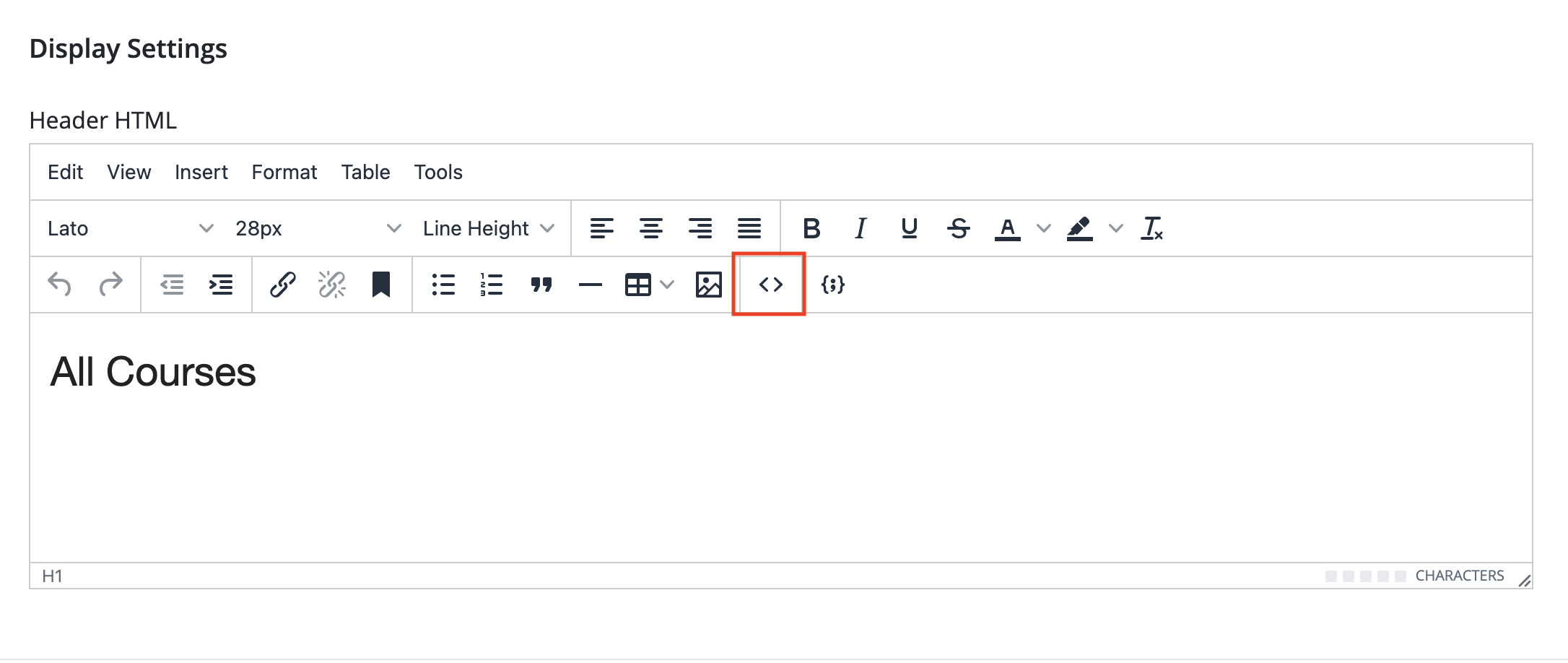
1. Add HTML code to the Catalog Header by navigating to [Domains and Publishing](https://dashboard.skilljar.com/publishing) and clicking "Catalog Settings"
2. When adding HTML code to the Catalog Header, enter it directly into the Source code:
### Add Buttons to Catalog Header

Style the button using additional classes: `tiny` or `large`
```plaintext
Button Label
```
### Change the background color of the catalog
```plaintext
```
### Change the course tiles to center on the page
```plaintext
```
### Change the course tiles to center on the page (when users not sign in)
```plaintext
```
### Change the Catalog Header to fit the full width of the page
```plaintext
```
### Change the shape of the Student Profile Avatar
```plaintext
```
### Add Banner with Links (2 parts below)

#### Add in Global Head Snippet:
```plaintext
```
#### In Catalog Settings, add this to the Catalog Header HTML:
```plaintext
```
- [Buy Classes](http://domain.com/)
- [Access Library](http://something.domain.com/)
- [Photography](http://something.domain.com/)
- [Pro Video](http://something.domain.com/)
### Override "Categories" from Catalog tags/filter menu
```plaintext
```
## Sign In & Sign Up Page
### Add a background image
```plaintext
```
### Auto-populate Custom Sign up Fields
This code is limited to the “domainCheck” object. If there is no email in the object, it will default to the 0th index on the picklist. To add more domains, use this format:
:
```plaintext
```
## Course Detail Page
### Suppress social media share buttons
```plaintext
```
### Remove Google or Facebook login
```plaintext
```
### Customize the prerequisite message course link color
```plaintext
```
### Customize the tooltip background color
```plaintext
```
### Customize the tooltip border radius
```plaintext
```
### Customize the tooltip text color
```plaintext
```
### Hide tooltip arrow
```plaintext
```
### Customize how Course & Lesson times are displayed
```plaintext
```
(This will remove the default parentheses on course and lesson times, make the time red, and add a dash between the lesson or course title and the time)
## Lesson Page
### Suppress the instructor led training registration button
```plaintext
```
### Change "Details" header on lesson pages
```plaintext
```
### Remove Vertical Scrolling from Text Lesson Container
```plaintext
```
### Collapse the Lesson Summary tab by default
```plaintext
```
### Hide the Next button on SCORM lesson types
```plaintext
```
## Course Series
### Override the "Back to Catalog" text in a Course Series
#backToCatalogLongText is the link on the top of the left navigation panel #backToCatalogShortText is the shorter link in the header when the left nav is not visible on a series page.
```plaintext
```
## Course Curriculum Page
### Hide the Course Progress Bar on the Curriculum Page
```plaintext
```
### Default Curriculum Page view to "About this course" tab (add to Global Code Snippet)
```plaintext
```
## Calendar
### Hide the Timezone on the Calendar page
```plaintext
FAQ
```
Does Skilljar support linking to external source code in an IDE or web hosted server?
Yes, Skilljar supports copy/pasting of the source code or linking externally to an IDE or publicly accessible server.
Skilljar doesn't care where the file is hosted as long as it links to proper CSS and JS files with proper access to the file. We do have customers linking out to external source code today and is a commonly supported use case to manage code structure and code changes.
## Additional Resources
- For linking external JS: [https://www.w3schools.com/tags/att_script_src.asp](https://www.w3schools.com/tags/att_script_src.asp)
- For linking external CSS: [https://www.w3schools.com/css/css_howto.asp](https://www.w3schools.com/css/css_howto.asp)
- HTML theme templates and other developer resources [https://developer.skilljar.com/](https://developer.skilljar.com/)