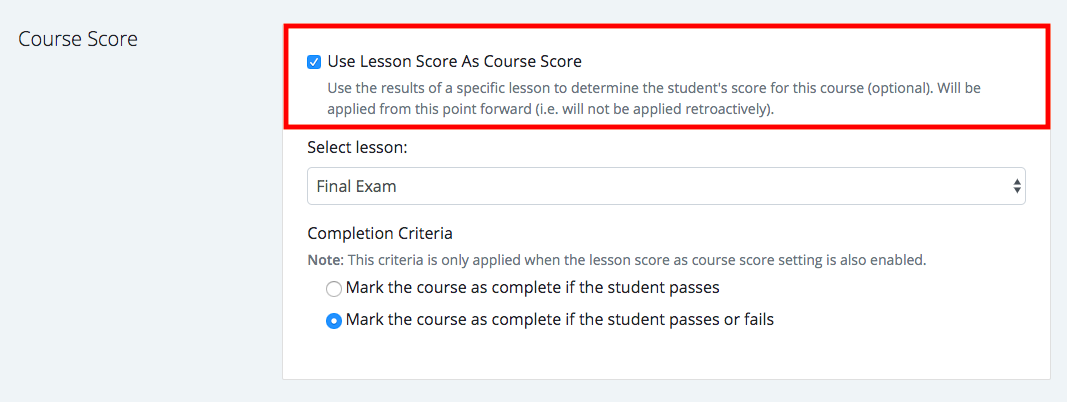
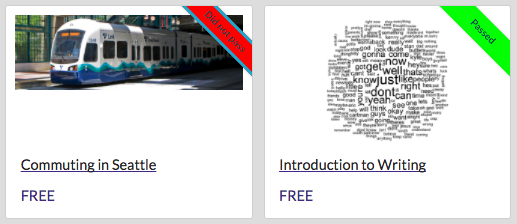
--- title: "Customize Course Tile Ribbons using CSS" slug: "customize-course-tile-ribbons-using-css" updated: 2026-11-23T12:33:17Z published: 2026-11-23T12:33:17Z canonical: "support.gainsight.com/customize-course-tile-ribbons-using-css" --- > ## Documentation Index > Fetch the complete documentation index at: https://support.gainsight.com/llms.txt > Use this file to discover all available pages before exploring further. # Customize Course Tile Ribbons using CSS IMPORTANT **The functionality described in this article is not applicable to the Skilljar Starter package.** You can customize the text displayed on course tile ribbons on the Catalog page. The text displayed on the course tile ribbon is determined by the student's status in the course (Registered, Completed, Passed, or Failed). By default, the course tile ribbons will display as "Registered" or "Complete". ![Skilljar interface screenshot](https://cdn.us.document360.io/8e136619-829c-49c5-afb1-72de86f13288/Images/Documentation/Screen_Shot_2017-10-30_at_1.40.13_PM.png?sv=2026-02-06&spr=https&st=2026-11-24T17%3A23%3A34Z&se=2026-11-24T18%3A23%3A34Z&sr=b&sp=r&sig=ZuE%2FRnNwAD%2B5JtbwubIea1omf1lKlXSjwt8Rq4BOMGQ%3D) The following snippets are examples of how you can leverage this, and can be entered into the Global Head Snippet of your domain's Theming: ## Catalog Course Tile CSS Examples ### Change Course Registration/Completion message ![Screenshot showing Change Course Registration/Completion message](https://cdn.us.document360.io/8e136619-829c-49c5-afb1-72de86f13288/Images/Documentation/Screen_Shot_2017-10-30_at_1.41.50_PM.png?sv=2026-02-06&spr=https&st=2026-11-24T17%3A23%3A34Z&se=2026-11-24T18%3A23%3A34Z&sr=b&sp=r&sig=Y9eP3anjjOerBAaAHquQ1rZmqg%2BXCRrZiAQbV4QaL%2BU%3D) ```plaintext ``` ### Change Course Success Status message ![Screenshot showing Change Course Success Status message](https://cdn.us.document360.io/8e136619-829c-49c5-afb1-72de86f13288/Images/Documentation/Screen_Shot_2017-10-30_at_1.59.27_PM.png?sv=2026-02-06&spr=https&st=2026-11-24T17%3A23%3A34Z&se=2026-11-24T18%3A23%3A34Z&sr=b&sp=r&sig=pztQy7ZR%2BkNAzHT6kCRKH04L8zELcIu9GSNjbagzsiU%3D) that in order to see these changes, the course must have the "Use lesson score as course score" option checked on the course level settings: ![Screenshot showing Change Course Success Status message](https://cdn.us.document360.io/8e136619-829c-49c5-afb1-72de86f13288/Images/Documentation/Screen_Shot_2019-04-26_at_1.47.55_PM.png?sv=2026-02-06&spr=https&st=2026-11-24T17%3A23%3A34Z&se=2026-11-24T18%3A23%3A34Z&sr=b&sp=r&sig=b1spDG7V7nE1PJkf7C%2Fp7R0%2FonYmJ6hC0f005GUUukw%3D) ### Change Course Success Status Ribbon color ![Screenshot showing Change Course Success Status Ribbon color](https://cdn.us.document360.io/8e136619-829c-49c5-afb1-72de86f13288/Images/Documentation/Screen_Shot_2017-10-30_at_2.00.05_PM.png?sv=2026-02-06&spr=https&st=2026-11-24T17%3A23%3A34Z&se=2026-11-24T18%3A23%3A34Z&sr=b&sp=r&sig=82jnn3gkS0zoKEmhxxUlLYWAqjkIweCj04sNnQe3IfQ%3D) ```plaintext ```