---
title: "Add custom fonts to your training site with CSS"
slug: "add-custom-fonts-to-your-training-site-with-css"
updated: 2026-11-23T12:33:17Z
published: 2026-11-23T12:33:17Z
canonical: "support.gainsight.com/add-custom-fonts-to-your-training-site-with-css"
---
> ## Documentation Index
> Fetch the complete documentation index at: https://support.gainsight.com/llms.txt
> Use this file to discover all available pages before exploring further.
# Add custom fonts to your training site with CSS
IMPORTANT
**The functionality described in this article is not applicable to the Skilljar Starter package.**
Add custom fonts to your training site by adding custom CSS. To add custom font(s), locate or generate a URL for the font file (such as from Google and Adobe), identify the specific elements in your training site, and add a code block in the "Global Head Snippet" to load the font and apply the changes.
## Locate or generate a URL for the font file through a service such as Google Fonts or Adobe Typekit.
## Google Fonts
[Google Fonts](https://fonts.google.com/) provides access to over 900 open licensed fonts. To find a font and retrieve the font-specific code block:
1. Choose the font(s) or font families you'd like to use in your training site.
2. Select the plus (**+**) sign on the font(s) you'd like to add.
3. Once you have selected your font(s), select the tab at the bottom of the browser window.
4. Select the @**IMPORT** tab.
5. Copy the code in between the
```
## Add a code block in the Global Head Snippet to load the font and apply the changes to the desired elements of your training site.
1. Combine your code snippets into the final code snippet (see "Example Code Snippet" below).
2. From the "Theming" dropdown in the Dashboard left navigation bar, select "[**Themes**](https://dashboard.skilljar.com/themes/)."
3. Select the name of the theme you want to add the custom CSS.
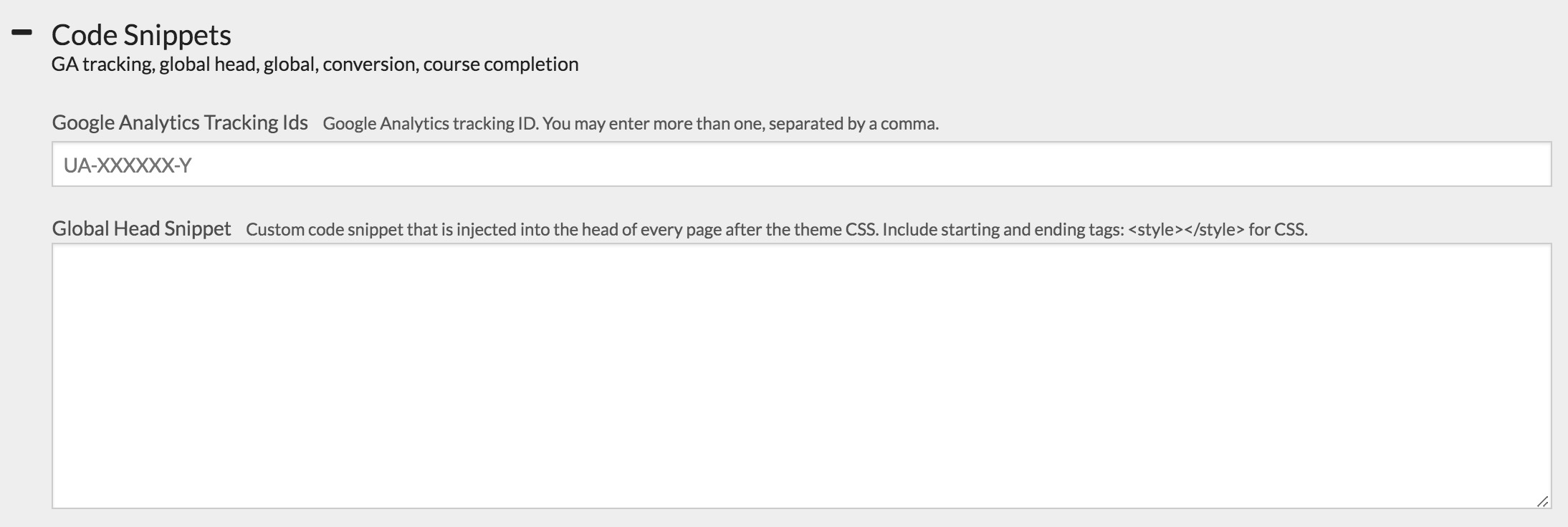
4. Scroll down to the "Code Snippets" section and expand by selecting the plus (**+**) sign.
5. Input your custom code into the "Global Head Snippet" field.
6. Select **Save** or **Save and Continue Editing**.
```plaintext
/*Adding custom fonts to different elements of your training site */
```
## Frequently asked questions
**What standard fonts are available to use on a training domain?**
Andale Mono, Arial, Arial Black, Book Antiqua, Courier New, Georgia, Helvetica, Lato, Open Sans, Tahoma, Times New Roman, Trebuchet MS, and Verdana.
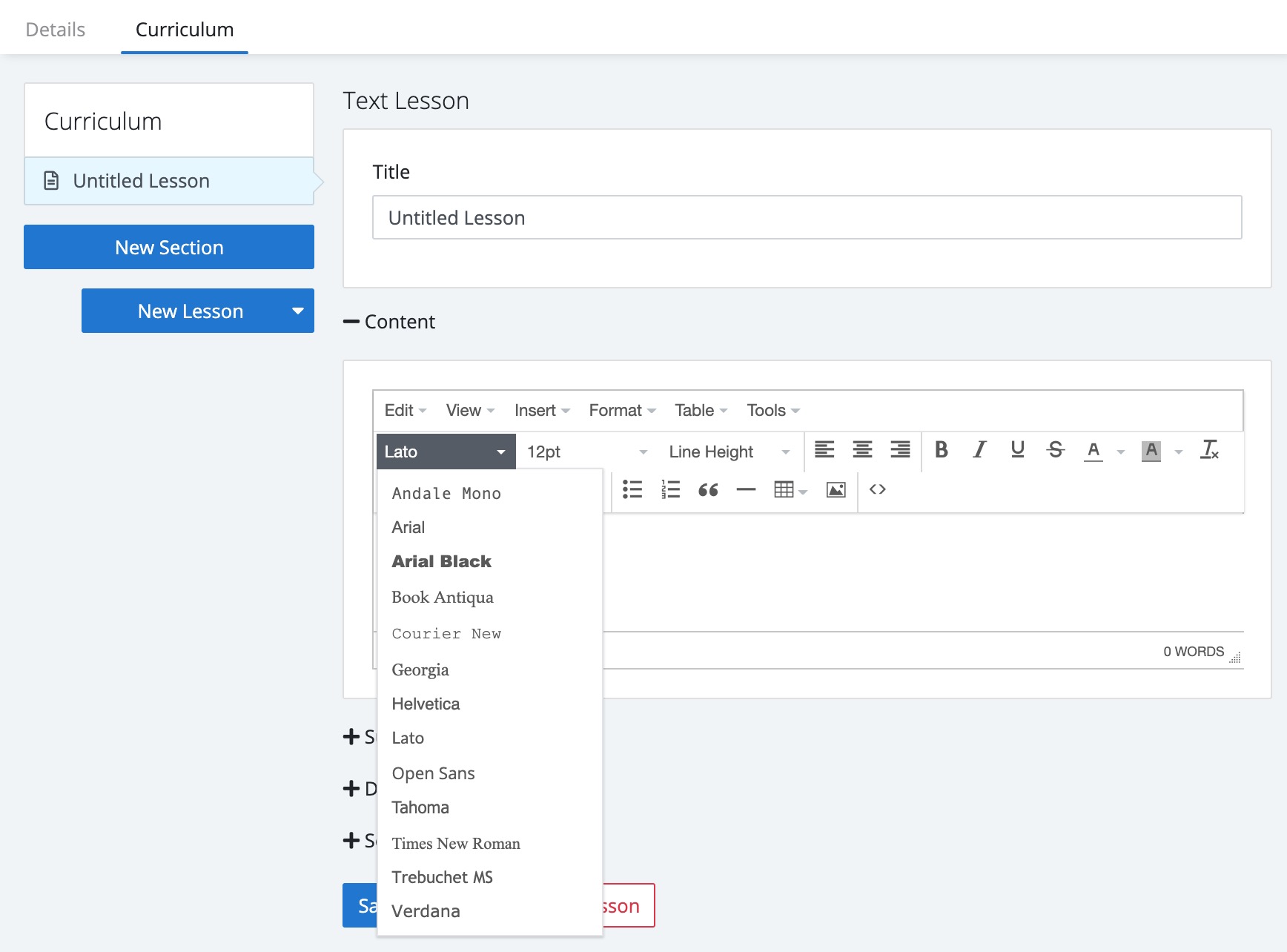
**Will custom fonts appear in the font menu of the HTML text editor in the Dashboard?**
No. Custom fonts will not appear within any of the text editors on the Dashboard. However, they will be rendered when viewed from the training site.
### Additional Resources:
- [Customizing your Site: CSS and Javascript - Element Targeting Overview](/v1/docs/customizing-training-site-css-javascript-element-targeting)
- [Customizing Your Training Site with CSS and JavaScript](/v1/docs/customizing-your-training-site-with-css-and-javascript)