
Q3 2026 Release Notes for Customer Communities (CC)
Release Date: October 14, 2026
Announcement
Forethought AI Agent for Enhanced Community Search [GA]
Forethought AI Agent is now generally available in Gainsight Community. Admins can enable the Forethought AI Agent as an enhanced alternative to AI Answers in Community search. The agent provides a conversational search experience with follow-up questions, multi-turn chat, support ticket escalation, and connections to external data sources. While AI Answers provides a single summary response, the Forethought AI Agent extends this with follow-up and escalation capabilities.
For more information on Forethought AI Agent, refer to the Forethought AI Agent in Customer Communities article.
Enhancement
Manage Content and Ideas with CC MCP Write Tools
The CC MCP is enhanced to include write tools that let you create content, manage ideas, and moderate your community from your preferred AI tool.
This enhancement builds on the existing search and analysis capabilities, allowing you to retrieve information and take action within the same conversation.
Write tools are only available to Admins, Community Managers and Moderators. Regular community members can only use MCP read tools.
To see the new tools, Claude users refresh the tool list or reconnect the CC MCP connection. The following tools have been added to the CC MCP:
Content Management Tools
- Create articles, conversations, questions, and product updates, and publish drafts of articles and product updates.
- Edit titles and content, reply as yourself, close topics for new replies.
- Assign or unassign a moderator.
Idea Management Tools
- Submit new ideas, edit titles, content, statuses, and product areas, and close ideas.
- Reply to ideas, vote or unvote as yourself, manage tags.
- Assign or unassign moderators, and merge the votes from one idea into another.
Merging votes cannot be undone and requires confirmation before it runs.
For the full list of AI tools, refer to the Use CC MCP Write Tools article.
Release Date: October 7, 2026
Enhancement
Export Total Gamification Points for Each User
The User export includes a new total_gamification_points field that shows the cumulative number of gamification points each user has earned in the community. With this value in the export file, you can review member engagement along with the other user details in a single place.
For more information, refer to the User & Activity Exports in Exports v2 User, Logins, and Moderation article
Release Date: September 25, 2026
Enhancements
Configure Multiple SSO Methods for End Users
Gainsight has enhanced the End User SSO configuration. Admins can now configure more than one single sign-on authentication (SSO) method of the same protocol type, for example, two separate OpenID Connect connections.
With this enhancement, admins can set up distinct sign-in paths, for example, separate methods for employees, customers, and partners, even when those methods share the same protocol.

For more information on configuration, refer to the Configure Multiple SSO Methods of the Same Protocol article.
Protect Your Community with Automatic Image Moderation
Gainsight automatically checks every image a member uploads to a community before it goes live. Images identified as harmful never appear in the community, and images that pass the check publish exactly as they do today, so members and moderators see no change to the upload experience.
What’s New
- Every image upload is checked automatically before it goes live.
- Images identified as harmful never appear in the community.
- Images that pass the check publish exactly as they do today, with no change to the upload experience for members or moderators.
- No configuration is required. Admins and moderators do not need to turn on a setting, configure a threshold, or review a results screen; every upload is checked automatically.
Release Date: September 24, 2026
New Features
Build and Preview Community Widgets Locally with the Developer Studio CLI
The Developer Studio CLI creates the starting file structure for new community widgets directly from the terminal. It pairs a local development environment with the live community instance. This setup lets developers build and preview widgets and connectors in full context, with the same design tokens and behavior they carry in production.
Use it to streamline your development workflow, whether you test manually or delegate it to an AI agent.
With the Developer Studio CLI, developers can:
- Create the initial file structure for a new widget directly from the terminal using a single command.
- Preview widgets locally using styling from the community settings, including instant refresh whenever a change is saved.
- Run and test connectors locally, checking authentication, response data, and errors before deployment.
Developer Studio also includes the following enhancements, which do not require the CLI:
- Reference a community variable in a connector host name, so a single connector definition can point to different environments, such as a staging Salesforce sandbox and a production instance, without maintaining separate connector configurations.
- Create and add scripts and stylesheets, either applied to your whole instance globally or scoped to selected pages, so you can customize your community while keeping it performant.
For more information on the CLI, refer to the Developer Portal documentation.
Assign Community Roles Automatically from CS Data
Community role assignment now extends bidirectional sync between Gainsight CS and CC. Admins can define rules that assign an existing Community role to members whose CS data matches a set of conditions, rather than assigning roles manually.
Key Capabilities
- Build a rule using conditions, each based on a Person, Company, or Company Person object and attribute. For example, NPS Score greater than nine.
- Click Add to assign the role alongside a member's existing roles, or Override to replace one existing role with the new one.
- Apply a rule to any number of matching members at once. This is useful for larger communities where many members meet the same criteria.
- Select Run now to apply a rule immediately, or Rules run automatically on the same four-hour cycle used for profile field syncing.
By default, every user is assigned a full access level.
Limitations:
- Supported field types in rule conditions: Text, Number, Date, Date & Time, True/False, Email, Currency, and Percentage.
- Unsupported field types in rule conditions: Picklist, Multi-Select Dropdown List, Rich Text Area, URL, Lookup, Who Id, and What Id, including these types on the Person, Company, and Company Person objects.
- Supported role types in rule assignment: Custom Role only. Primary Role is not supported when configuring a rule.
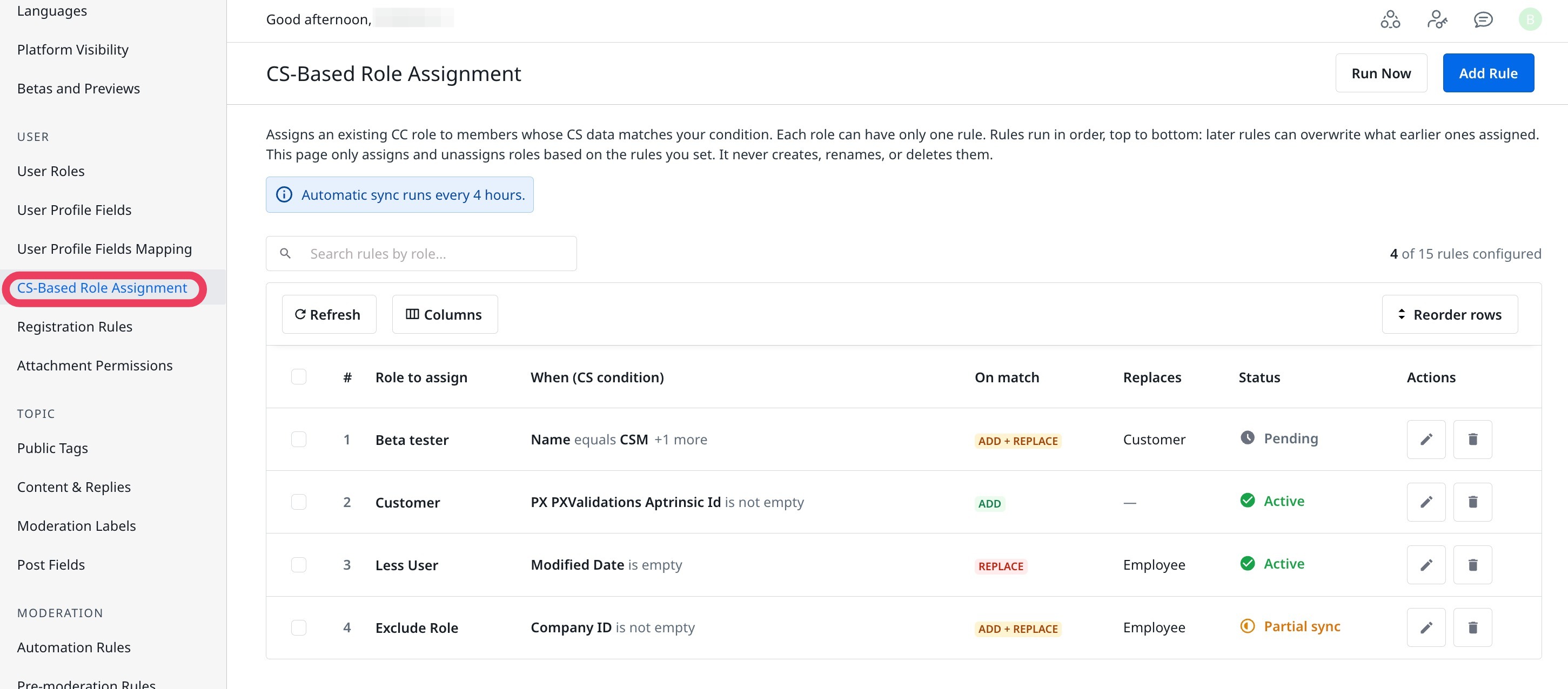
For more information, refer to the Configure CS-Based Role Assignment article.
Enhancements
Map Community Profile Fields to CS Data in Fewer Steps
Gainsight has enhanced the User Profile Fields Mapping page. Admins can now first select the Community user profile field, and then narrow down the Gainsight CS source data to map.
What's New
- Admins select a CC User Profile Field, then a CS Category (System objects, Standard, or Custom Object) to narrow the list of available CS objects.
- Admins select the specific CS Object and CS Attribute that populate the field.
- Mapped fields sync automatically every four hours, or click Sync all to refresh every mapping immediately. If a sync is already queued or running, Gainsight prioritizes the existing run instead of starting a duplicate.
- Fields added to this mapping list receive CS data, while every other Community profile field remains manually editable.
- Objects become available for mapping only when linked to the community user, either directly as a Person, Company, or Company Person object, or through a lookup to one of them, and when they include a Last-Modified field, ModifiedDate, or GsModifiedDate.

For more information, refer to the Configure User Profile Field Mapping article.
Customize Content Types Counted in the Self-Service Score
The Self-Service Score compares visitors who viewed help content to those who opened a Zendesk ticket. The Content Type filter controls which content types count toward that score, and includes more options for communities to choose from.
What's New
- The Content Type filter offers six content types, with Article, Conversation (also known as Discussion), Answered question, and Product Update selected by default, and Idea available as opt-in additions.
- The remember modifications (save) feature keeps each community's chosen content types in place after an admin sets them.
- The Groups filter aligns the Self-Service dashboard with the Content dashboard, which already separates Published in from Groups.
This release makes Product Update a default selection, which changes existing Self-Service Scores. Admins can adjust the Content Type filter to exclude Product Update and restore the previous score definition.
For more information, refer to the Self-Service Dashboard article.
Translate Category Titles Across All Enabled Languages
Community admins can generate AI-powered translations for category titles directly from category settings, so members see category names in their own language even when a community uses one shared set of categories instead of separate categories per language. A Translate button below each category title shows how many of the community's enabled languages are still missing a translation, and a single click applies automatic translations across all of them.
Each translated title opens in an editable dropdown, so admins can adjust wording for a specific language, save it as is, or retranslate it later if needed. Translations are saved as reusable phrases, the same mechanism that powers general UI translation, so the localized title also appears anywhere the category name is referenced, including breadcrumbs.
Key Considerations
Keep the following in mind before relying on this capability:
- This capability applies only when language-specific categories are disabled, meaning the community uses one shared set of categories across all languages.
- AI translation is available only for enabled, published languages.
- If a language-specific category already exists for a language, its title is not affected by these automatic translations.

For more information, refer to the Configure Category Localization for Multi-Language Communities article.
Read Community User Data in the Browser with the Web SDK
The Community Web SDK can now return the current viewer and look up community members directly from browser code. Widgets, scripts, and stylesheets that need to know who is viewing a page, or need details about other members, no longer require an API connector or a workaround built on custom data objects.
What's New
- Personalize a widget for the person viewing it, using identity, primary role, rank, badges, groups, activity counts, and join or last-visit dates.
- Read a viewer's custom profile field values directly in the frontend, without routing the request through a connector.
- Look up individual members or fetch multiple members in a single batched request.
- List, filter, sort, and paginate the member directory, with ready-made shortcuts for common queries such as role or recent activity.
- Handle signed-out visitors predictably, since the viewer lookup always resolves to a guest projection rather than an empty result.
For more information, refer to the User Context documentation in the Developer Portal.
Release Date: September 17, 2026
Enhancements
Expand Category Depth Up to Five Levels in Community and Knowledge Base
The Community and Knowledge Base section structures are enhanced to support up to five nesting levels.
Without disrupting existing structures or requiring any reconfiguration, admins can build content hierarchies that reflect how their products are actually organized, from broad product lines down to specific features.
Five levels is the supported depth out of the box. Deeper hierarchies can be configured, but out-of-the-box navigation and display behavior may break beyond five levels. Gainsight recommends capping structures at three levels, or four at most.
What's New
- Build up to five levels of Sections and Categories in both Community and Knowledge Base modules out of the box.
- Nest a Section inside an existing Section to extend depth; the behavior of Sections and Categories is unchanged at any level.
- The mega menu displays recursive flyouts up to five levels, scaling automatically with the deeper structure.
- The full content path appears in breadcrumbs, the sidebar tree, and section overview pages as members navigate deeper hierarchies.

For more information on configuration setup, refer to the Configure Community Section article.
Release Date: September 01, 2026
Enhancements
Export And Import Phrases in Bulk
The Phrases page is enhanced to support bulk export of language phrases, letting community managers move translation data in and out of Gainsight CC using a standard CSV file. You can export phrases for a single language or across all configured languages at once, edit the translations externally, and import the updated file back into the community.
What’s New
- Export by Language: Select a language from the language dropdown list on the Phrases Overview page and click Export to download a CSV file containing the phrases for that language.
- Export All Languages: Click the dropdown arrow next to Export and select Export all languages to download a single CSV containing phrases across all configured languages.
- CSV Format: The exported file uses four columns: module, key, phrase, and language, making it straightforward to edit translations in any spreadsheet application and re-import the file.
- Import With Review: Click Import on the Phrases Overview page to upload a CSV file. Before changes are applied, the Review Import dialog box displays a summary showing the number of phrases processed, updated, and ignored.

For more information on how to export phrases, refer to the How to Export and Import Phrases article.
Release Date: August 19, 2026
New Features
View Moderation Activity in the New Moderation Dashboard
The Moderation Dashboard gives community managers a dedicated view of moderation activity across their community, covering both human moderator actions and decisions made by the AI Moderation Agent.
The AI Moderation Agent must be enabled to see AI outcome data on the dashboard. For more information on the Moderation AI Agent, refer to the How to Use the Moderation AI Agent article.
The dashboard surfaces two distinct sets of data:
- AI Moderation Agent: Outcome decisions the AI agent made within your selected date range:
- Moderated: The total content processed by the agent.
- Approved: The content approved for publication.
- Trashed: The content moved to trash.
- Pending: The content still awaiting a decision.
- All-Time Moderation Totals: The cumulative counts since your community launched, across all moderators (human and AI). These figures are not affected by the date range filter.

For more information on the Dashboard, refer to the Moderation Dashboard article.
Improve Content Discoverability with AI-Assisted Tagging
Gainsight introduces Tag Assist, an AI-powered capability that recommends relevant tags as community members create posts. This reduces the effort required to tag content accurately and helps maintain a consistent tag taxonomy.
When a member creates a post, Tag Assist analyzes the content and surfaces tag suggestions inline. Members can accept the recommended tags or continue adding their own.
Key Highlights
- Tag suggestions appear automatically as members draft posts, based on the content they enter.
- Suggestions draw from your community's existing tag library.
- Members retain full control. Suggested tags can be accepted, ignored, or replaced.

For more information on AI tags, refer to the Enable and Use AI Tags article.
Release Date: August 12, 2026
Enhancements
Export Personal Data Directly from Your Community Profile
Community members can export all personal data held in their community account directly from their profile page.
The Download My Data button compiles a complete data package and delivers it to the member, fulfilling the right to data portability under GDPR Article 20.
When a member triggers the export, the data package is created with the following:
- Profile information
- Posts and contributions
- Private messages
- Attachments
To download the data from Destination:
- Click your profile picture.
- Click Settings. The Settings page appears
- Select the General tab.
- Click Download My Data. The members' data package is downloaded.

For more information on how to download data, refer to the Manage Your Profile and Account Settings article.